
Get a Calendar in the Mac OS X Menu Bar with Day-O, a Date & Time Replacement
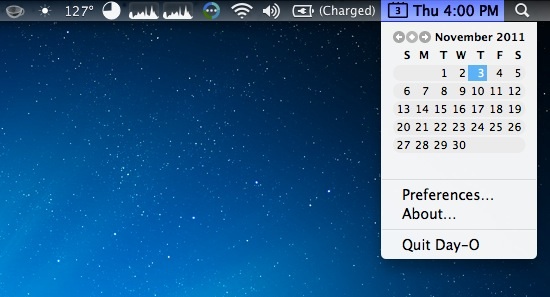
One of my longstanding peeves with Mac OS X is the lack of a pull-down calendar in the menubars default Date & Time settings. If you click on the time, instead of seeing something useful like a calendar or more date/time details, you just have options to set an analog clock or open Preferences. I’ll stop complaining, because now a little app called Day-O solves that problem. Day-O offers an attractive and functional replacement to OS X’s Date & Time, plus it’s free to download.
For best results (as in, not having two clocks), I’d recommend disabling the default clock and just using Day-O, here’s how to do that:
- Open “System Preferences” from the Apple menu
- Choose “Date & Time” under the ‘System’ group
- Click on the “Clock” tab and uncheck the box next to “Show date and time in menu bar”
Now you won’t need to open up iCal every time you just want to see what day of the week a certain falls on. And yes, you can disable the little miniature date icon too.
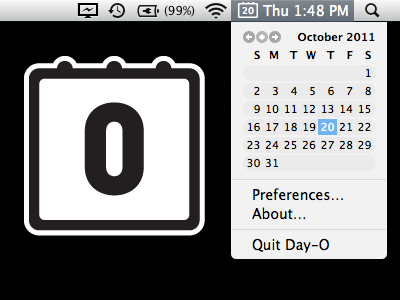
Random trivia: the app is named after a Harry Belefonte song. Nice find by DaringFireball
Update: The app is still free to download but the developer stopped the direct download link. Go to the website and you can still get it for free. Sorry for the inconvenience, we reached out to the dev and are waiting to hear back.






MagiCal is simple and versatile menubar calendar free app.
Same here. I got fed up with the necessity to open the Calendar and wait for a few seconds just in order to see the days of the month.
i have tried this, Calendar Qbits and Fantastical.
Fantatsical is by far the best! Just allow its entry in keychain, if needed.
How is your menu bar transparent with white icons?? Please tell
Does it work with snow leopard?
Why no App Store link?
The download link doesn’t work! It’s not free anymore??
Day-O is still free, but you need to click the link from the developers site now to download it.
Thanks Dr. Death.
I use Calendar (http://qbix.com/calendar) and it gets the job done.
I’ve never cared about a pull-down calendar. I don’t see an added value of an additional pull-down calendar if there’s already a calendar in Dashboard. The calendar in Dashboard is even quicker to access than a pull-down calendar, as Dashboard can be accessed with a simple gesture.
What I don’t understand is why Apple doesn’t include the number of the week in their calendars.
Hey, but I see you are running iStats, it does that already and more. I even bought it. Yes it’s that good in my opinion.
Useful app!! Thanks!!
If you start the date and time format with H you can get a 24 hour clock. But….how can I get the day of week to show?
EE dd. MMM HH:mm –> Fr. 04. Nov 13:04
The ‘EE’ format (or ‘EEE’) is that what are you looking for.
[…] via OSXDaily […]
In Lion, Dashboard doesn’t keep the desktop visible. Is there a way to change that? If so, I’d use the calendar widget for this purpose.
Like the developer, I previously used MenuCalendarClock. So I’ll give Day-O a shot. Thanks.
meli, you can disable the Dashboard “show as a space” feature in Lion which makes it hover over everything, it’s in the System Preferences for Mission Control.
https://osxdaily.com/2011/08/16/set-dashboard-hover-out-of-mission-control-mac-os-x-lion/
wallpaper of the first image?
It’s from either of these two recent posts. I have a bunch of Spaces and can’t recall precisely which I was at when I took the screenshot, the top half looks similar as you’ll notice:
https://osxdaily.com/2011/10/30/night-sky-star-field-wallpaper/
https://osxdaily.com/2011/10/20/6-beautiful-aurora-wallpapers/
I simply use Dashboard as my quick calendar. :) One mouse/keyboard press.
If you open date and time preferences you end up with a Calendar that is visible, but that is one additional click. I see you are impatient.
I don’t think that he’s (or most of us for that matter) are impatient because we want an accessible calendar right off our desktop. A user shouldn’t have to navigate to any “System Preferences” or similar spot to check a date and is a great enhancement to the OS X UI.
Mac user for 17 year – I finally lost my patience today and looked for this, and found it. Bless your heart – I could not live without it another day :)