
Mount a DMG from the Command Line in Mac OS X
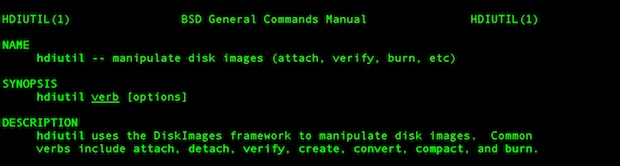
A helpful command line tool called hdiutil is included in Mac OS X that allows disk image files (.dmg extension) to be mounted directly from the Terminal, without the need of using the GUI. Using hdiutil for such a task is helpful for scripting or remote connections through SSH.
Mounting a Disk Image File (DMG) from the Terminal
From the command line use the following syntax to mount the image:
hdiutil attach /path/to/diskimage.dmg
When the .dmg is mounted, a message will display something like this:
/dev/disk1          	Apple_partition_scheme

/dev/disk1s1        	Apple_partition_map

/dev/disk1s2        	Apple_HFS   	/Volumes/Mounted Disk Image
Take note of the last entry with the name of the just mounted disk image, you will use the first part of this line to unmount the disk (/dev/disk1s2).
Unmounting a DMG from the Terminal
Recalling that the device name of the mounted image, use the following syntax to unmount the dmg:
hdiutil detach /dev/disk1s2
If you missed the device location earlier, you can retrieve information on all mounted drives and images by using:
hdiutil info
Locate the name of the mounted image and note the /dev/disk entry alongside of it.
The hdiutil tool works to mount .iso and other image files as well as being able to convert them to other disk image formats.






Didn’t work for me or its stuck during loading the dmg.
i got:
Calculate check digit from ‘Driver Descriptor Map(DDM: 0)’…
Driver Descriptor Map(DDM: 0): Checkt: CRC32 $D4486F72
Calculate check digit from ‘Apple(Apple_partition_map: 1)’…
Apple(Apple_partition_map: 1): Checkt: CRC32 $B3513062
Calculate check digit from ‘disk image(Apple_HFS: 2)’…
…..
This doesn’t work on Mojave. :'( They’ve removed the attach functionality from hidutil.
$ hidutil attach
ERROR!!! Unknown command attach
$ hidutil
Usage:
hidutil [command]
Available commands:
dump
property
list
Use “hidutil [command] –help” for more information about a command.
Check your command partner, its hdiutil not hidutil
Sorry I never got around to adding attach functionality to hidutil.
hdiutil pretty useful in scripts.
it say no mountable file system
Argh. Okay the lines again:
Terminal’s location
Name of computer/Name of drive/User/My username
Command line:
#hdiutil attach /Documents/name of subfolder/name of file.dmg
Sorry about that.
This is probably obvious, but I can’t figure it out.
It keeps saying “attach failed – No such file or directory”.
It looks like Terminal is operating from my User directory. When I command-click the window bar, it says:
//User/
Since the dmg is in a subfolder of my Documents folder, I input
#hdiutil attach /Documents//.dmg
And that’s when I get the error.
Is there any way to get Sierra to let me open whatever DMGs I want? I’ve already got Security and Privacy set to “Anywhere”, and I’m not an idiot. But I’m getting really tired of fighting to install Mozilla apps.
Thank you.
The user directory must be specified either as a full path, or shortcutted with the ~ tilde
So if your dmg file, let’s call it “example.dmg” is in the user Documents folder, the command would like like so:
hdiutil attach ~/Documents/example.dmgAs for an easier way to mount a disk image, you should be able to mount one directly within the Finder simply by double-clicking it, it should not require the command line at all.
Anyway, hope that helps!
I have use Mac 10.9 and your command success to mount and umount my dmg file. Thank you
Apparently, as of OS X 10.9.5, you can unmount using the path to the volume. E.g.:
hdiutil detach /Volumes/Mounted\ Disk\ Image
…or instead of bothering with hdiutil, you could also just type the easier-to-remember “open /path/to/diskimage.dmg”.
There’s no such shortcut for unmounting though.
its says no file or directory
This should work np
#mount the DMG
MOUNT_POINT=$(hdiutil attach -noautoopen “/DMGName.dmg” | egrep ‘Volumes’ | grep -o “/Volumes/.*”)
#umount
#hdiutil detach “$MOUNT_POINT”
Sorry uncomment out: #hdiutil detach “$MOUNT_POINT”
The commands should read:
#mount the DMG
MOUNT_POINT=$(hdiutil attach -noautoopen “/DMGName.dmg” | egrep ‘Volumes’ | grep -o “/Volumes/.*”)
#umount
hdiutil detach “$MOUNT_POINT”
good tip
Re unmounting. “hdiutil info” under 10.6.8 does not give me the /dev/diskname/. However, the “df” command does