
Enable Screen Zoom in Mac OS X

Screen zoom is a useful feature of Mac OS X that zooms into the screen where ever the cursor is located, making it easier to see parts of the screen, examine pixels, read small fonts, and perform other functions with greater visual clarity. The zoom feature was enabled by default in some earlier versions of Mac OS X whenever the control key was held down, but in modern versions of Mac OS X, the screen zoom feature has been turned off by default, and is now a feature of Accessibility settings.
The Screen Zoom feature is an accessibility feature aimed at making it easier to read certain screen elements. Accessibility is sometimes called Universal Access, depending on the version of Mac OS X on the computer. We’ll show you how to enable the Screen Zoom option on any Mac with any version of OS X System Software.
How to Enable Screen Zoom in Mac OS X (El Capitan, Yosemite, Mavericks)
- Open ‘System Preferences’ from the Apple menu
- Click on “Accessibility” and then click on the “Zoom” section
- Check the boxes next to Zoom for the type and modes of screen zoom you would like to enable
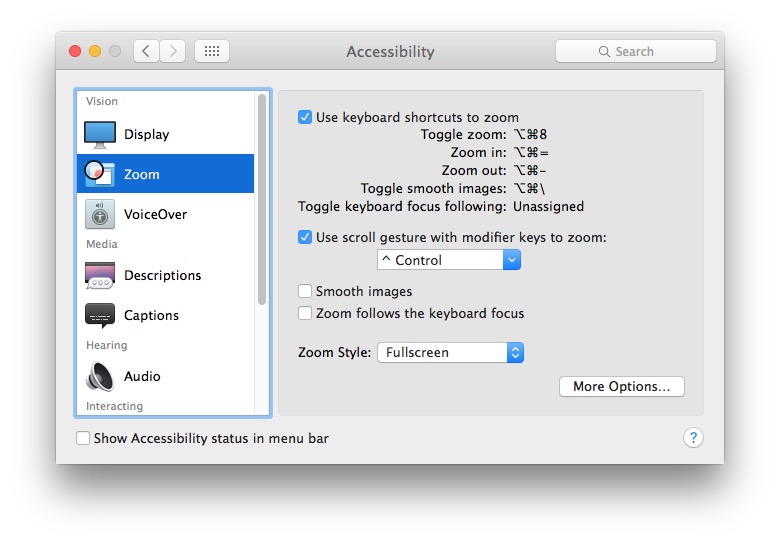
Older versions of Mac OS system software also support screen zoom modes. Here is how to enable it in Lion and Mountain Lion:
Enabling Screen Zoom in Mac OS X (Lion, Mountain Lion)
- Open System Preferences from the Apple menu
- Click on “Universal Access” and then click on the “Seeing” tab
- Check the box under “Zoom” to “ON”
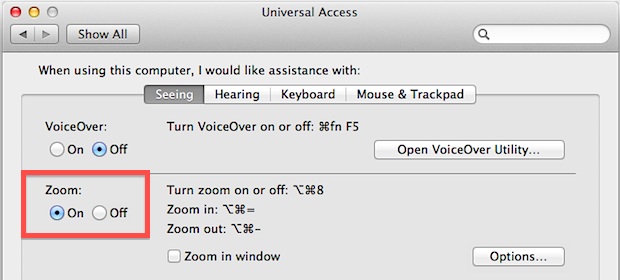
Now with Screen Zoom turned on, the feature can be accessed with either the trackpad, mouse, or keyboard:
Zoom with Trackpad or Mouse
For trackpads, scrolling is achieved with two fingers gesturing up or down, with a mouse it’s simply the scrollwheel in either direction, with both you need to hold down the Control key to access.
- Control+Scroll Up to zoom in
- Control+Scroll Down to zoom out
Zoom Screen with Keyboard Shortcuts
New to Screen Zoom in modern versions of OS X are optional keyboard shortcuts to zoom in and out:
- Command+Option+= to zoom in
- Command+Option+- to zoom out
Just like other versions of Mac OS X, you can still toggle anti-aliasing on and off within the Zoom feature by hitting Command+Option+/.
Remember, screen zoom is enabled by default in earlier versions of Mac OS X, just hold down the Control button and zoom with the mouse wheel or trackpad, just like it works in modern versions of Mac OS once it has been enabled.






can still zoom into webpages by using the traditional keyboard shortcuts, and you can still use the two-finger screen zoom as well, which is activated with a scrolling motion and hot
[…] can still zoom into webpages by using the traditional keyboard shortcuts, and you can still use the two-finger screen zoom as well, which is activated with a scrolling motion and hot […]
Thanks so much! Very helpful! I was frustrated I couldn’t use the zoom feature like I had on my old mac. Now it works great!
when I enable it, it zooms in automatically and I can’t either zoom in or out. already tried pressing control or cmd + scroll. can someone help me?
[…] zoom features are somewhat independent of the slideshow and must be enabled in order to work, this is very easy in OS X Mountain Lion since it can be activated with a keyboard […]
[…] settings list includes enabling zoom from keyboard or scrolling, enabling and disabling VoiceOver, toggles for sticky keys, slow keys, […]
For some reason this is not working on my MBP running Lion. Even with the zoom set to on, holding down ctrl whilst 2 finger track pad scrolling does nothing. (But checking the zoom in window box works)
However regardless of having zoom set to on or off using CMD+= or CMD+- still seems to zoom the screen as it has always done
Go to System Preferences
Click Universal Access
Click Zoom; On
Then on the right click Options
Set max zoom to 20
Set minimum zoom to 2
Then go down to the last line and check the box:
Use scroll keys with modifier to zoom
Set your modifier key in the box(I use Command)
Then click DONE
It works with my trackpad and mouse.
many thanks. it worked out for me ;)
In Mac Lion, you can disable anti-aliasing by “System Preferences > Universal Access > Seeing” Make sure Zoom is on; choose Options; and uncheck “Smooth Images”
Cheers!
[…] has additional system wide zoom abilities accessible by a gesture, much like OS X’s zoom feature. To use the extra zoom gestures on an iPad, iPhone, or iPod touch, first you’ll need to […]
[…] option when enabling zoom in OS X Lion is to use a smaller floating zoom window, rather than zooming into the entire […]
I don’t know why but I seem to be able zoom in and out using the ctrl and two finger trackpad gesture or scroll wheel without turning Zoom on, although it needs to be on for the Zoom with Keyboard options to work.
(2009 MacBook, OSX 10.7.2)
That is because in settings in the Zoom Pane under the options tab you have checked the last option that controls zooming with mouse or trackpad. This works irrespective you turn Zoom on or off :) Hope this helps!!
Spot on. Thanks for that.
I wonder why the article didn’t mention that?
A case of Apple giving us too many options?
[…] via OSXDaily […]
Confusion is caused by adjusting settings after habits have become established. I question why Apple developers made the decision to disable such a function, causing one to dig for the solution.
Finally! I thought they had pulled this feature out of Lion completely.
it’s in zoom options ;)
FYI I am not sure about Lion, but in Snow Leopard toggling anti-aliasing was
Command+Option+\
(notice the back slash instead of forward)
its in accessibility then zoom