
Show the Dock in Full Screen Apps in Mac OS X
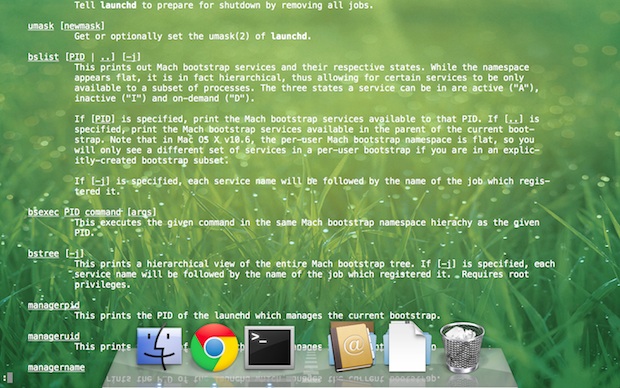
The Dock disappears whenever an app is put into Mac OS X full screen mode, but that doesn’t mean you can’t access the Dock if you need it. To show the Dock in a full screen app, swipe twice at the bottom of the screen, the first swipe won’t show anything but the second swipe will draw the Dock upwards as usual.
Regardless of Dock auto-hide settings this will activate the same way so long as the user is in full-screen mode for any given app. This is the only way to reveal the Dock under such circumstances, and the feature is defaulted this way because it reduces screen clutter and maximizes the on-display room for the given app. On a huge display like an iMac that may not seem to meaningful, but on smaller screened Macs like the MacBook Air, this makes a lot of sense and is very useful.
This feature is exclusive to versions of OS X that have full screen app mode, which was introduced in OS X 10.7 and continues in OS X 10.8 Mountain Lion, OS X 10.9 Mavericks, and presumably into the future.






But I mean, how do you use the maximize feature WITHOUT it hiding the task bar? Full screen is disorienting; not maximizing is a waste of space, resizing each window is cumbersome. There must be a way to fix this!
you don’t need to swipe twice.
just keep holding your finger on the surface of the trackpad after having moved the cursor to the bottom edge of the screen.
Nick has it right for iMac and magic mouse. Not tried on my MacBook and trackpad yet
Upload / post a link to the background.
The cursor needs to be pushed into the edge where the dock would appear. So if your dock is on the left, the cursor has to be pushed into the left edge of the screen.
With Safari it continues to scroll down the page.
Other time it works casually…
Nick’s trick seems to work at me!
All methods described above won’t work on my MBA.
It’s a one finger swipe. Twice. Works fine on my Macbook Pro trackpad.
useless.
Munas is correct it is never a swipe, on a mouse or trackpad just move your mouse to the bottom of the screen then move it down a bit more.
this is THE solution i was been looking for, thanks! m.
Swiping won’t work for me on Mac Pro using Magic Mouse. However, if I move mouse cursor to the bottom of the screen and continue pushing it down (as if I would want it to go bellow the screen), the menu appears.