
Show File Name Extensions in Mac OS X
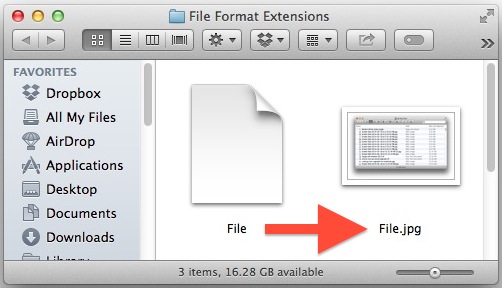
File extensions (like .jpg, .txt, .pdf, etc) make it easy to see what a specific file type format is, but as many Mac users notice, those file extensions are hidden by default in Mac OS X. While hiding the format suffix makes for a cleaner user experience and is fine for many users, it can be frustrating if you’d rather know instantly what file format type a file is just by looking at the name, and for many power users it’s one of the first things changed when setting up a Mac.
As we’ll demonstrate, Mac OS offers two choices for displaying file format extensions after file names: You can either set all extensions to be displayed for every file in Finder through a universal setting, or you can set extensions to be shown on a per file basis with the help of the Get Info command. For either choice, the file format type will be shown as part of the file name, changing something like “File” to display as “File.txt”.
How to Show or Hide All File Extensions on Mac
All versions of Mac OS allow for showing file name extensions the same way in Finder, here’s what you’ll need to do:
- From the Mac OS Desktop, pull down the “Finder” menu and choose “Preferences” (this is labeled as ‘Finder Preferences’ in some versions of Mac OS X)
- Click on the “Advanced” tab (gear icon)
- Check the box next to “Show all filename extensions”
The setting to reveal filename extensions should be immediate, though some versions of Mac OS X have a slight delay for revealing the extensions on visible files. This can be expedited by simply toggling the setting again to immediately display them (this is shown in the video below).
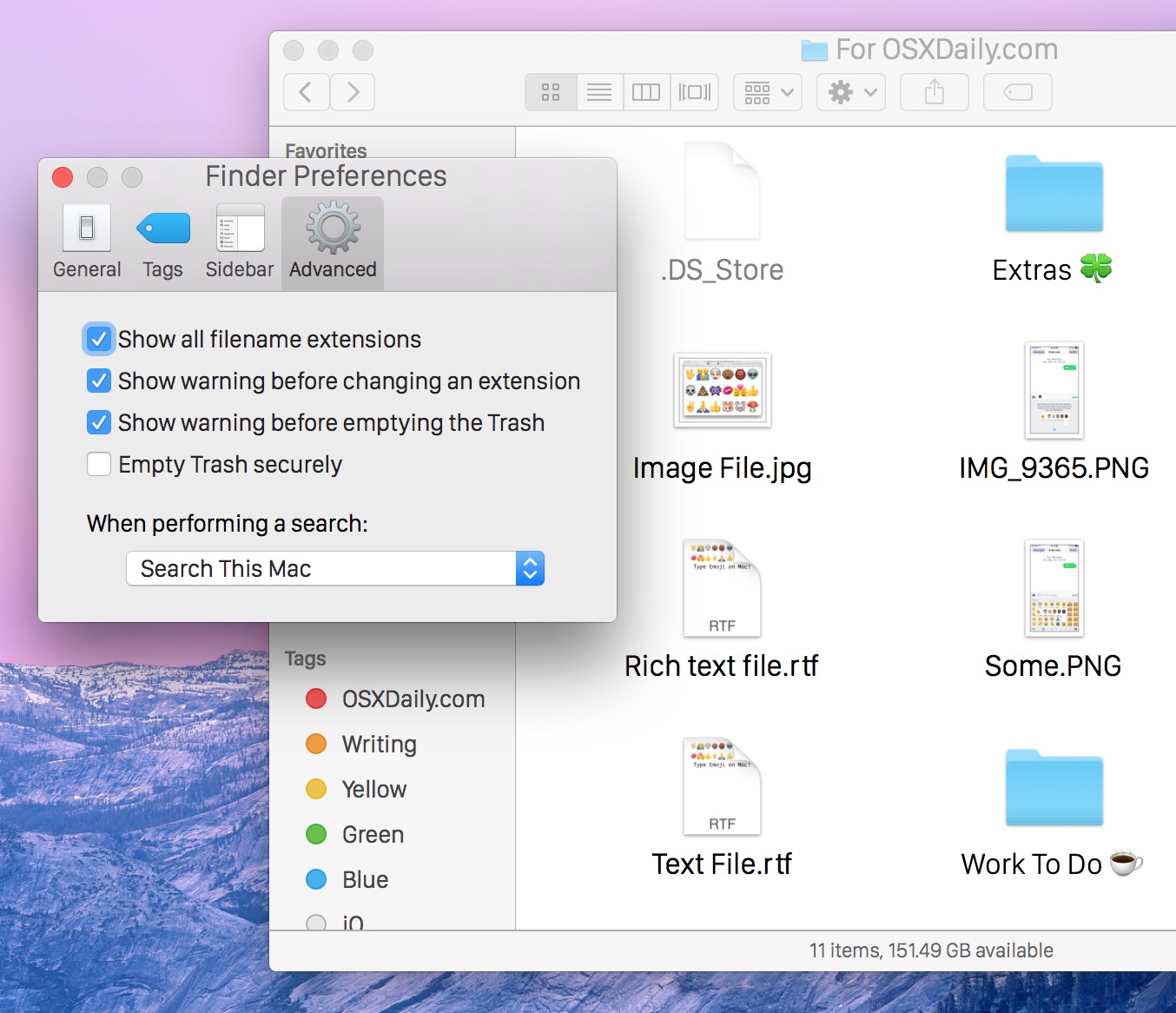
The setting is in all versions of MacOS and Mac OS X, it does not matter what system software release is running on the Mac.
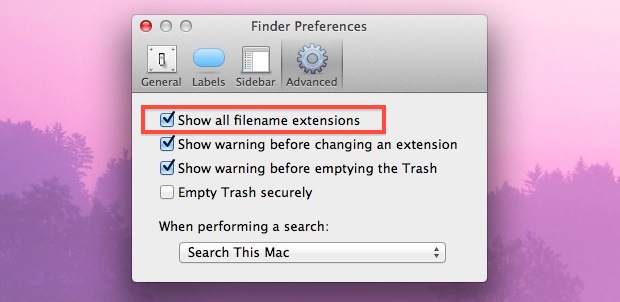
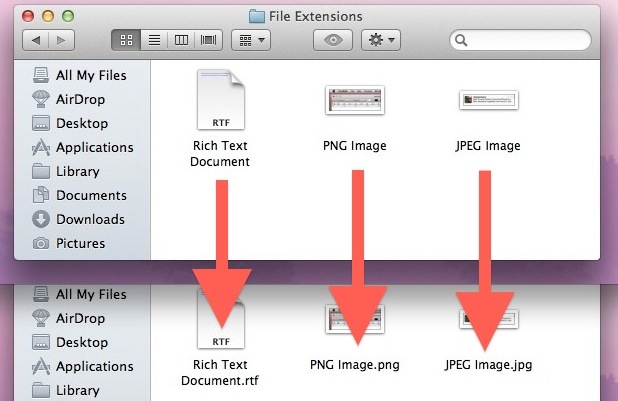
Changes are immediate and you’ll find the extensions visible instantly across the Finder for all files and file format types, the screen shot below demonstrates this:
The video below demonstrates showing file name extensions on all files and in all folders of a Mac:
To hide the filename extensions you simply need to keep the setting toggled off.
You can also selectively show and hide filename extensions on a per file basis.
Selectively Show or Hide Filename Format Extensions
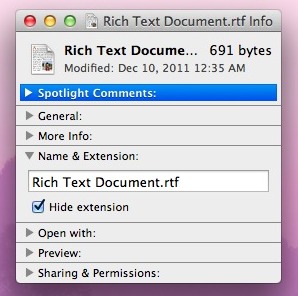 If you’d rather not see them all, or if you want to hide some and show others, you can also show (or hide) file extensions on a per file basis.
- Select a file and hit Command+i to bring up the “Get Info” window
- Click the arrow alongside “Name & Extension:” to expand the options, and check or uncheck “Hide extension”
For many users, not seeing filename extensions is probably fine, but I often set custom file associations, and knowing the extension will let you know what app is going to open with each file without looking at the “Open With” menu to be certain.






Thank ya sooo much, I searched for it so long before you learn me that you can hide every extension individually
This does not work for me with Mavericks and Finder. I do a FIND for files with “a” in the name and extension equal to “app”. Even though Finder preferences is set to show all extensions only a few extensions show. Doing a CMD+I to display Info shows a checkmark in Hide Extension and I am unable to change it. In Info it does show the extension, .app, but does not allow removing the checkmark next to Hide Extension – as far as I can tell. Please let me know if there is a way.
[…] of not knowing what’s a .jpg, .png, .gif, or whatever else just by looking at the extension? Show those file extensions and you can easily identify file formats just by looking at the […]
[…] sure to have file extensions visible on all files in OS X, that way the extension change will be visible in the Finder in addition to […]
Thanks for posting this. Changing this setting is just as much a must in Mac as it is in Windows. Showing extensions is definitely a must for professionals. Again, thanks!
[…] you have file extensions shown in the OS X Finder, attempting to change a file extension causes a warning dialog with a confirmation […]
In this connected age, showing file extensions is a must. There ARE files that could infect even a Mac, and extensions are one quick way to know what a file is without clicking on it.
“File extensions (.jpg, .txt, .pdf, etc) are hidden by default in Mac OS X, this makes for a cleaner user experience and is fine for most users, but it drives me nuts and it’s one of the first things I change when setting up a Mac.”
Exactly. Hidden extensions are so annoying. It’s one of the first settings I change.
The Finder setting to hide extensions is hit and miss – it works for some files but not others. It definitely doesn’t work with MS Office 2008/2011 files – their extensions show all the time. Adobe PDFs sometimes show, sometimes not. Files created by Apple applications seem to be the most consistent, so I suspect its a third-party adherence to Apple software and/or GUI guidelines that determine if extensions show or not..
having said that, I am at the other end of the spectrum – I NEVER want to see extensions, and wish there was some universal Terminal command to banish them forever.
This is one of those ‘must do’ changes as soon as you boot a new Mac. That and dragging half the garbage out of the Dock.
Showing file extensions is useful for files with different formats saved with the same name, for example, I may have an “order peanuts” text file, and an “order peanuts” JPG file. Since I exclusively use column view, it is hard to distinguish the file format based on the small icons. To keep the display names short I prefer to set show extension only for individual files.