
Restart the Finder in Mac OS X

Need to quickly restart the Finder in Mac OS X? Perhaps for a change to take effect with a defaults string, or to resolve a simple error or problem? Restarting the Finder does just what it sounds like, it quits the Finder application and then re-opens it again.
How to Quickly Restart Finder on a Mac
The quickest way to restart the Finder in Mac OS X is by using the Dock on a Mac:
- Hold down Option key and Right Click on Finder’s Dock icon, then select “Relaunch” from the menu
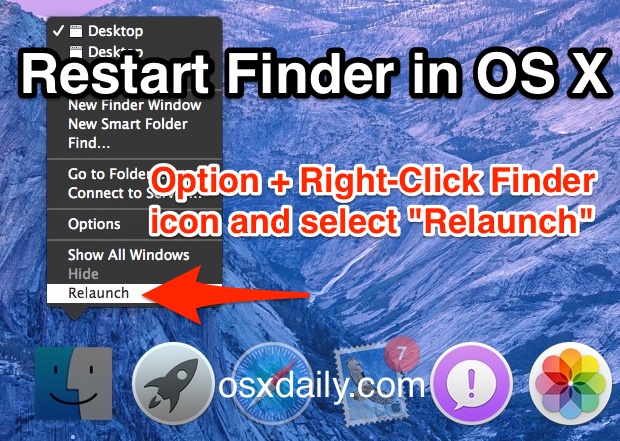
On a Mac laptop, a Two-Fingered Option click onto the Dock icon for Finder will reveal the “Relaunch” command which will restart the Finder application.
Option+Right Click reveals the otherwise hidden “Relaunch” option in the menu. Selecting that option causes the Finder to quit and restart itself, and the entire desktop will be refreshed in the process. Additionally, any changes made to Finder with defaults commands or other customizations will take effect with the relaunch.
Restarting Finder can be a helpful troubleshooting tip for some strange behaviors that may occur on the Mac desktop, and it’s much faster and less obtrusive than a full system reboot.
Outside of troubleshooting purposes, many customizations and defaults write commands require restarting the Finder for the changes to take effect.
Alternative Approach: Restarting Finder from Terminal of Mac OS X
If the Dock trick doesn’t work for some reason, or maybe because you’re already at the Terminal when using something like a defaults string, the Finder can also be restarted directly from the command line with the following syntax:
killall Finder
Because the Finder is a process just like any other application on the Mac, you can also quit the Finder and treat it like any other application with a force quit or ‘kill’ command, thereby having it stay closed completely.
You can also launch Finder from command line if it didn’t automatically restart for some reason:
/System/Library/CoreServices/Finder.app/Contents/MacOS/Finder &
Want to see how both of these restarting Finder methods look before you do it yourself? No sweat, here’s a brief video demonstrating Finder restarts from the Option+Right-Click Dock icon trick as well as as the killall Finder trick:
This is demonstrated in OS X Yosemite but the technique works the same in every version of Mac OS that has been around from the beginning of OS running on Macs, including Yosemite, Mavericks, Mountain Lion, Snow Leopard, etc, and surely beyond into the future.

What if the Finder is restarted but it won’t open itself again?
If you happen to restart the Finder this way but it won’t re-open on it’s own, you can force relaunch the Finder with the open command using these directions, this usually doesn’t happen though, and in almost all cases using the restart methods outlined above will trigger the Finder to open again automatically.
Note that leaving the Finder app closed (as in, completely quit) will hide the desktop, icons, and file system browser, which may not be desirable for all users. That’s generally not recommended.






I tried the above relaunch of Finder and deletion of the Finder preferences. However, my Finder was still freezing within seconds of starting.
I then came across a tip on also deleting the Finder Sidebars preferences, and this solved my problem.
com.apple.sidebarlists.plist
If you find that Finder won’t restart sometimes the normal ways, have not debugged the problem yet, and do not want to memorize “/System/Library/CoreServices/Finder.app/Contents/MacOS/Finder” to relaunch it in Terminal, do this commandline instead: “sudo ln -s /System/Library/CoreServices/Finder.app/Contents/MacOS/Finder /usr/local/bin/Finder” and make sure /usr/local/bin is in your path. This will create a symlink (alias) of Finder in your path so that all you have to do is get into a Terminal window and enter “Finder”.
What the heck is wrong with ⌘ ⌥ esc?
You can also add a quit option to finder, I did that, then you can enjoy your entire desktop, should be as an article to I quess:) regards
Coen
Two fingered option click for MacBook Pro, great trick
Many thanks. Seems to have worked on the thousands of images that were not visible after the spontaneous change to icon only.
I and my external hard drives thank you…
Now to prevent its happening again./
P