
Set Gmail as Default Email Client for Chrome, Firefox, and Safari

Clicking an email link in a web browser defaults to launching Mail.app, which is great if you use Mail but not so great if you use webmail services like Gmail. This is fairly easy to resolve, though you’ll have to configure it separately on a per-browser basis, with different methods for Firefox, Safari, Chrome, and Opera.
Set Gmail as Default Email Client in Chrome and Opera
- Launch a new browser window and open up Gmail
- Open the Javascript console by hitting Command+Option+J and then paste in the following:
navigator.registerProtocolHandler("mailto",

                                  "https://mail.google.com/mail/?extsrc=mailto&url=%s",

"Gmail"); - Accept the confirmation at the top of the browser window and try out a mailto link
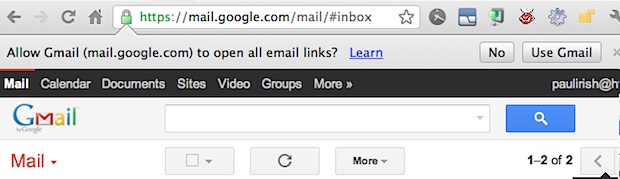
This can be undone or changed again by going to chrome://settings/handlers and adjusting the setting as appropriate.
Use Gmail as Default Email in Firefox
- Open Firefox Preferences
- Click on “Applications” tab
- Locate “mailto” under the ‘Content Type’ tab and change the action to “Use Gmail”
- Close out of Firefox Preferences
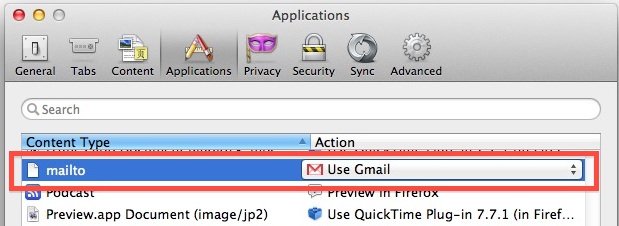
Switching back to the default behavior is just a matter of selecting Mail again as the action.
Using Gmail as Email Default in Safari
Safari users can either use a browser extension called GmailThis available from Apple’s extensions gallery, or can use apps like Gmail Notifier which we have discussed here before for it’s menu bar alerts. After Google Notifier has been installed:
- Open Mail Preferences and click on “General”
- Pull down the “Default email reader” and locate ‘Google Notifier’
- Quit out of Mail.app
Older versions of Mac OS X can use WebMailer as well, but Google Notifier is the most reliable.
Heads up to HTML5Rocks for the Chrome tip.






The Firefox browser has this ability built in. It works fine for me with yahoo mail. (Download Firefox if you don’t yet have it, it’s a good browser.)
Open mail>preferences>general-tab>select and choose firefox app from the applications folder.
Open firefox>preferences and search for applications and look for mailto. Choose the webmail of your choice. I was offered Yahoo and Gmail already set up, but Application Details allows you to set up a webmail of your choice, although you will need to find or work out the url string details with %S to show where to insert the mailto: email address. Your webmail provider can tell you what to use.
Is there a way when clicking on a mailto: link, to have it open in a new tab or window instead of replacing the window you are on?
Mac, 10.11.6, using gmail in Chrome as default email browser.
This worked for me using with just some changes to use Inbox:
1) Open inbox.google.com
2) Open console
3) Pasted
navigator.registerProtocolHandler(“mailto”,
“https://inbox.google.com/u/0/?extsrc=mailto&url=%s”,
“Inbox”);
OSX Sierra Version 10.12.3
Chrome Version 56.0.2924.87
use with isxdaily
+1 for undefined. Tried Skip’s instructions, already have allowances on both, still undefined.
in 10.10.5, and chrome, entering
navigator.registerProtocolHandler(“mailto”,
“https://mail.google.com/mail/?extsrc=mailto&url=%s”,
“Gmail”);
returns “undefined”… any suggestions?
Your instructions worked for me, much easier
The Javascript Omnibar responds with:
Uncaught DOMException: Failed to execute ‘registerProtocolHandler’ on ‘Navigator’: Can only register custom handler in the document’s origin.VM2581:2 (anonymous function)VM714:762 InjectedScript._evaluateOnVM714:695 InjectedScript._evaluateAndWrapVM714:609 InjectedScript.evaluate
I do not have the Mail app configured. Then what…
Thanks Skip! The last one works for me.
If you aren’t getting results from the the above, you could try this. Copy and paste it into the omnibar (url bar).
javascript:window.navigator.registerProtocolHandler("mailto","https://mail.google.com/mail/?extsrc=mailto&url=%s","GMail")For this to work you may have to open preferences (chrome://settings) and then click the ‘Show advanced settings’ link at the bottom. Next click on ‘Content settings’ under the Privacy section. In the window that pops up, under Javascript, choose Allow… and under Handlers also choose Allow… Then click OK. Paste the javascript above into the omnibar again and press Enter.
[…] will be handled right through Contacts, unless you have Gmail or webmail configured as your default Mail client in OS X and choose the Email option, which will upload the vcard to the appropriate webmail client […]
I have the same issue as Rob – it just comes back with “undefined” – I’m on a new pc with Windows 7. Would much appreciate advice. Thanks!
mine just says – undefined
+1 @Scott, Chris and Phoenix. This fix does not work for Chrome on OSX Mountain Lion (10.8.2)
im trying to do this in chrome, but i do not get prompt for anything once i paste the code.
can someone please help. theres also no defined handlers in chrome’s handlers settings.
+1 – Using mountain lion 10.8.1 and latest version of chrome. when clicking a mailto the Mac Mail comes up. If you change the settings in Mail Mail to Chrome for being the default mail program, then NOTHING happens when you click the mailto link. How can this be fixed?!?!?!?
I cannot get this to work. I paste it in the console, close it, and go to gmail and I still get no message. Im using chrome on windows 7
I agree with phoenix, this doesn’t work when trying this on Chrome on Mountain Lion, is there a fix or update?
The Gmail in Chrome example code does NOT work with Chrome on Mac OSX Mountain Lion. Any update?
yes!!!!! Finally I have what I need. So tried of copy and pasting. TY very easy to understand
Thank you!
for safari, it’s not gmailthis, it’s gmailto
[…] works in Safari and Chrome only, and will open the new email draft in Mail by default. If you have Gmail set as your default email client that will open in a new window instead. stLight.options({ […]
It may be obvious to everyone buy me; but where does the pasted material go in the Chrome Javascript console? There is a window with material in it on top and a window below it that has a carat and an html and body tag above the carat. Then over to the right there are more windows. Which one gets the pasted material??
Hi David,
It really isn’t obvious at all for anybody without html familiarity. The poster should add this step to make the solution more clear for all. You need to be in the “Console” to paste the code.
*After entering CMD+OPT+J, notice to the right of the “x” where you can close out, a series of choices: “Elements, Resources, Network…etc…Console”. Click the “Console” and paste the code to the right of the “>” symbol and then close out. Then, as the above directions show, Gmail will then prompt to accept the confirmation at the top of the browser window.
I still don’t get it. What is a console? I HATE HATE HATE microsoft outlook and can’t email anybody with google chrome. This is so confusing!!
Once I paste the code in next to the > symbol I receive the error message below. How do I fix this?
Thank you for your help!
VM98:1 Uncaught DOMException: Failed to execute ‘registerProtocolHandler’ on ‘Navigator’: Can only register custom handler in the document’s origin.
at :1:11
Fantastic! I had this set up in Firefox but I moved to Chrome a while back. The number of times I click an e mail link and then realise Mail has opened up and is trying to download thousands of e mails. Great tip, Thanks
Brilliant – I loves it! Thanks for the tip!!
I wish there was a central place to control other default settings like this. Although in iOS we don’t have any such choice either, it’s Mail and Safari :)
The same reason Microsoft had an antitrust suit you mean? Now that Apple is on top, don’t be shocked if they get hit with the same thing and we get such choices in future iOS releases.