
Show the Mouse Pointer in Screen Shots on Mac
If you’ve ever taken a screen shot in Mac OS X you’ll notice the cursor is nowhere to be found, even if you’re taking a screenshot of something like a menu in use. Instead, if you want to snap the mouse cursor or pointer as well in the screen shot, you’ll use a slightly different screenshot method.
By using the Grab utility, which is part of all Mac OS X installations, you can take screen shots showing the mouse pointer, and it’s even somewhat customizable in that you can set it to display different cursor pointer types.
How to Take a Screen Shot with the Mouse Cursor Visible on Mac OS X
- Launch Grab, located within the Applications Utilities folder
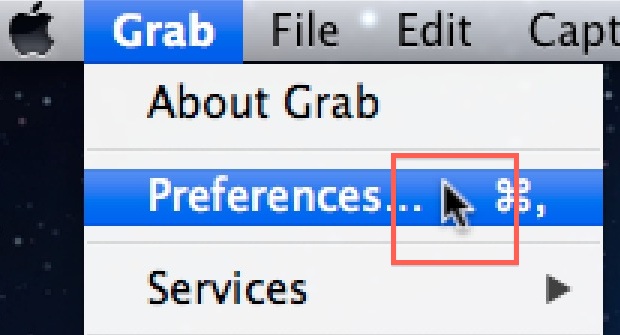
- Pull down “Preferences” from the Grab menu
- Select the desired cursor pointer type
- Use the “Capture” menu to take a screen shot with the mouse cursor included
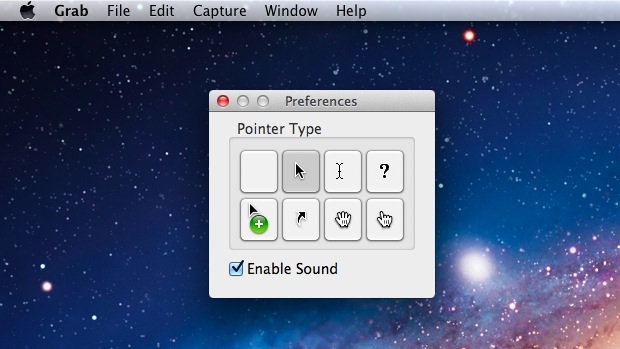
Now that you have selected a cursor, your best bet is to take a timed screen shot, which can be done through the Grab applications ‘Capture’ menu. Voila, your new screen shot has the mouse cursor included.
Note that the standard screen capture keys will still not include the cursor, so you must continue to use Grab to capture a screen image with the pointer visible.






I struggled with this for months and found a much more precise way to do this resulting in a better quality image–take a screen selection (shift + command +4)–now it is on your desktop. Find and download your desired cursor from google search (search on cursor icon, save it to desktop).
Open the screen selection that you want to add the cursor to, then select into the preview of the cursor file, select edit–>copy, select back into the screen selection and select paste.
the cursor has been pasted onto the image. SAVE the image with cursor pasted into it (I was taking a screen selection of that, terrible resolution will result from this screenshot of a screenshot).
Either copy and paste or insert this new composite image into your document. Even though you have saved it, it is still editable if you go back into it.
I m facing problems after browsing page didn’t select yet pointer is displayed on screen but it didn’t select
This would be amazing if it could work for a screen snip. The snip has to be put into another application and flattened with a cursor image transparency–it’s very clear which images have had to go through multiple renderings. It vexes me to no end.
really useful, thx, have had a mac for a year now n i wish i had known about this from the beginning instead of doing cmd+shift+3 (or 4), then having to open it in gimp n do eventual further editing.
but what is the point of the menu item: “Edit > Emoji & Symbols”?
Yeah, me too. This is no use, as the pointer selection is limited — what if you need to show the specific cursor being used when using a modifier key in an application (e.g. time-stretch tool in Cubase or Reaper). It seemingly can’t be done…
Curious about what Demis has asked, as well!
Thanks for the tip.
Any way to capture whatever pointer is being used (rather than replacing it with the Grab.app options)?
good point @Demis; a choice between both options would be best, or simply add that to the choice list of cursors
Thank you! Very useful.
Pretty awesome, I love all the options they give you.