
Enable Screen Zoom Gestures in iOS for iPhone, iPad, and iPod touch

iOS has an optional system wide zoom ability accessible by a gesture, much like OS X’s zoom feature. This allows any iPhone, iPad, or iPod touch user to zoom into elements or text on screen, making them much larger and easier to read, interpret, or access.
To use the extra zoom gestures on an iPad, iPhone, or iPod touch, first you’ll need to enable Zoom in iOS. Here is how to do that in all versions of system software.
How to Enable Screen Zoom in iOS
- Open Settings and tap on General
- Scroll down to “Accessibility” and tap on “Zoom”, flick the switch to ON
- Verify the zoom gesture works by using a three fingered double-tap on the screen
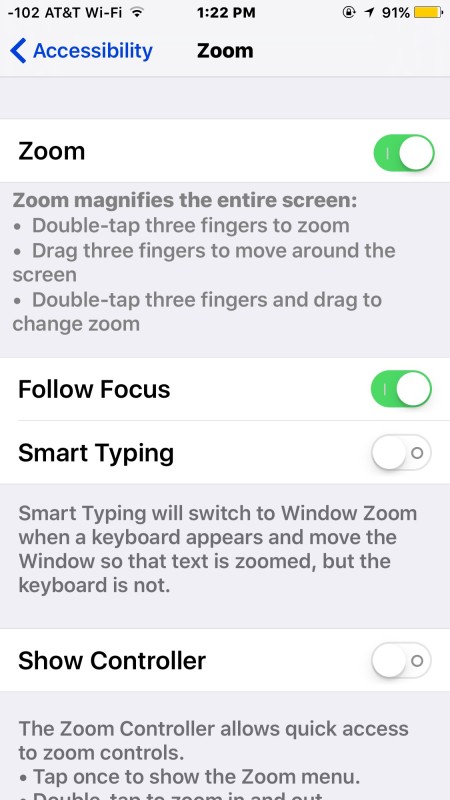
Once zoom is enabled, using zoom is a matter of initiating the proper taps and gestures.
Screen Zoom Gestures & Taps in iOS
Using three fingers you can do any of the following:
- Double-tap with three fingers to activate zoom and zoom in and out on any application
- Double-tap and drag with three fingers up and down to increase or decrease zoom level, from 100% to 500% zoom
- Drag three fingers while zoomed to move around screen
This zoom feature is systemwide and will work in any iOS app running on the device, including even the lock screen, and it works in addition to the standard pinch and spread gestures that are active in many apps already.
Standard app functionality also remains while zoomed in allowing for manipulation of onscreen controls and data.
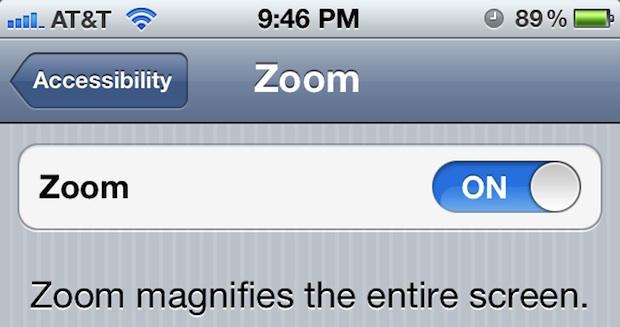
The screen zoom feature has existed in iOS for quite some time, so whether the iPhone or iPad is running a modern version or an older release, it’s likely there as an accessibility setting. This can be undeniably useful for many users as it can dramatically zoom into the display of a device, so if you’re having difficulties with certain screen elements, try this feature out, it’s quite nice.






[…] features have to be enabled separately on a per-case basis, such as text to speech in iOS, screen zoom in iOS and OS X, and the aforementioned closed captioning […]
The wallpaper used in the first screenshots of this article, is it available for download somewhere?
Thanks in advance!
The wallpaper is the default included in OS X Mountain Lion:
https://osxdaily.com/2012/02/16/os-x-mountain-lion-galaxy-wallpaper/
Grab it in high res from here:
http://i.imgur.com/IjL9b.jpg
Writer Horowitz forgot to mention which version(s) this works in.
Doesn’t work iOS 4.2.1
[…] via OSXDaily […]