
Batch Rotate a Group of Images with Preview for Mac OS X

If you have a group of pictures which are orientated incorrectly that you need rotated either clockwise or counterclockwise, you can do that in Mac OS X without any third party apps. Bulk rotation of images can be accomplished quickly with the help of the bundled Preview app, we’ll show you how to use the app for this purpose with almost any group of compatible image files in a variety of formats, be it a group of JPG’s, GIF, PNG, TIFF, or anything else that can be opened in the Preview application.
How to Batch Rotate Groups of Images Quickly on Mac
Because the purpose of batch modification is speed and efficiency, we’re going to focus on using keyboard shortcuts to quickly rotate multiple images at the same time in a bulk process, then save them all at once as well. This is very fast and time saving as you’ll see, so just follow along:
- From the OS X Finder, select the collection of images you wish to rotate, then hit Command+O to open them all into the Preview application on the Mac
- Once all images are open in Preview, click an image thumbnail in the sidebar, and then hit Command+A to “Select All” images
- Now hit Command+R to rotate the picture 90 degrees clockwise once, to continue rotating, hit Command+R again to perform another 90° clockwise rotation until you find the desired orientation of the pictures. Notice that while this is happening that all thumbnail images are rotating with each press of the keyboard shortcut
- When satisfied with the orientation, just hit Command+S to save the image orientation changes across the board to all image files – that’s it!
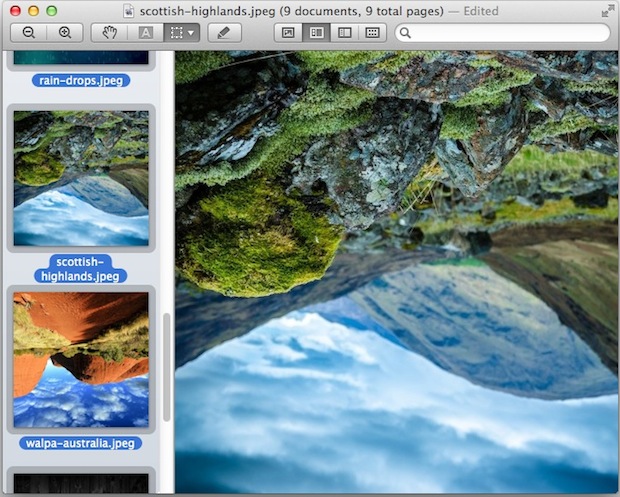
Once the rotation is performed, all images rotate together in a batch process, here’s a before and after demonstration of an image that has been rotated twice to become upside-down. These will be all saved together as well:

Don’t like keyboard shortcuts? Or do you want more precise manual controls through a cursor? You can find all possible rotation options (and tools to flip the image orientation as well) in the “Tools” menu of the Preview app as well. Thus, if you prefer to use the menu options rather than keyboard shortcuts, simply select the images in question as described above, and then visit that menu to find the adequate rotation options to use. You’ll also find tools to ‘flip’ the images instead. You can then save all changes in a bulk fashion through the File menu. This menu-based approach to rotation is shown in the video below:
This assumes your default image editor is set to Preview. If not, you just need to launch Preview separately, and then drag the group of images you wish to rotate in bulk into the Preview Dock icon to perform the same task.
This is undoubtedly the fastest way to batch rotate a variety of images of nearly any format at the same time in OS X, perhaps with the exception of the sips command line image modifier tool in Mac OS X, which can also perform image modifications from the terminal. Because the Terminal sips tool is command line based however, it’s generally reserved for more advanced use. Of course, sips and Preview can also be used to modify rotation or flip the orientation vertically or horizontally of a single picture file at a time as well.
Preview is a fairly powerful app that is often underutilized for batch photo processing tasks, I use it frequently to batch rotate as described here, and also to batch resize images and perform bulk image file format conversions on groups of picture files for wallpaper posts and other purposes, making it an extremely valuable tool that is bundled with every Mac since the very earliest days of OS X. Preview is quick, lightweight, and much less demanding on resources than Photoshop or other heavier image editing apps for such tasks, you can be in and out of the app with your group modifications in just a few seconds. Happy image editing!






Ok so this caused me a problem, probably because the folder had been copied from an SD Card and I did not have permission to save the edited image but had to save a copy. This caused the preview app to stop responding.
Now everytime I open preview all of the original images that I tried to rotate open again along with a copy of each and the preview app locks up!!
Help!!
Worked for me..
Cheers
Command S doesn’t seem to help. I’m asked if I want to save or abandon the change to EACH file. I just clicked yes 85 times (having to wait for the save between). What the heck didn’t work?
I rotate about 500 pics in a batch, after that was done. 99% of them are corrupted and I lost all of them.
now it’s giving me the message
The file “G0034552.JPG” could not be opened.
It may be damaged or use a file format that Preview doesn’t recognize.
Any advice?
thank you
This worked for me, but according to the information in my finder, all of the images were reduced in size by roughly 2/3. They went from approximately 3mb to 900kb. Why is this happening?
This is stupid. Why are there five steps to rotate a simple picture?? Why cant I just click on the thumbnail and rotate the image? Mac can be so damn frustrating at times!!