
Run iOS Simulator Without Launching Xcode By Using an Alias

Apple recently simplified the way Xcode is installed, bundling everything into a single /Applications/Xcode.app/ directory and removing the /Developer directory that used to exist. There are some advantages to this approach, but one of the annoyances is that you now have to launch the iPhone or iPad simulator by opening Xcode first. Well, that’s not entirely true, you can actually still directly launch iOS Simulator without opening Xcode first by creating an alias.
Note that modern versions of Xcode and OS X call the iOS Simulator simply “Simulator”, where you go will depend on which version of OS X the Mac is running.
Create a Quick Launch Alias to iOS Simulator
This applies to all versions of OS X and Xcode, though you’ll want to vary the path depending on the system version:
- From the Finder, hit Command+Shift+G and paste in the following path, depending on your version of OS X:
- Modern versions of OS X including Xcode 7 and El Capitan:
- Older versions of OS X with Snow Leopard:
- Select “iOS Simulator.app” or “Simulator.app” and either drag it into the Dock, Launchpad, or hit Command+L to create an alias
/Applications/Xcode.app/Contents/Developer/Applications/Simulator.app
/Applications/Xcode.app/Contents/Developer/Platforms/iPhoneSimulator.platform/Developer/Applications/
Alternatively, you can grab a pre-made alias in a zip bundle that will open iOS Simulator automatically. Throw that on the desktop or in the Dock for easy access.
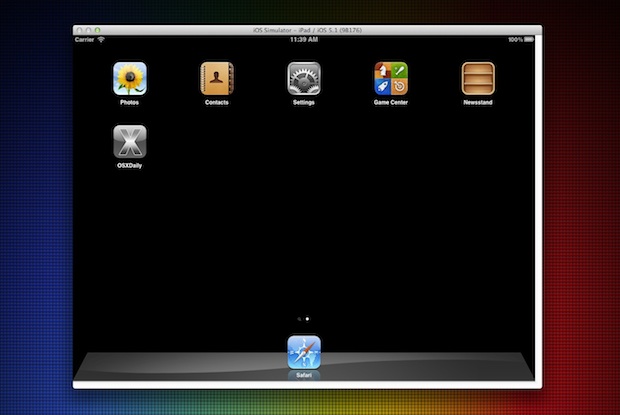
This applies to Xcode 4.3 and later, including Xcode 5, Xcode 6, and including Xcode 7, though Previous versions stored the iPhone/iOS simulator elsewhere so you’ll want to be sure to adjust the path depending on which version you are running.
Great tip idea from @aral on Twitter, join 25,000 other fans and follow @osxdaily there too.






Is there any way to stop the favorites list from jumping out from the left side screen when my mouse gets anywhere near it? A lot of these suggestions helped other issues so much, but this one won’t go away. Thanks for all your help! Lea
Now in El Capitan: /Applications/Xcode.app/Contents/Developer/Applications/Simulator.app
Hope this helps someone.
Now at: /Applications/Xcode.app/Contents/Developer/Applications/Simulator.app
Yep you can just right click when it is open and then select “Options” and “Keep in Dock”.
Or in 6.1.1 open Finder and go to
/Applications/Xcode/Contents/Developer/Applications
and drag “iOS Simulator” to the Dock or your desktop.
doesn’t work anymore (OS 10.9.5, Xcode 5.1.1 or 6.0.1), “find /Applications/Xcode.app/Contents/Developer/Platforms/ -name Simulator” has 0 results
Thank you!!!!
Alternatively, you can also hit cmd + space, and search for it in Spotlight.
this is the best answer. hit cmd + space, and search for Simulator in Spotlight.
Or you can launch it once via XCode and simply add it to your dock via a right click. That’s what I’ve been doing since I started coding iOS apps.