
Instantly Open Anything with Quick Look in Mac OS X Using a Simple Tap Gesture
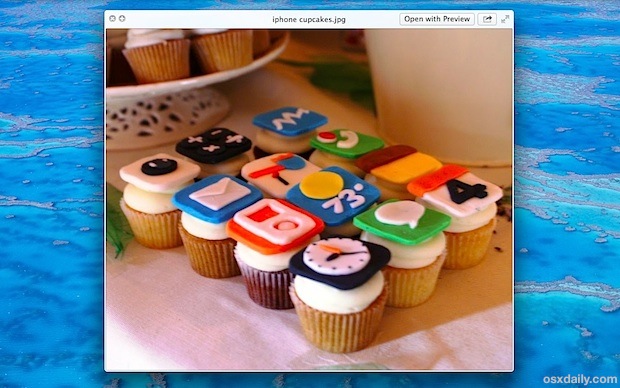
Did you know you can instantly open any file into Quick Look with just a simple gesture?
From the Finder in Mac OS (from OS X Mountain Lion onward), all you need to do is hover the cursor over the file in question, then do a three-fingered single tap on the file to immediately launch the document into Quick Look’s Finder preview.
This tap gesture even works to launch Quick Look from the Open and Save dialogs, just like the traditional spacebar command.
If you want to go further than Quick Look, once the file is previewed just right-click on the “Open With” menu to launch the file into any compatible app.
There are plenty of other great Quick Look tips to browse through too, so enjoy this amazing feature as you learn to master it.
Somehow this new little gesture completely escaped me, so heads up to MacGasm for the simple yet useful tip.






You can also do the same three-fingered tap within some applications over selected text to quickly bring up a definition for that word or phrase. I’ve done it in iTunes, the Finder (file names), Contacts, Calendar, Safari, Terminal, System Prefs, and the App Store (search bar only). I’m sure it works in more pre-installed apps, but I’ve not tried yet.
This only works if you enabled the look up tap (system prefs –> Trackpad –> look up )
This only works if you have enabled the three finger search function in the trackpad settings.
Yeah, I think it’s a TrackPad thing. Must admit, at first I thought like Nick but since reading the article, every time I’ve used Quick Look it’s been with a three-fingered tap.
It does not seem to work with the Magic Mouse. But it works with the TrackPad–multi-touch.
Does not work for me!
Not sure this is any better than before, I like spacebar personally