
How to Email Photos from iPhone or iPad the Easy Way
 Emailing photos from your iPhone, iPad, or iPod touch is easier than ever in modern versions of iOS and iPad, because you can actually attach pictures right from the mail composition screen.
This is much simpler than the copy and paste method that was often used before to email out pictures from an iPhone, iPad, or iPod touch, and in many ways it’s easier than starting from Photos app too, since often you’re halfway through an email when you want to attach a picture to send out.
How to Insert a Picture into an Email on iPhone & iPad
Here’s how to use the excellent “Insert” feature to quickly send out a photo from your iPhone or iPad:
- From Mail app, compose a new email message as usual
- Tap and hold in the body of a mail message
- When the contextual menu appears on screen, tap the right arrow button, then tap “Insert Photo or Video”
- Find the picture to attach in your Photos Camera Roll, tap it, and send the email as usual

This works in all versions of iOS that are even remotely modern, so though it may look slightly different, you’ll find the feature exists in Mail app for iPhone and iPad. Here’s what it looks like in prior versions, with the same functionality but a different appearance:
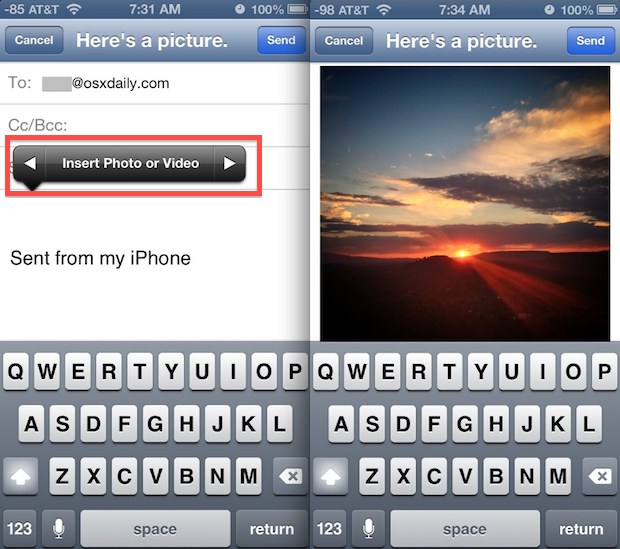
(Image above demonstrates emailing a picture from an iPhone. Do note that on the iPad, the “Insert Photo or Video” button is immediately visible with a tap and hold and does not require tapping the arrow button)
By repeating the process, you can attach multiple images to the email if you’d like. Realistically, sending out a group of photos is quicker directly from the Camera Roll because you can easily select multiple images and compose an email directly from Photos by just checking a group of them quickly, but use whatever trick is best for your workflow and your situation.
Overall this is a really nice improvement to Mail on the iPhone and iPad. With prior versions of iOS, the process of attaching photos is based on using copy & paste and using multitasking to switch between Photos and Mail. Of course that method still works in the newest iOS versons too, but the direct line insert method outlined above is quite a bit faster for most individuals, and it’s also easier to explain to newcomers to the platform.






How to upload
This wonderful method works great for emailing pics from the iPhone…thanks a lot.
This sucks! I can not figure ANYTHING out on this new OS
That is cool.
I would have liked it to be able to select a few photos like below does …
go to Photos App
select Camera Roll
select Edit (top-right)
select multiple photos
select Share (bottom-left)
select Mail
Nice one on iOS 6 :) , Jailbreak not required ?
Yes at less,
at last