
Add Weather & Other Dashboard Widgets to the Desktop in Mac OS X
A fun way to customize the Mac desktop is to add floating widgets for things like weather, ski conditions, stocks, and time. These widgets are actually from Dashboard, a largely forgotten feature of Mac OS X that can be made useful again by bringing them more to the forefront of your desktop experience. This is different from making Dashboard hover over everything again, because this actually liberates the widgets out of Dashboard turning them into movable objects on the desktop itself.
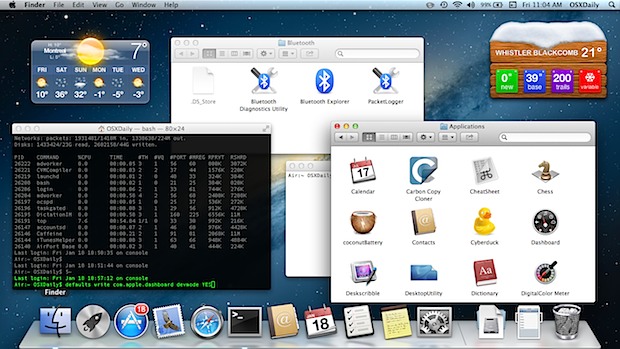
Longtime Mac users may be familiar with this trick, but it still works in the most recent versions of Mac OS X and in many ways is more useful now that Dashboard has been deemphasized in Lion and Mountain Lion and later versions.
How to Get Dashboard Widgets on the Mac Desktop
This is a multi step sequence, first you must enable developer mode for Dashboard then you must get the widgets onto the desktop. Here’s how it works:
Enabling Dashboard Developer Mode on Mac OS
To get individual Dashboard widgets onto the desktop, you will need to first enable Dashboard developer mode:
- Open Terminal and enter the following defaults command, placing Dashboard into Developer Mode:
- Next, pull down the Apple menu and choose System Preferences, then choose the “Mission Control” panel
- Uncheck “Show Dashboard as a space” to make widgets float over the desktop again
- Go to the Apple menu again and choose “Log Out”, then log back in again for changes to take effect
defaults write com.apple.dashboard devmode YES
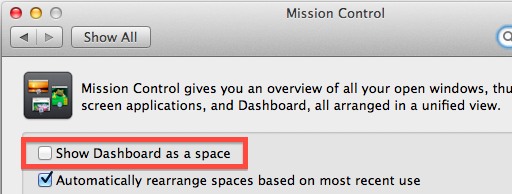
Once developer mode has been turned on and dashboard as a space has been turned off, you’re ready to move widgets to the desktop.
Bringing Widgets to the Desktop
Now to get any widget out of dashboard and instead to stick on the desktop, you will want to use the Dashboard keyboard shortcut. Typically that is the F4 key, but if it was changed use the new keyboard shortcut instead:
- Open Dashboard by hitting F4
- Click and hold on any widget, then while continuing to hold the widget hit F4 again
- Repeat as necessary to add more widgets to the OS X desktop
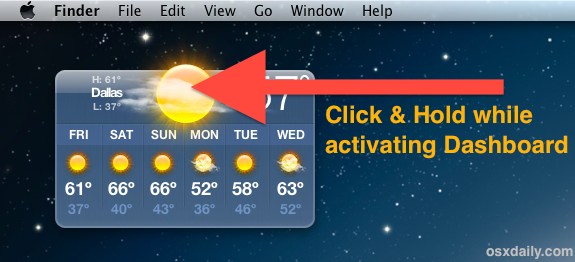
Position the widget onto the desktop as desired, somewhere unobtrusive is ideal because even though the widget is now on the desktop, it will still float above other windows and apps, including things like Launchpad and Mission Control.
Because the widgets float over other documents, it is best to not overdo it and perhaps stick to one or two that are particularly useful or interesting.
Removing a Widget from the Desktop
To remove the widget from the desktop again, reverse the process which added them to begin with:
- Click and hold on the widget that is floating on the desktop, then hit F4
- Release F4 while Dashboard is open again to return it there and remove from the desktop
Repeat that process for multiple widgets.
Disabling Dashboard Developer Mode
There is no harm in leaving devmode enabled, but to turn it off again by flipping the NO flag to YES. Note that disabling devmode alone is not sufficient to remove the widgets from the Mac desktop, you need to manually do that using the method above.
- Launch Terminal and enter the following defaults command:
- Log out and log in again by way of the Apple menu
defaults write com.apple.dashboard devmode NO
Again, if widgets are still persisting on the desktop after devmode is disabled it is because you did not move them back into Dashboard beforehand.
The video below demonstrates adding widgets to the desktop and removing them, and how they float over all system apps in addition to other windows.






this terminal is great, however, the widgets disappear from desktop once i touch the desktop. The widgets do not stay on the desktop! os mojave 10.14.3
Any help ? Thanks
Thank you! I’ve been struggling for 3 days to get just the dashboard to show, not the stupid launchpad, and your article, while not addressing that, still helped me figure it out! Thank you SO much! Now if I can figure out how to get things to open when I double click on them, I will actually be a happy Mac user again. =)
Same thing for me, John.
Does anyone know a way to make the widgets hide under other windows instead of on top?
You can actually hit option to pull them off the desktop too.
If it’s not working for you, try giving the “killall Dock” command after the “defaults write…” one.
Dave is correct I had to do the same thing.
I didn’t realise the Dashboard space could be turned off! That’s the best part of this tip!
Well, it didn’t work out on my iMac. When I hold the widget while pressing F4, it just disappears
I had that problem at first too. Try running the command in Terminal again and then logging out & back in.
In my case the widgets actually disappeared from Dashboard. Their were only two, Weather and iStatPro. So I added them back to Dashboard. This time I could move them to the Desktop.
Always be updated with the weather information right from Mac Menu bar with these Mac weather app. These advanced weather forecast apps can help you to plan your trips ahead. Instead of Googling for weather all the time, you can get updated weather information and alerts right from the Mac menu bar. These Mac weather apps are feature rich and give a lot of information like Wind Speed, 7 days forecast, Rain chance, etc, The nice feature of this Mac weather app is, these apps can give 3-7 days advanced weather information, sunrise and sunset time. And finally, you can set attractive backgrounds and theme on these Mac Weather Apps to impress your colleagues.
Look for the best Mac weather app from the list and have a profound Mac weather in the menu bar.
1.Weather Live
2.Weather Dock
3.Swackett
4.Weather HD
5.Forecast Bar
You have to have 10.11 plus