Subscribe to OSXDaily

Subscribe to RSS Subscribe to Twitter Feed Follow on Facebook Subscribe to eMail Updates

Shared on Facebook

Shop at Amazon

Ad

OSXDaily on Facebook

Search Utilities

Git GUI for Mac: Gitbox

Aug 23, 2010 - 1 Comment

gitbox-screenshot

Gitbox is a pretty nice GUI to the Git version control system. All the features you’d expect are there: quickly see branches, history, working directory status, then easily commit, pull, merge, and push files with minimal effort. I first used Gitbox as a Preview version a while ago and enjoyed it, you’ll need both Xcode and Git installed to be able to run the app yourself.

Here’s what the Gitbox developer lists as the features:

Check Out Everything. You may check out a local branch, tag and even a remote branch with a single dropdown button. From now on you don’t have to remember the obscure branch-tracking command or edit .git/config. Select the remote branch, type a local name for it and you’re done.

Up To Date. Gitbox updates working directory status each time you focus the window. When in background, it periodically fetches data from the selected remote branch and displays unmerged commits in the history. The status of the working directory, local and remote branches are always up to date.

Rich History. History shows all commits on both local and remote branches. Non-pushed commits are green. Non-pulled commits are grey. You can also select another local branch in a “Remote branch” menu to merge it into the current one.

Clean Design. There are no palettes or additional windows cluttering the screen. Your repository fits nicely inside a single window with a few buttons. Use the Main Menu for infrequent operations such as adding a new repository URL or stashing away changes.

Super Fast. We all love the command line for the speed. But it is not very smart. Say, you move a file from one folder to another: in the Terminal you would have to “git rm” the old path (the file is gone, so no tab-completion) and “git add” the new path. And it becomes a real pain when you happen to rename multiple files. But in Gitbox you just click the checkbox. Status is updated instantly, you don’t have to type “git status” ever again.

If you’re looking for a Git GUi client for Mac OS X, check out Gitbox.

Simple Stopwatch/Timer for Mac OS X

Aug 19, 2010 - Leave a Comment

timer stopwatch mac If you’re looking for a simple stopwatch menubar timer for Mac OS X, look no further than Thyme. No, not the herb, Thyme is a very simple app that sits in your menubar and allows you to quickly start and stop a timer.

Wondering how long it takes you to perform a certain task? No problem, use Thyme and figure it out. You can quickly activate and deactivate Thyme by hitting Control+T, otherwise just access it from the menubar.

Surprisingly useful! If you’re not keen on installing third party apps, you can always create a rudimentary stopwatch from the command line too.

Combine ping and traceroute with MTR

Aug 5, 2010 - 1 Comment

I came across an excellent alternative to the command line ‘ping’ and ‘traceroute’ tools recently. It’s a utility called mtr, which combines the statistics and prints their functionality into a single network diagnostic tool, reporting details on the network connection between your host machine and whatever the destination host is, determining the address of each network hop (like traceroute), and sending ICMP ECHO requests along the way (like ping) to determine the response quality of each network link.

mtr for mac

To install and use mtr you will either need DarwinPorts or to be a familiar with the command line and compiling from source on your Mac, both of which requires the installation of Xcode.

You can download the source of MTR at the developers home or the more user friendly installation through DarwinPorts.

I found mtr while reading old posts on OneThingWell, and the screenshot is borrowed from them as well.

IPFW GUI front end for Mac OS X: WaterRoof

Aug 4, 2010 - 1 Comment

I was recently looking around for a Mac OS X GUI to IPFW and came across WaterRoof. If you’re looking for a nice powerful GUI frontend for Mac OS X’s built in firewall IPFW, look no further, WaterRoof is free and simple to use. Using WaterRoof you an easily add, build, and modify ipfw rules quickly and easily.

ipfw gui mac os x

Here is the full feature list of WaterRoof from the developer:

* uses Mac OS X built-in IPFW firewall. No kernel modules, no extensions, no pain. WaterRoof is free and open-source
* the most advanced Mac OS X free graphic frontend for ipfw now features a new, clean interface. WaterRoof lets you create, modify, delete, move ipfw ipv4 and
* ipv6 rules very quickly.
* build ipfw rules easily with the new simplified interface and the IPFW Rules Translator. Building ipfw rules now is easier than ever
* Backup and deploy firewall rules with WaterRoof Injectors
* Quick dns reverse and whois queries with copy/paste
* manage network bandwidth with dummynet pipes and queues
* check live dynamic rules created by stateful firewall rules
* watch and parse firewall logs, create raw and graphic statistics
* look at active network connections, block them or limit their bandwidth on-the-fly
* list all applications that make network connections
* manage Network Address Translation (NAT) daemon: create a dual-homed firewall/nat/router with port redirection and forwarding; deploy NAT settings using
* WaterRoof Injectors
* import rules from NoobProof Injectors
* keep your favourite firewall rules active at system boot; import/export rulesets
* explore and test ipfw with configuration wizard and ready rule sets
* compatible with Mac OS X Server 10.5 .
* requires Mac OS X 10.5 or 10.6

Download WaterRoof now
Developer home

Enterprise iPhone Management & Setup Tool

Jul 26, 2010 - 4 Comments

enterprise iphone configuration tool

If you’re looking to deploy the iPhone in an enterprise utility, don’t miss out on Apple’s iPhone Configuration Utility, which makes enterprise iPhone management a snap. Apple describes the tool as follows:

iPhone Configuration Utility lets you easily create, maintain, encrypt, and install configuration profiles, track and install provisioning profiles and authorized applications, and capture device information including console logs.

Configuration profiles are XML files that contain device security policies, VPN configuration information, Wi-Fi settings, APN settings, Exchange account settings, mail settings, and certificates that permit iPhone and iPod touch to work with your enterprise systems.

You can download the utility for either Mac OS or Windows:

iPhone Configuration Utility for Mac OS X

iPhone Configuration Utility for Windows

Open the current Finder window in the Terminal with cdto

Jul 15, 2010 - 6 Comments

cdto logoNeed to access the current Finder directory immediately within the Terminal? Get cdto, it’s one of those must-have apps for anyone who’s constantly switching between the command line and the Finder. Installing cdto is simple, just download the app and place it somewhere in your Applications or Utilities folder, then drag the app directly into your Finder toolbar.

cd to current folder
Now anytime you want to open any Finder window within with the Terminal, click the cdto icon and a new Terminal session is started with the PWD set to the same folder that you were using in the Finder

cdto developer home
Download now

Use iPhone, iPad, or iPod as a USB flash hard disk drive in Mac OS X

Jul 9, 2010 - 12 Comments

ipad iphone ipod as usb drive on mac
Want to use your iPad, iPhone, or iPod as a mounted USB flash disk? No sweat, thanks to this nifty program from MacroPlant. It’s called Phone Disk, and it’s actually free to download until September 1st, so get it sooner than later. Here are the features of the app:

  • Open, copy, and save files directly from the iPad, iPhone, or iPod
  • Access the device from other applications
  • Browse the iPhone, iPad, or iPod through the Finder
  • Mount multiple iPhones, iPods, or iPads at the same time
  • Convenient menubar item to mount and unmount the devices
  • Works without Jailbreak!

This is a screenshot of Phone Disk in action within the Finder:
use ipad iphone ipod as usb disk drive

Pretty awesome right? Even more awesome is that the developer is giving it away for free for a few months, here’s the announcement:

For a limited time Phone Disk is 100% Free!!

Until September 1st 2010, we’re giving away Phone Disk to everyone for free! If you unlock the software before that date, you get free upgrades and can enjoy the full version of the software on that computer with no expiration (just make sure you enter the code before September 1st)! Use the following registration code to unlock the full version Phone Disk:

You can download PhoneDisk here then use the following registration number to unlock the app for free:
2H96A-QK7MX-8GEYK1V-ZR6S8

Using the app is beyond simple to mount any iPhone, iPad, or iPod (touch included) as a hard drive, just launch the app and mount your device – the Finder doesn’t know that it isn’t a ‘real’ external hard drive or USB drive.

Free is obviously a great price. Using your iPhone or iPad as a true USB disk drive is a pretty great feature that honestly I think Apple should just allow by default, it would completely eliminate the need for things like USB thumb drives (unless you’re looking to install Mac OS X from a USB drive, then you will still want a thumbdrive because as far as I know this is not possible with an iPhone/iPod/iPad).

Anyway, download the app, it’s well worth the price: free!

Get new desktop wallpaper automatically with DeskLickr

Jun 27, 2010 - Leave a Comment

tumblr_l12xdvaab51qz9sd6 DeskLickr is a fun little app that sits in your menubar and pulls images from Flickr to set them as your desktop picture. Basically you just specify how often you want your wallpaper changed, and a couple search tags, and DeskLickr does it’s job quietly in the background. This is great for anyone who gets tired of having the same background picture constantly.

Beware that certain search tags on Flickr might bring you unanticipated results: in testing the app I selected ‘beach’ as one of my keywords and I was given a high resolution picture of a grandpa in a speedo!

Developer home
Download now

desklickr

[ via SweetMacTips ]

Eliminate distractions on your Mac with SelfControl

Jun 17, 2010 - 3 Comments

selfcontrol prevents distractions on your mac

There’s nothing that kills productivity more than distractions, and while it’s hard to minimize some, there’s tools available to help prevent some digital distractions. Social networking sites, email, Twitter, Google News, there’s endless things that can distract your focus and waste your time if you don’t stop them.

SelfControl is a utility that aids in just that, using an adjustable predetermined amount of time, it blocks access to all outgoing and incoming mail servers and also lets you modify a list of websites to block. Have a deadline and can’t pull away from Facebook? No problem, set the website in SelfControl and set the timer.

Once SelfControl is started, it can’t be undone (even if you delete the application or restart!) so you are forced to do the task at hand. A bit extreme perhaps, but sometimes extreme distraction requires extreme intervention… check it out if you think this would benefit your workflow.

Developer home
Download SelfControl now

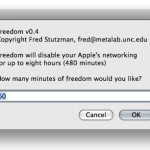
Even with SelfControls restrictions, I prefer it to the Freedom tool, which prevents distractions by disconnecting you from the Internet. Many people do work that requires them to be online, but they just need to thin out the distraction herd, and SelfControl does this.

Bring back the classic Safari refresh button

Jun 10, 2010 - 4 Comments

Safari_IconAs many loyal Safari users already know, the dedicated “refresh” button was removed from the browser’s toolbar starting with the release of Safari 4. It seems that Apple decided it would be better placed at the end of the location bar. The “new” format also includes a much smaller button which quite frankly is much harder to get to and easier to miss. Now that Safari 5 has the ability to use Extensions, you can bring back the classic look and feel by enabling the the “Safari Reload Button” Extension.

Enable Developer Mode in Safari
Safari may need to be relaunched
Go to the Safari menu » Preferences » Advanced. Turn on ‘Show Develop menu in menu bar.’

Enable Extensions
Necessary to load extensions
From the new ‘Develop’ menu, select ‘Enable Extensions.’

Install the refresh button extensions
If you follow the above steps, the Preferences menu will include a new “Extensions” tab where you can manage Safari extensions. Navigate to the new tab and download the “Safari Reload Button” extension.

Enable the button
Right click on Safari’s Toolbar (or go to the View menu) and choose ‘Customize Toolbar.’ You should now be able to place the button wherever you wish!