Subscribe to OSXDaily

Subscribe to RSS Subscribe to Twitter Feed Follow on Facebook Subscribe to eMail Updates

OSXDaily on Facebook

OSXDaily on Google+

Shop at Amazon

Ad

Shared on Facebook

Search preview

preview

Sign PDF Files with a Digital Signature in Mac OS X Preview

Aug 17, 2011 - 35 Comments

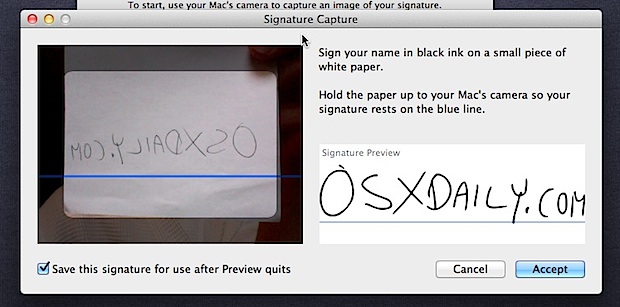
The newest versions of Mac OS X brings a revamped Preview app that includes the extremely useful Digital Signature feature built right in. Using your Macs built-in iSight camera to capture your signature, Preview can keep multiple electronic signatures on file which can then be appended to PDF’s. Setting a Digital Signature in OS X … Read More

Extract & Save High Resolution Icons from Mac OS X Apps

Jul 1, 2011 - 2 Comments

Using the same trick to create a new image file based on clipboard contents, you can extract high resolution icons from any Mac OS X application. Preview is smart enough to extract just the icon and not try to copy the app file itself (like Windows would). Select any app in Mac OS X Finder … Read More

Quickly Create a New Image File from Clipboard Contents with Preview

Jun 29, 2011 - 8 Comments

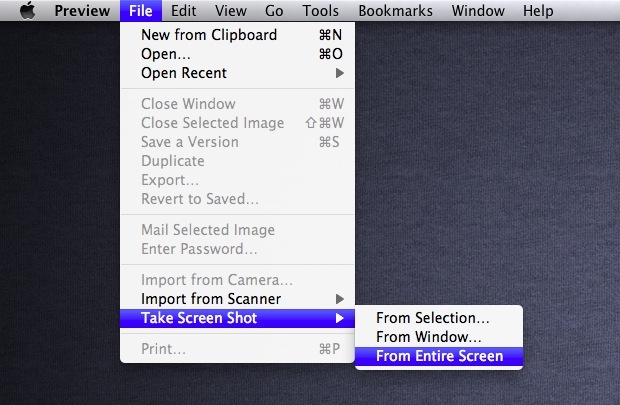
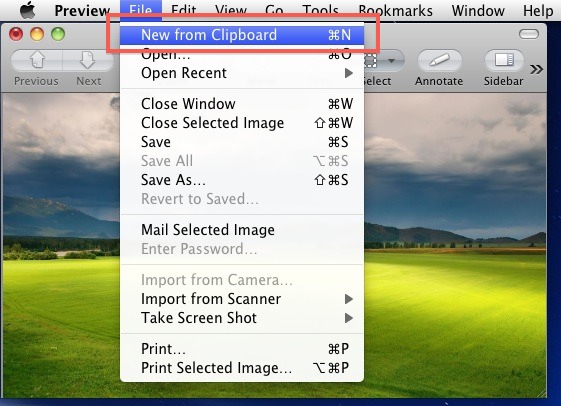
With Preview you can quickly create a new image file from your clipboard contents. On it’s own that might not be too enthralling, but this feature extends beyond Preview, meaning any image that you have copied from anywhere using Command+C will work as the source image to create a new image file. This includes images … Read More

Immediately resize, rotate, and flip images via the command line

Jul 13, 2010 - 6 Comments

You can resize, rotate, or flip any image file via the Mac’s Terminal using the command line sips tool. Manipulating images with sips is practically instantaneous, if you need to quickly resize, rotate, or flip an image file it definitely beats firing up Preview. Resizing an image from Terminal You can resize any image with … Read More

Transfer Photos from iPhone to Computer

Jul 10, 2010 - 249 Comments

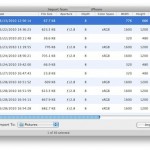
You can easily transfer Photos from your iPhone to your computer, and the process is very similar whether you are on a Mac or PC. The Mac treats the iPhone like a digital camera, and Windows can treat the iPhone as either a digital camera or a file system, depending on how the photos are … Read More

Shrink Illustrator PDF File Sizes with ShrinkIt

Apr 29, 2010 - Leave a Comment

ShrinkIt is a handy little app that greatly reduces the file size of Illustrator generated PDF’s. Created as an internal tool, the developers over at Panic realized that PDF files saved from Adobe Illustrator were loaded with loads of extra nonsense metadata, even patterns, preview bitmaps, swatches, creating enormous PDF file sizes when they should … Read More

View PSD files without Photoshop in Mac OS X

Mar 7, 2010 - 7 Comments

You can view .PSD Adobe Photoshop files directly in Mac OS X with no additional software, thanks to Quick Look and Preview. To get a fast preview of a PSD file, simply select the document within the Finder and hit the Spacebar to launch the PSD file rendered in Mac OS X’s very own Quick … Read More

Force Preview to Open an Image File

Feb 24, 2010 - 1 Comment

Recently Preview.app was refusing to open some image files for what seemed like no reason, I wasn’t even able to drag the image file onto the Preview icon to open it. I know the images are fine because they open fine in Windows and even in Photoshop, so how can I force Preview to open … Read More

Convert Images in Mac OS X: JPG to GIF, PSD to JPG, GIF to JPG, BMP to JPG, PNG to PDF, and more

Jan 24, 2010 - 33 Comments

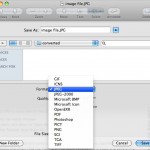
You can convert many different image file formats in Mac OS X for free using the included Preview application, there’s no need to download additional tools or do anything overly complex. As of Mac OS X 10.6 and beyond, Preview supports the following file types and will convert between any of them: GIF, ICNS, JPEG, … Read More

Delete pages in a PDF document

Jan 20, 2010 - 2 Comments

You can delete specific pages from a PDF file with the built-in Mac Preview app, just select/highlight the page you want to delete and then hit the delete key. This is really useful for paring down large PDF documents if you only need a few select pages, this is bound to make any student or … Read More