
How to Find Your Local IP Address on MacOS 27 Golden Gate
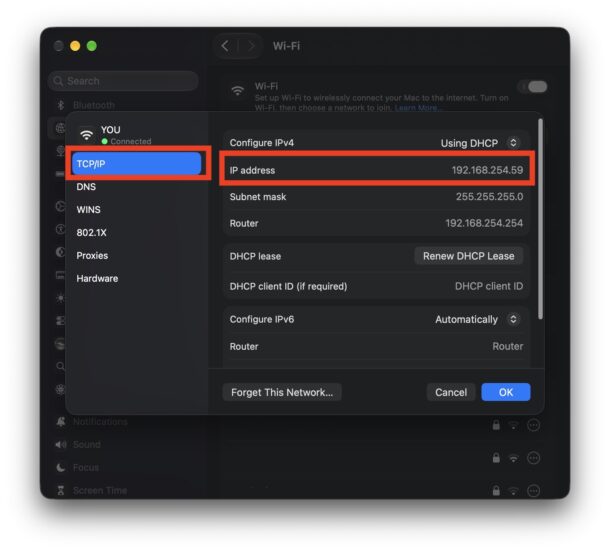
You might occasionally find yourself in a situation where you need to know the IP address of a Mac. Once upon a time, in Mac OS X users could instantly see their IP address when selecting the “Network” preference panel, but that is no longer the case in modern MacOS versions that have System Settings. Now, you’ll have to dig a little deeper to retrieve your IP address on a Mac, but it’s still pretty simple.
Here’s what you’ll want to do with a modern MacOS version, including MacOS 27 Golden Gate, 26 Tahoe, 15 Sequoia, 14 Sonoma, and macOS versions with “System Settings”.
How to Find IP Address on MacOS 27 (& 26 Tahoe, 15 Sequoia, 14 Sonoma, etc)
Locating your Mac IP address (for your Mac on the LAN, not your broader internet IP address) is easily done as follows:
- From the Apple menu, go to “System Settings”
- Choose “Network” then click on “Details” next to your currently connected network
- Now choose “TCP/IP” from the right-side options
- Find the IP Address of the Mac shown here, along with the Router IP
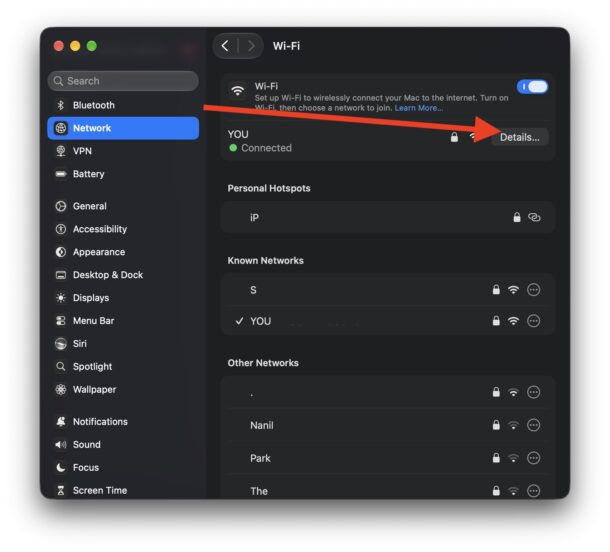
You will often need to know a specific Mac IP address for local network connections between devices and computers, whether for file sharing, screen sharing, media sharing, or many other local network tasks and activities.
And no, you can’t ask Siri to do this with you on MacOS, even Siri AI is stumped by trying to ask it what your IP address is, which is a little disappointing for Siri AI to not have system information.
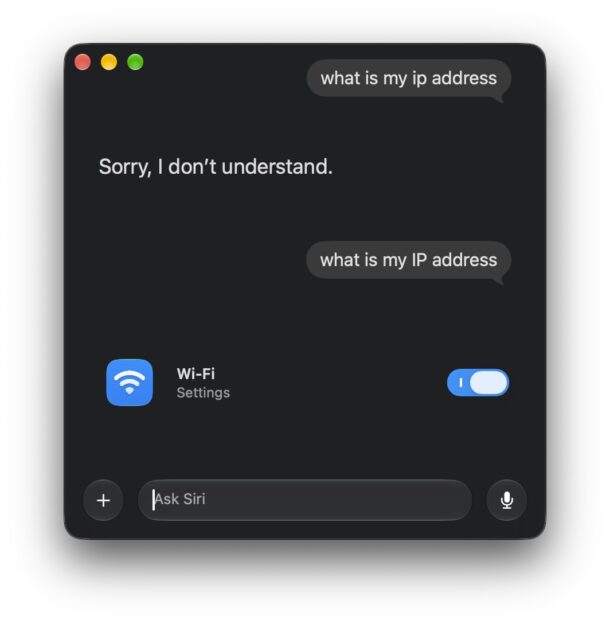
So you will have to find your local IP address manually in MacOS, because even with Siri AI in MacOS 27 it is not able to get this information for you from your Mac.
Personally I wish the IP Address was still visible immediately in “Network” settings on MacOS, but now you have to dig a bit deeper to find this sort of information. I suppose the good news is that the process is the same on MacOS now as it is on iOS and iPadOS? So if you learn this on one device, it’ll be relevant to the others as well.





