Happy New Year! We’ve put together a collection of some of the best Mac tips and tricks we covered from the past year, 2018. These are certainly not the most popular tips from the year prior, but they are some of the more interesting or useful tips and tricks for Mac users to know, covering a broad range of topics. Some you may know, some you may not.
Anyway, browse around and take a look at the link list below, and perhaps you’ll learn something new!
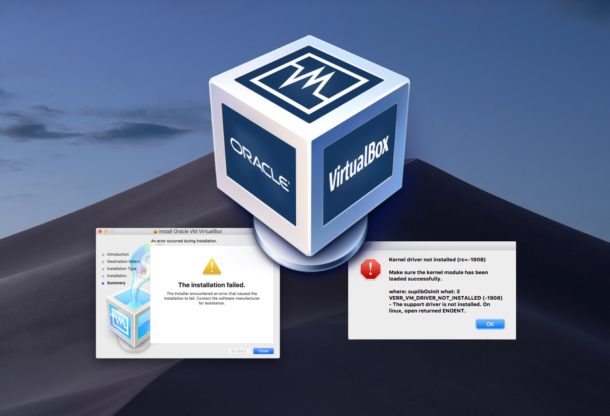
If you have attempted to install VirtualBox in macOS Mojave you may have noticed the installation sometimes fails with a generic “The installation failed” error message. Then, when trying to run VirtualBox you may experience another error saying “Kernel driver not installed” and VirtualBox fails to function. We’ll cover two different resolutions to the installation/running VirtualBox problem, one involving a Gatekeeper bypass, and the other using a Gatekeeper exception (for macOS 10.14.5 or later).
The reason for the installation failure and the inability for the kernel module to load successfully is due to security restrictions in MacOS Mojave, and thus to be able to successfully install VirtualBox and run the app you will need to make a relatively simple bypass of those aforementioned security restrictions (alternatively, you can also disable Gatekeeper completely but that is generally not recommended). By the way, while this article is obviously focused on VirtualBox you will find this same general process is necessary for installing other apps that include kernel extensions.
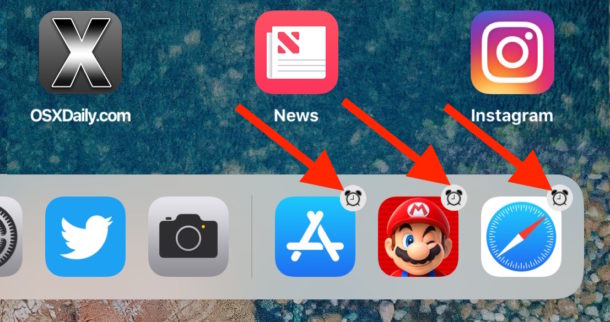
Have you noticed that some apps will appear automatically in the iPad Dock with a little tiny alarm clock icon on them? You may be wondering why those app icons with the alarm clock badge appear in the right side of iPad Dock at random and what their purpose is, and perhaps you’re even wondering how to get rid of them and remove those alarm clock badged icons from the iPad Dock.
If you assumed apps showing an alarm clock badge on them had something to do with the Clock app that would be a fair guess, but it’s wrong, so don’t bother opening the iPad Clock app and poking around in there.
Instead, the reason why apps with a tiny alarm clock icon badge appear on them in the iPad Dock is due to a relatively new machine learning feature, where iOS and Siri aims to recommend apps to use based on the time of day.
For example, if you have frequently used Safari on the iPad at or near 8pm in the evenings, then Siri will start to recommend and suggest the Safari app by placing it into the right side of iPad Dock at around 8pm. This same learning process happens with all other apps too, and the iPad Dock will continue to recommend and suggest other apps for using for times of day depending on how you use the device.
Some people may like this feature for suggesting apps based on time of day, but other iPad users may not and want to get rid of the the iPad dock icons with the alarm clock badge on them. There are a series of steps you can take to remove those clock badged icons from the iPad Dock.
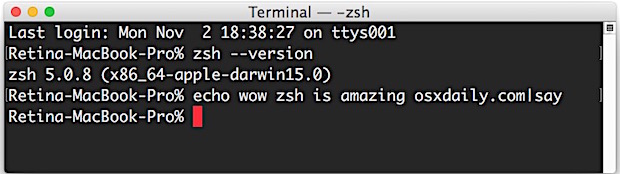
Zsh, or z shell, is a popular shell alternative to bash and tcsh, complete with many improvements and customization options offered through the Oh-My-ZSH project.
If you’d like to use zsh as the default shell in Terminal for Mac OS rather than bash, you can do so rather easily with taking the following steps:
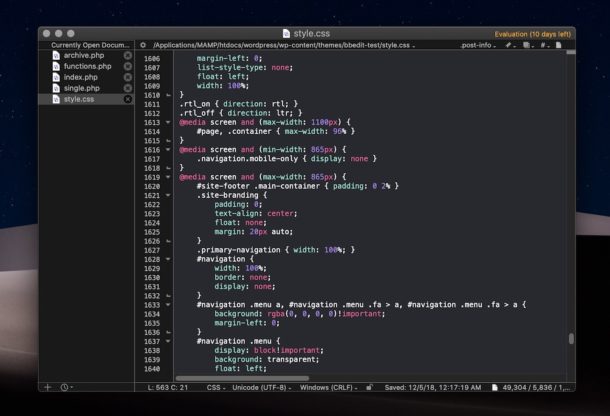
BBEdit, the excellent text editor for Mac, includes some very nice Dark Mode favorable color schemes, each of which compliment the Mac Dark Mode theme quite well.
If you spend a considerable amount of time in a text editor for scripting, programming, development, code review, or writing and editing with a markup language, and you also work on a Mac at night, or in dimly lit areas, or even if you just prefer darker color themes and darker themed syntax highlighting for your text editing, then you’ll almost certainly want to explore and use the various BBEdit dark color schemes.
Some iPhone users have discovered that their cellular data and cellular connectivity has failed recently, with iPhone no longer working to send or receive calls or access the internet, particularly after installing the iOS 12.1.2 update, iOS 12.1.3, or iOS 12.1.4 updates.
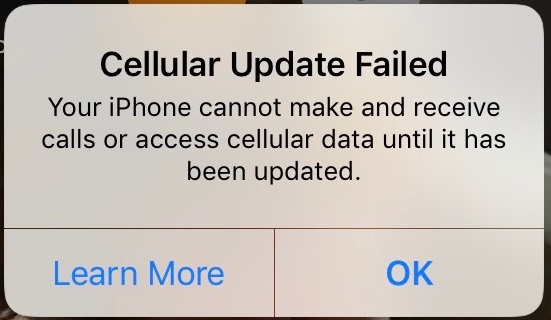
The inability for iPhone to have cell network connections is usually accompanied by a “No Service” message in the upper left corner of the iPhone screen where the carrier or reception signal is typically shown, and often an alert message appears on the iPhone screen saying “Cellular Update Failed – Your iPhone cannot make and receive calls or access cellular data until it has been updated.”
We’re going to show you a few workarounds to try and get cellular data and cell service working again on an iPhone that is experiencing these particular data problems after installing the iOS update.
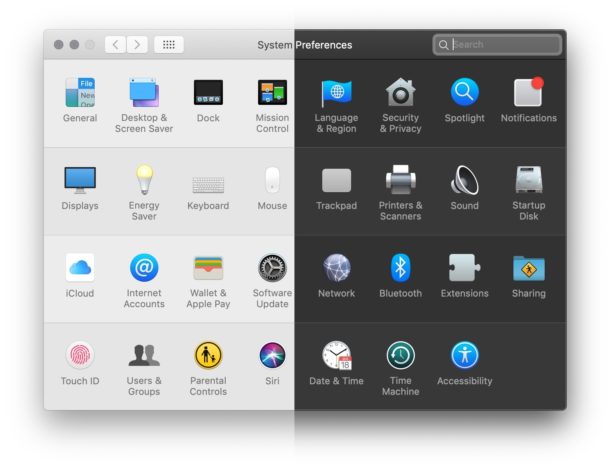
If you’re currently using the Dark mode theme in Mac OS, you may wish to change to the Light visual theme.
The Light theme in Mac OS was the default visual option on the Mac for ages, but with MacOS Mojave came the new visual option for enabling the Dark mode theme for the Mac interface. Many users may have chosen the Dark mode theme during the initial setup of MacOS, or another time, but later may want to set their Mac to use the brighter Light mode theme instead. The process of changing from the Dark to Light appearance is quite simple, as you’ll see.
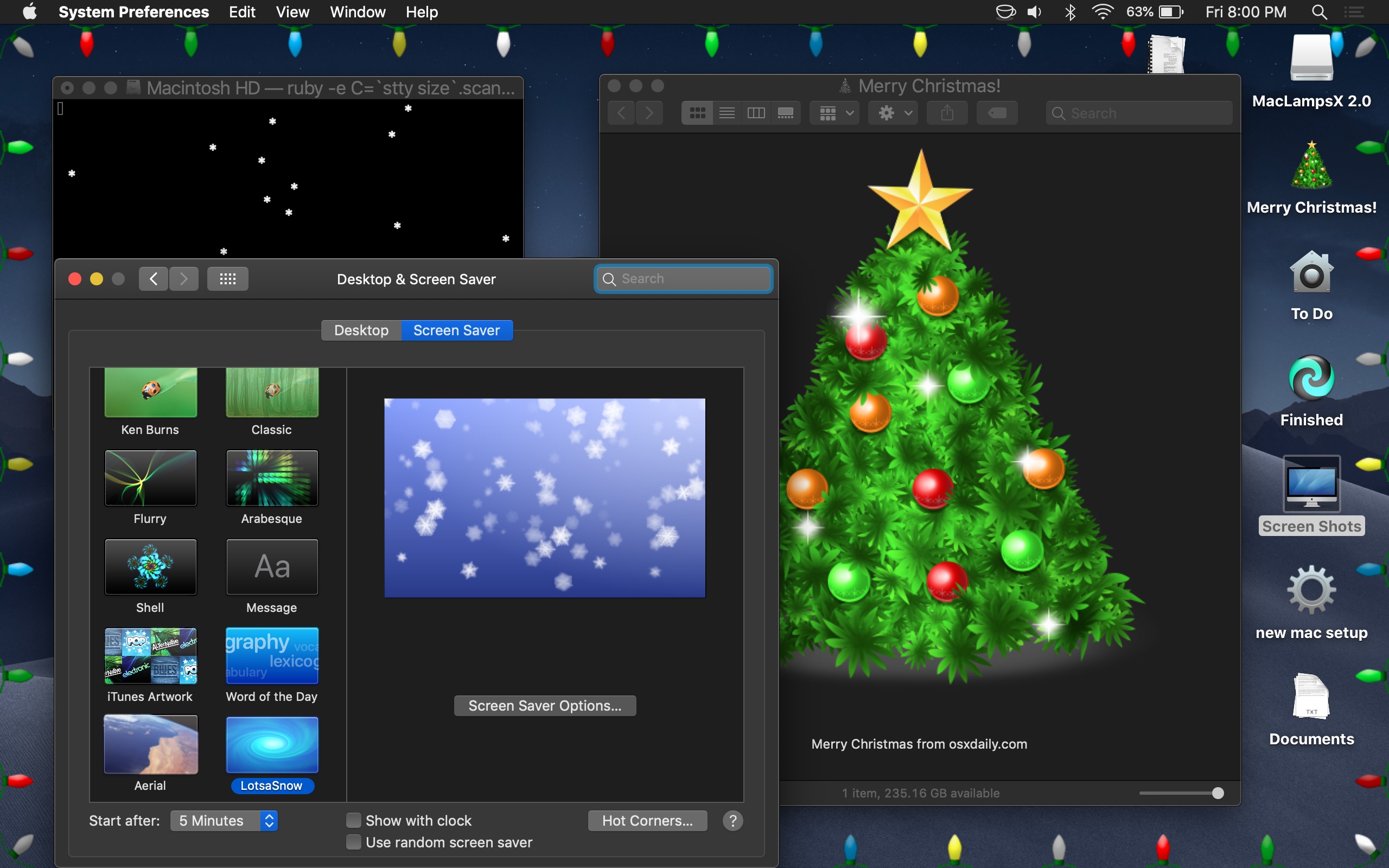
Feeling festive? Want to decorate your Mac for the holidays? How would you like to have a lovely falling snow screen saver, some holiday lights blinking around the perimeter of the Mac display, and maybe even some snow falling on the desktop itself? With the help of a handful of utilities, you can get all of the above, putting your Mac in the holiday spirit just in time for Christmas and the new year.
Tis the Season! If you have previously created a custom Memoji on the iPhone, perhaps you want to spruce it up for the holiday season and toss a fancy Santa hat on your Memoji creation. Or maybe you want to create a brand new custom Memoji of your own uniquely special Santa Claus for your own magical Christmas purposes. Whatever the reason, it’s Christmas time, and you can put a Santa hat on a Memoji.
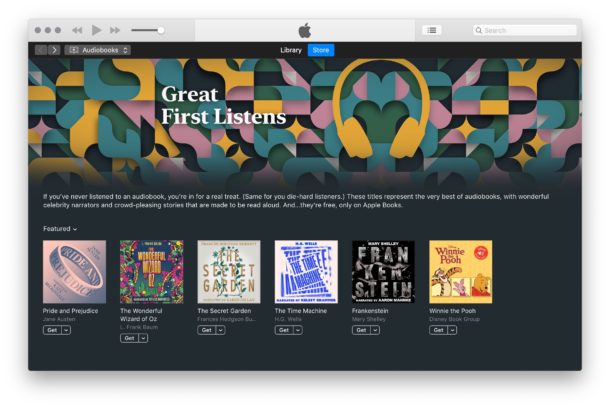
Want to read some classic literature? Or rather, would you like to hear some classic literature read to you? Apple has released a free set of audiobooks for classic novels, including Pride and Prejudice, The Time Machine, Frankenstein, The Wonderful Wizard of Oz, The Secret Garden, and Winnie the Pooh.
Each of the audiobooks is narrated by a celebrity, and is available for free as a download from the Apple Books app for iPhone or iPad, or the iTunes app on Mac or Windows. If you choose to download the audiobooks to a mobile device like an iPhone or iPad, then they could make for some great road trip listening as you venture out for the holidays or a weekend adventure.
Formatting an SD card from a Mac is simple and quick thanks to the Disk Utility application. This is a commonly required task before an SD card or Micro SD card can be used as a storage medium for another electronic device, or even to remove any data stored on the SD card.
This tutorial will show you how to format an SD card or Micro SD card in MacOS with the Disk Utility app.
Rather than updating apps individually, Mac users can wield a convenient feature of the App Store that initiates a bulk software update to every app installed from the Mac App Store, all with a single click. This makes the process of installing available software updates for Mac apps a bit easier and quicker, since there’s only a single action you’ll need to perform to start the batch update to apps.
This article will detail how to update all Mac apps from the Mac App Store.
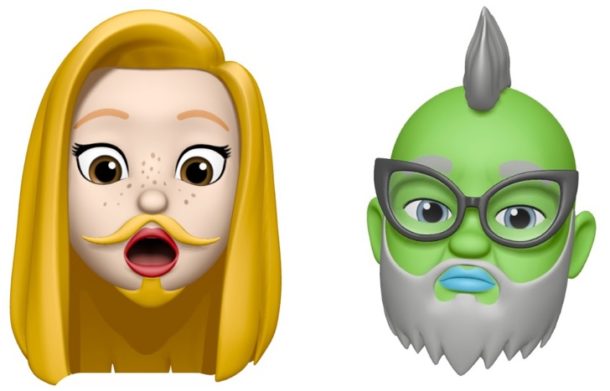
Want to make your own custom Memoji on an iPhone? Of course you do! Memoji are the custom version of Animoji, the quirky cartoony digital avatars available in the Messages app for new iPhones.
The fun thing about Memoji is that you can create a completely customized Memoji that can look like almost any character you set your mind to, with custom hair styles, skin, eye wear, head wear, eyes, lips, brows, nose, and many smaller customizations for each defining trait. You can make a little cartoon avatar of yourself, or of a character, or just create a completely unique avatar. After you make a Memoji, then using Memoji is the same as using Animoji, but first you have to create one to use.
This tutorial will show you the process of setting up and making your own unique Memoji on an iPhone.
Apple has released a new beta for iOS 12.1.3 and macOS Mojave 10.14.3, along with a second beta for tvOS 12.1.2. The new beta versions are available for developer testing initially, and are typically soon followed by public beta releases.
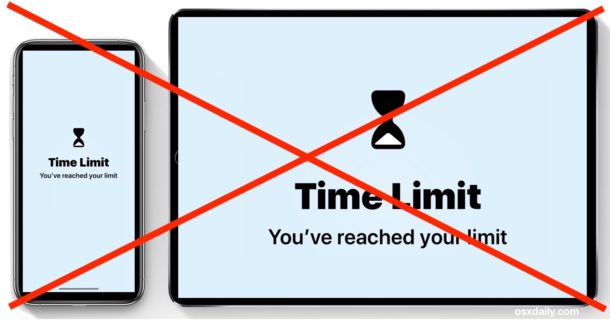
You can easily delete Screen Time limits that have been set for apps or app categories on an iPhone or iPad, allowing unlimited time usage of the app or app category again, or to re-define a more specific Screen Time limit.
For the unfamiliar, Screen Time is a feature of iOS that allows for setting time limits on app usage, either for individual apps or even for entire categories of apps. It’s incredibly useful for iPhone and iPad usage, whether you simply want to reduce your own usage of a particular app or type of app, or perhaps especially for parents and childcare providers who want to limit device time.
This guide will show you how to delete a time limit that has been set on an app, or entire app category, through Screen Time in iOS. This works the same to remove Screen Time limits whether they’re set on an iPhone or iPad.
Apple has released iOS 12.1.2 to resolve several issues with some newer iPhone models. Specifically, iOS 12.1.2 resolves issues with eSIM activation on iPhone XR, iPhone XS, and iPhone XS Max, and also resolves some cellular connectivity issues with those same model iPhones in certain geographic regions. It’s possible that iOS 12.1.2 also includes other bug fixes or changes that are not specifically mentioned in the release notes.
Update for 12/20/2018: Apple released an updated build of iOS 12.1.2 for iPhone, the new build is 16C104.
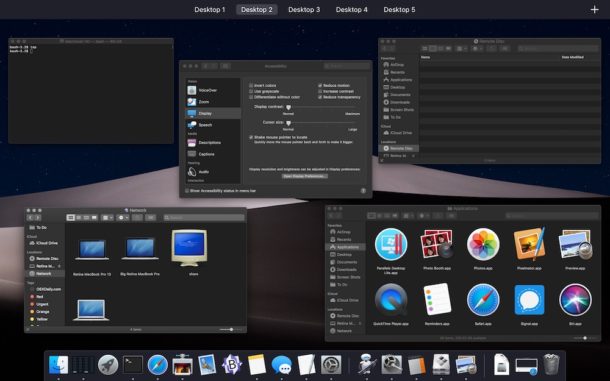
The Mac has many visual animations that draw on screen as you perform various actions throughout the operating system, whether it’s the zooming in and out of opening Mission Control, or sliding between desktops in Spaces, amongst others. These provide for some enjoyable visual eye candy, but some users may find the animations cause motion sickness, or serve as unnecessary glitz.
If you want to disable animations in Mac OS, you can toggle a setting called Reduce Motion that greatly diminishes the interface animations on the Mac.
Want to enable a word counter in Pages on iPad or iPhone? The Pages app for iOS includes an optional word count service that will constantly update as you type and edit any document within the Pages app for iOS. Curiously, enabling the word counter on Pages for iOS is different on iPad and iPhone, but this article will show you how to enable the feature in either version.
While this may not be useful to all Pages users, many writers, authors, editors, and students rely on word counters for various reasons, and a word counter can help to easily determine the length of a document, manuscript, newsletter, or any other file that may be worked on in the word processor app.