
How to Add a User to the Sudoers File in Mac OS X
 Advanced users may need to add a user account to the sudoers file, which allows that user to run certain commands with root privileges.
To greatly simplify what that means, these newly privileged user accounts will then be able to execute commands without getting permission denied errors or having to prefix a terminal command with sudo. This may be helpful (or necessary) for some complex situations, but it poses a security risk for others, thus this is not something that should be casually changed.
Generally speaking, most users are better off using an admin account, using sudo on a per command basis, or enabling the root user. Nonetheless, directly modifying sudoers has plenty of usage situations for advanced individuals with in-depth knowledge of the command line, and it is for those more complex situations that we’ll focus on adjusting the sudoers file as described here.
 Filtering photos has long been a popular obsession of iPhone users, whether through
  There are plenty of useful Mail plugins out there for Mac OS X, but sometimes their use wears out, or the plugin doesn’t get updated for a new version of the Mac Mail app which renders it unusable. If you’ve ever wanted to uninstall a Mail plugin in Mac OS X you’ve probably discovered that,
 Ever installed a new app or two on a Mac and then went to find them, only to be lost in a sea of other applications that are already installed? For those of us with a ton of apps installed this happens often, but OS X offers several ways to sort through the clutter and quickly locate these newly installed apps. We’ll cover two of the quickest, using Launchpad and also the Finder.



 If you have music actively playing, or a song or iTunes Radio station is paused within the Music app, you can quickly jump to the Music app by going through the Control Center of iOS. In many cases, this lets you adjust songs or radio stations quicker than using the multitasked to switch apps. This is a fairly simple trick, and those who listen to a lot of music on their iPhones and iPads should appreciate the convenience.
 Touch-based clicking is an alternate input form that uses trackpad (or Magic Mouse) taps as a click. For most Mac users,
  Need to find a system file or several, but you aren’t entirely sure the directory path of where that system item is located on Mac OS? Maybe you’re looking for a plist file and you aren’t sure if it’s in the
 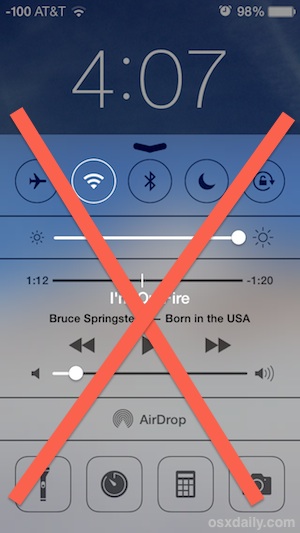 The Control Center feature of iOS offers quick access to some of the more frequently used settings toggles on the iPad and iPhone, like wi-fi and orientation lock. This is undeniably convenient, but not every user wants these toggles to be readily available to anyone who picks up their device, and in some higher security situations these functions may be considered inappropriate to have easy access to. If security is more important than convenience, consider disabling access to Control Center from the lock screen.

 The tap-to-click ability is enabled by default on most PC laptops, while on the Mac side of things it’s usually disabled by default. For the unfamiliar, tap-to-click means that a single tap or touch on the MacBook trackpad or Magic Trackpad is registered as a click, thereby preventing the need to actually press down the trackpad to click on a screen item.



