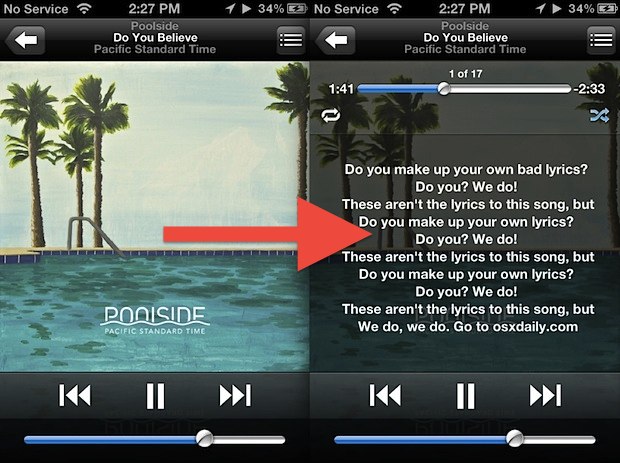
Did you know you can add or edit the lyrics of any song in your iTunes library? And of course, once you sync that song to your iPhone or iPod touch, you’ll then be able to view the lyrics directly on the iOS device screen. The whole process is quite simple, though you’ll have to fill in lyrics yourself if they aren’t already there, but with no shortage of lyrics sites out there the words the songs are only a quick google search away. The result is that you’ll be able to actually see the words to a song while you’re playing it in the Music app rather than taking a wild guess.
The new iTunes interface can be a bit jolting at first, but whether you’re still trying to get the hang of the new iTunes 11 interface of you’ve already made the changes to bring some familiarity back to the app, you’ll find good use out of these keyboard shortcuts.
We’ve split them up into three distinct sections based on usage, and you’ll be able to start and stop songs, change volume, hide and show the sidebar, toggle the new MiniPlayer, and access all of your media libraries, all with the help of nothing but some simple keyboard shortcuts. Read more »
The first major TV interview with Apple CEO Tim Cook aired last night, where he spoke at length with NBC’s Brian Williams. A wide variety of topics are discussed, including Cook’s role as CEO, Steve Jobs, the mishaps of Apple Maps, Apple TV, manufacturing, the future of Apple, The Jetsons (yes, the cartoon), competition, and other little tidbits, like Apple’s purpose which led to this great quote from Cook: Read more »
Snapseed is far and away our favorite mobile photo editing app for iOS, and it just got even better because the best image editing app for iPhone, iPad, and iPod touch is now free. No more $4.99 price tag, now everyone can check it out with no obligation other than a quick download.
Whether the iPhone is flipped into silent mode or not, an incoming text message or iMessage will vibrate. While that’s great for being notified of a new text, in some situations you’d rather have complete silence when texting, you know, when you’re passing time in a boring meeting, sitting a quiet classroom, or maybe you’re just next to someone who is a very light sleeper. In situations like these the best way to text and send messages completely discretely is to not only mute the iPhone, but to go a step further and disable the vibration alert as well.
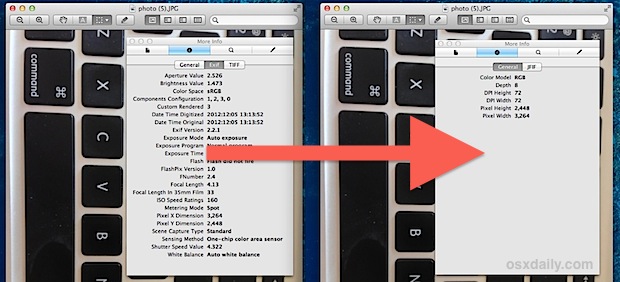
Photos taken with digital cameras, including the iPhone, iPad, and iPod touch, all include some level of EXIF data, which is basically metadata with information about the image. With pictures taken from the iPhone and other smartphones, that data can even include details like precise geographic coordinates where the image was taken, (though that’s easy to disable), and overall that metadata can just make images more bloated than they need to be.
This tutorial will show you how to remove all EXIF data from pictures you choose to on a Mac in a nice quick and easy manner. EXIF data includes meta data, GPS coordinates, originator information, and more, and by stripping the EXIF metadata from the image file the photo will no longer have that information bundled with the file itself.
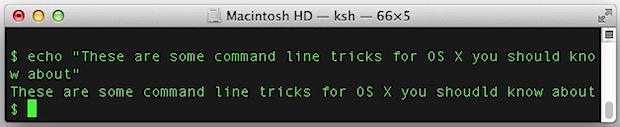
The command line is often considered the realm of advanced users, but that doesn’t mean every usage of Terminal has to involve rocket science. This collection of terminal tips should apply to a wide variety of Mac users, and everyone from beginners to advanced users should find something worthwhile here. Read more »
Creating a new user account in Mac OS X either for yourself or for another person who may use your Mac is often a good idea.
For another computer user, a separate user account insures that your data and their data is separate, effectively sharing the same computer but not the same files. For yourself, a new user account used exclusively for work or play is an excellent way to increase your productivity by reducing distractions. This makes it very easy to use and carry just a single Mac to serve as both a work and personal computer, and can be a real lifesaver for those of us who are either workaholics or just easily distracted by all the stuff that resides on the computer.
We’ll show you how to create a new user account in Mac OS X that you can use for whatever usage is necessary, either for your own needs or for a separate person.
Have you ever wanted a globe in the palm of your hands? Well thanks to your iPhone or iPad you can have a little virtual world and digital globe, right in your hand!
Everyone loves good wallpapers, and it’s hard to beat the incredible selections that National Geographic puts up once a year through their photo contests. This year is no different, and there are quite literally tons of freakishly beautiful wallpapers available to download in sizes fit for the desktop, iPad, and iPhone. We’ve provided a small sampling of favorites below, but don’t miss browsing through the collections on the NatGeo website, you’ll be impressed.
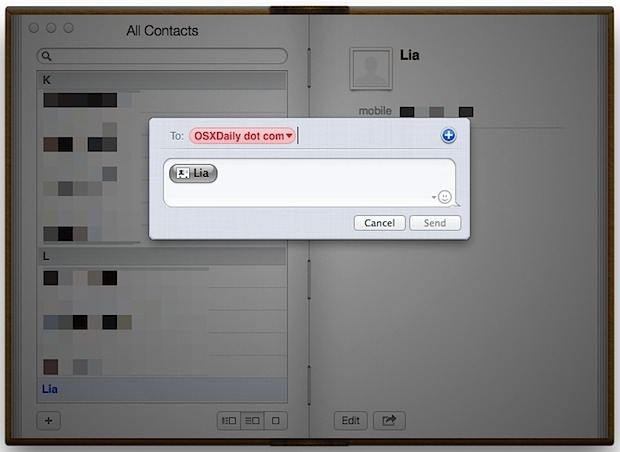
The Contacts app in OS X makes sharing the contact information of anyone in your address book extremely simple, and if you have iCloud enabled you can share any address from your phone right from your Mac, without reaching for the iPhone itself: Read more »
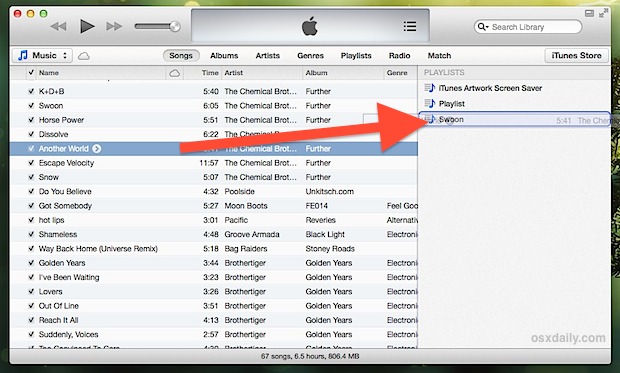
If you upgraded to iTunes 11 you know the default view removed the sidebar with its playlist view. Sure it’s easy to show again, but if you’d rather keep with the new simplified user interface, don’t miss this simple trick to make a new playlist or add songs to a playlist, without using the standard sidebar ever again.
Click and hold on any song to reveal a temporary sidebar on the right
Drag the song into that floating sidebar to create a new playlist, or drag the song to an existing playlist to add it
These playlists can be found and edited further by clicking the “Playlists” tab as usual, and can be added to at any point by just clicking and holding anything else in the iTunes library. With this new feature, you can keep the iTunes interface simplified as the default setting suggests, and it actually starts to make more sense since the action of creating and editing playlists is hidden unless it’s needed.
You can see this in action with the video embedded below, which demonstrates a playlist being created and then songs being added to that playlist, all without showing the primary sidebar:
The third beta of iOS 6.1 has been released to developers, edging closer to a wider public release for the minor software update. iOS 6.1 beta 3 arrives as build 10B5117b and is available as an OTA update to anyone currently running iOS 6.1 beta 2. IPSW for beta 3 will also be available for downloading from the iOS Developer Center.
Thus far, no significant changes have been found in iOS 6.1 betas, and the release primarily consists of minor improvements to Maps, Passbook, Siri, and Safari, as well as a variety of bug fixes and minor UI adjustments.
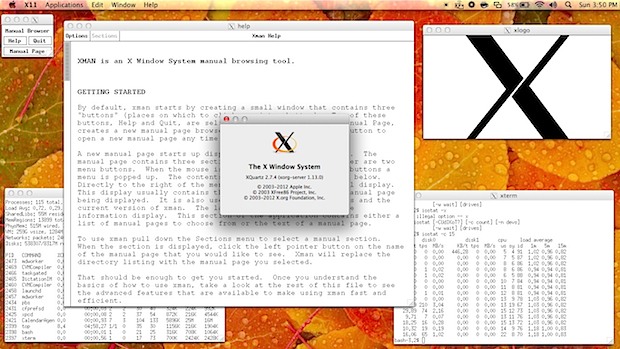
Advanced Mac users may have noticed that X11 is no longer bundled with OS X, and it’s also no longer available as a separate installation option through Developer Tools. Instead, to run X11 on OS X Mountain Lion (and later), you’ll want to download and install the free XQuartz system, which bundles all the necessary libraries and apps together that are needed to run a full X11 Windowing System perfectly atop OS X.
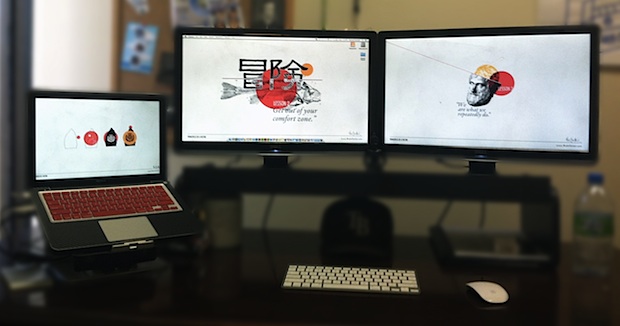
This weeks Mac setup comes to us from Michael H., the owner of a digital media company that focuses on web and graphic design. As you might have guessed, the hardware is used for every stage of the design process from the creative aspects to the business side of things. Hardware and accessories shown includes:
MacBook Pro 13″ (early 2009) – 8GB RAM, 500GB HD, 120GB SSD replaced in optical bay
Maybe best of all, Michael is a switcher and this is his first Mac! Something tells me it won’t be the last Mac either, for it’s pretty rare for a switcher to ever go back to the crashy world of Windows.
Do you have a great Mac setup that could be featured here? Send us a good picture or two, a list of hardware, and a brief description of what the workstation is used for to osxdailycom@gmail.com
Unlocked iPhone 5 models can now be purchased directly from Apple at the full unsubsidized prices. The unlocked iPhones will work with any supported GSM network, such as AT&T or T-Mobile in the USA, and can be used abroad on compatible GSM networks with a nano-SIM card from local carriers. The factory unlocked models are not compatible with CDMA networks.
The iPhones are available for order both in stores and online, they can be bought directly from Apple Online Store by selecting a black or white iPhone 5, then navigating down to find the “Or get iPhone unlocked and contract-free” link. That reveals the full unlocked iPhone 5 prices, which are as follows:
16GB – $649
32GB – $749
64GB – $849
These prices are each $450 more than buying the same model locked to a carrier as part of a service plan, and unless you have a compelling reason to buy unlocked it typically makes more financial sense to buy an iPhone within a standard two-year agreement. Unlocked iPhones can be set up as pay-go and as prepaid phones in the USA, though the process is unofficially supported by AT&T and you may have more options using the device on the T-Mobile network.
Unlocked iPhones are typically best for frequent travelers and international users, since the device can be used just about anywhere worldwide. For more infrequent travelers, another option for individuals who already purchased an iPhone 5 within a contract is to unlock their original iPhone through AT&T‘s simple online procedure. Additionally, both Sprint & Verizon will sometimes unlock the SIM card slots on iPhones contracted onto their network through a customer service request.
A fair amount of Mac users have encountered long lasting Wi-Fi connection issues, whether it’s a dropping connection, a refusal to reconnect after waking from sleep, or any other number of oddities pertaining to wireless networking. Often these connection problems can be resolved with renewing a DHCP lease and changing the MTU size, but sometimes things are more stubborn and a wireless connection will continue to drop or throw unusual connection errors when waking from sleep. If you find yourself struggling with persistent wifi problems, try deleting all preference plist files associated with wireless settings in OS X:
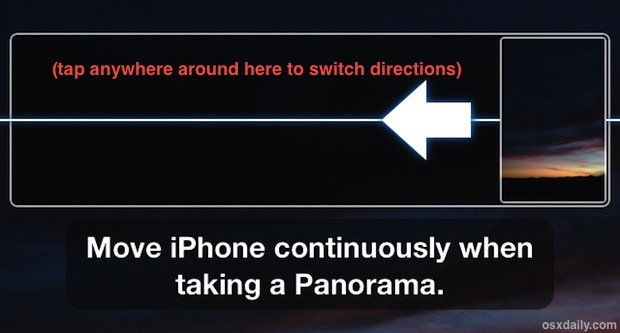
Panorama Mode on the iPhone is easily one of the better features of the devices camera, and it makes taking incredible panoramic images easier than ever. The panorama camera defaults to taking pictures from left to right, but there are times where you’ll want to take a picture from right to left instead, and doing so is just a matter of tapping the screen.
This guide will show you how to easily change the direction of panorama on iPhone. Read more »

 The new iTunes interface can be a bit jolting at first, but whether you’re still trying to get the hang of the new iTunes 11 interface of you’ve already
  The first major TV interview with Apple CEO Tim Cook aired last night, where he spoke at length with NBC’s Brian Williams. A wide variety of topics are discussed, including Cook’s role as CEO, Steve Jobs, the mishaps of Apple Maps, Apple TV, manufacturing, the future of Apple, The Jetsons (yes, the cartoon), competition, and other little tidbits, like Apple’s purpose which led to this great quote from Cook:






 for the MacBook Pro
 (driving the 2nd display)