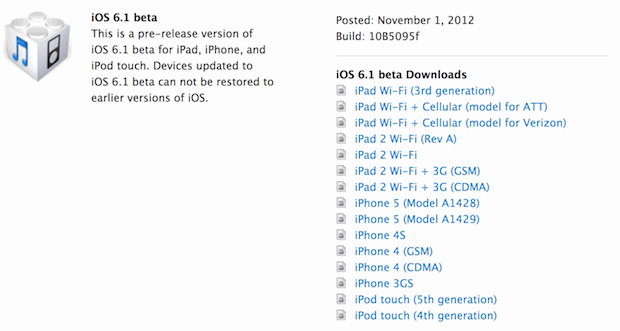
Alongside the public release of the iOS 6.0.1 update, registered Apple Developers received access to the first beta of iOS 6.1. Included in the release are a variety of minor UI changes, and a new Map Kit aimed at developers to help the built-in Maps app.
iOS 6.1 beta 1 arrives as build 10B5095f, and is compatible with iPad 2, iPad 3, iPhone 5, iPhone 4S, iPhone 4, iPhone 3GS, and iPod touch 4th and 5th gen. Curiously, the early releases of iOS 6.1 beta did not include IPSW for iPad 4 or iPad mini, but those should arrive shortly. Alongside iOS 6.1 beta is also a new version of Xcode 4.6, which is required to build apps for the latest beta iOS.
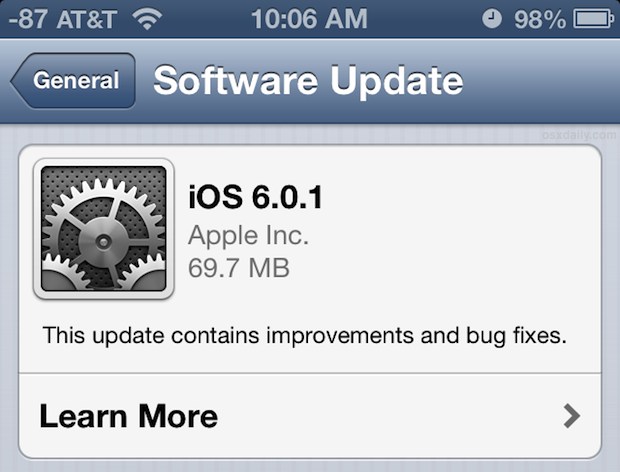
The iOS 6.0.1 update provides some invaluable bug fixes, and every iPhone, iPad, or iPod touch user should update to take advantage of them. The vast majority of users are best served updating directly on their iOS device by using OTA update, found in Settings > General > Software Update. Connecting an iPhone, iPad, or iPod touch to iTunes will also trigger the automatic update procedure. Nonetheless, some advanced users prefer upgrading directly by using IPSW firmware files, and those downloads can be found here.
iOS 6.0.1 IPSW Download Links
These ipsw files are hosted by Apple, right-click on each link and choose “Save As”, the file extension should be .ipsw only.
Again, if you don’t have prior experience using IPSW for updating iOS, it’s best to go the automated routes of Over The Air or through iTunes. You can read more about using firmware files here.
iOS 6.0.1 has been released, the software update includes several significant bug fixes for all iOS users, particularly those with iPhones. Curiously, those with iPhone 5 must first download a patch that allows OTA updates to work, prior to being able to download and install iOS 6.0.1.
The 6.0.1 update appears to address several prominent bugs, including an apparent resolution to the iPhone-specific “No Service” after signal loss and regain problem that impacts a fairly large number of users who are in areas with spotty cellular reception, a fix aimed at the iPhone 5 Wi-Fi speed issue, and a resolution to the peculiar keyboard glitch. The full list of bug fixes is shown below.
The iOS 6.0.1 software update can be downloaded through iTunes or Over-the-Air Update on the device itself by tapping on Settings > General > Software Update. Direct download links for iOS 6.0.1 IPSW firmware are also be available for those who wish to go the manual route.
If you want to buy a used Mac to save a bit of money, the best place to do so is directly from Apple’s Online Refurbished Store. We’ve bought used Macs from just about everywhere under the sun before, from friends, coworkers, Craigslist, and eBay, but nothing beats the official Certified offerings from Apple. Why? Apple Certified Refurbished products have been thoroughly tested, cleaned, and any defective item has been replaced. For portables, Apple Refurbs usually get brand new batteries too. You can read more about the official refurb process here, but we’ll elaborate on six main reasons why we think buying refurbished is the way to go when buying anything in the used Mac market.
Siri works from the Locked Screen in iOS, letting you get things like the weather, make quick phone calls, and a variety of other incredibly useful tasks, but for the privacy and security buffs out there, this may be considered undesirable.
You no longer need to create music playlists in iTunes and then sync them to an iPhone, iPad, or iPod, because the entire process can be done easily directly in iOS itself. The next time you leave home without creating a playlist, just make one quickly on the go by doing the following:
Launch Music in iOS and tap the Playlists tab
Tap on “Add Playlist…” and give the playlist a name
Now sort through the song list and tap the blue (+) icon on each song to add to the playlist
Tap “Done” when finished, and enjoy the playlist
You can also edit playlists and change the playlist order of songs, clear the contents of playlists, or delete the playlist completely.
If you do connect to a computer later, these playlists should sync fine with iTunes on a desktop PC or Mac. If it doesn’t happen automatically because of your management settings, you can always export the playlist manually to transfer it over to your computer too.
This feature has been around since iOS 5, so just about all iOS devices should be able to do it.
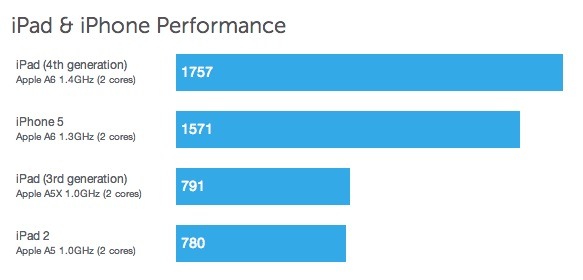
Recent benchmarks for iPhone 5 were very impressive, but now those impressive numbers have been broken by another Apple product: the iPad 4. Not only is the iPad 4 faster than the brand new iPhone 5, it’s much faster than the iPad 3, offerring over two times the performance of the previous model.
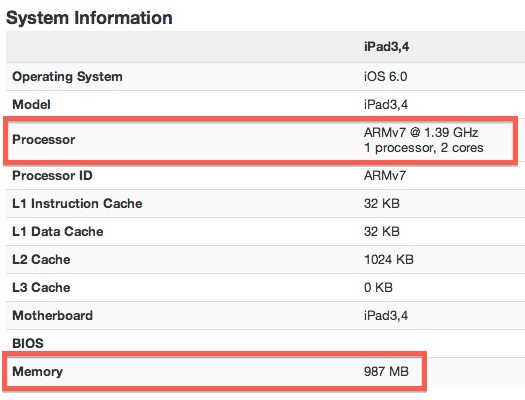
For those who like the technical details of performance, the iPad 4’s speed boost is achieved with an A6X dual-core 1.4GHz processor alongside 1GB of RAM, as revealed by the Geekbench app where the benchmarks came from. The A6X CPU at 1.4GHz is slightly faster than the A6 CPU included in the iPhone 5, which runs at 1.3GHz.
You can see the full benchmark information at PrimateLabs, and you can download the GeekBench app yourself and run it on your own devices to see how they stack up.
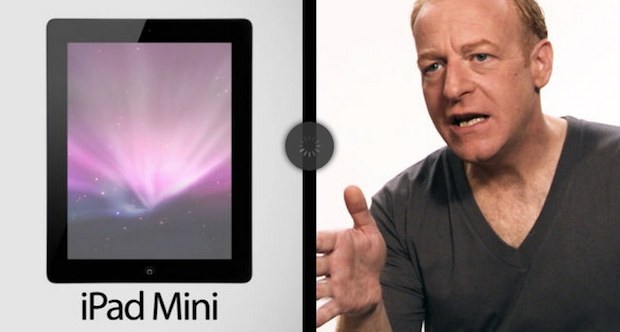
Conan O’Brien is having a lot fun with the iPad Mini launch, roasting the device yet again in a new hilarious video that touches on Apple’s newly multiplied iPad lineup. It’s pretty funny, watch through the embed(s) below, one is through Conan’s website which should be viewable by worldwide audiences, and the other is through YouTube which may be region restricted.
The Help menu that’s always visible in Mac OS X and within Mac apps is far more powerful than just serving as a knowledge base for questions about the app in use; it can also function as a full-fledged action launcher for any menu items.
This is useful for when you’re either still learning keyboard shortcuts, can’t remember where something is in menus, or just want to quickly perform a task and you don’t know the shortcut. It also lets you interact with menu tasks that don’t have a keyboard shortcut.
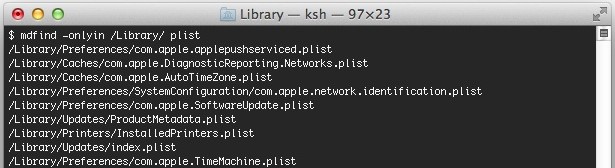
Searching the file system for a specific document or file is easy and very fast. Though most users are best served using Spotlight from the menubar, there are times when either Spotlight isn’t working, you need more paramaters, you’re working in the Terminal, operating with a remote machine, or perhaps just would like to use an alternative search function.
You’re in luck, we’ll show you how to find files and folders directly from the command line using two different tricks. The first method is operating system agnostic, meaning you’ll be able to use the search function with Mac OS X, Linux, BSD, and many other unix variations, whereas the second trick for searching utilizes a Mac-only model of finding files from the command line. Let’s read on and learn how to use these great abilities.
Though we have long been able to add automatically dialed extensions to contacts on the iPhone, the newest versions of iOS handle extensions much more intelligently, allowing you to create a “Dial Extension” button to any specific contact. That extension dialer can be activated manually, making the navigation of telephony menus infinitely easier.
Mac OS X has a myriad of multi-touch gestures that have been expanded upon in modern versions of Mac OS X, and one of the better gestures is the two-fingered swipe left or right to go either back or forward in a wide variety of apps.
This gesture is borrowed from the iOS world and it’s quite useful as a back / forward quick action.
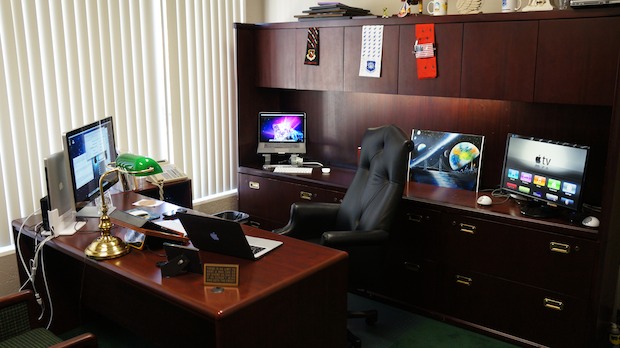
This great multi-Mac setup belongs to Terry R., a Vice President at a leading cybersecurity firm. You’ll find a wide variety of gear and software in use, with three different Macs and a handful of iOS devices, all of which provide an interesting look into how Apple hardware is used at the executive level. Hardware shown includes:
MacBook Pro 13 (2012) – 2.9GHz Intel Core i7, 16GB RAM, 750GB hard drive, OS X 10.8.2, MS Office for MAC
Apple Thunderbolt Display 27” display
Apple Magic Mouse
Apple Wireless Keyboard
Henge Dock
This first Mac is used primarily for standard day to day activities, including document development, emails, business development, proposals and program execution. Next up you’ll find a MacBook Pro:
MacBook Pro 15 (2011) – 2.2GHz Intel Core i7, 16GB RAM, 1 TB hard drive, OS X 10.8.2
MS Office for MAC, Adobe Acrobat CS6, VMWare Fusion, Windows 7, Office 2010, Project, Vision, and Mathlab
Apple Magic Mouse
Apple Wireless Keyboard
Griffin Elevator stand
The MacBook Pro is used for emails, video, photographic, and mathematical processing for engineering, system designs, and business development, proposals, business management. Finally on the Mac front, there’s a MacBook Air, which is used for a variety of day to day activities, document development, emails, business development, proposals, and naturally also serves as the primary traveling computer.
You’ll find a handful of other Apple gear throughout the setup as well, including:
iPhone 4
iPad (2?) with Apple Wireless Keyboard
Apple TV 2 connected to an Asus 23″ LCD
Apple Time Capsule 3TB (out of view) used by all MacBooks for real time backup
Here’s another angle of the desk arrangement:
How’s that for a great Mac setup?
Do you have an interesting Mac setup you want featured? Send a good picture or two, a list of hardware, with a brief description of what the workstation is used for to osxdailycom@gmail.com
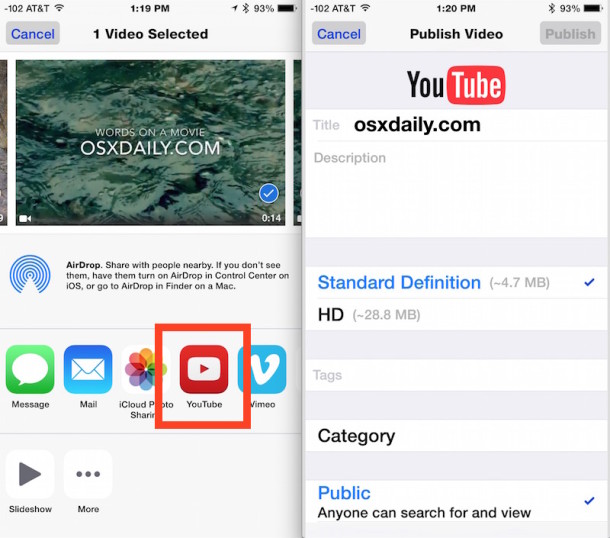
You can easily upload a video directly to YouTube right from your iPhone, iPod touch, or iPad. This feature has actually been around for a long time, but as YouTube gets more and more popular, it’ll certainly get more useful to have direct uploads like this.
The process of uploading movies from iOS directly to YouTube is very simple:
Everyone loves good looking wallpapers, and here are a few great space wallpapers being posted by request of our readers after seeing one shown in a recent tip screenshot.
The images are originally from the press page of a very interesting documentary on Chile’s Atacama Desert titled Nostalgia for the Light, they aren’t intended to be wallpapers but the images are high resolution and look fantastic as a background picture on iPads, iPhones, Macs, or whatever else you’re decorating – even the Surface!
Click the images below to grab the full size version hosted on POV’s Flickr page:
The volume level of Siri can be independently adjusted from the rest of the system volume of an iPhone or iPad, allowing you to directly control how loud Siri is without impacting other system audio. Though the feature is not immediately obvious, it is really easy to use: Read more »
For those of us who have a bunch of apps contained within iOS folders, it’s fairly easy to misplace apps that aren’t used often. To quickly find out what folder contains an app, just swipe to the right of the iOS home screen to bring up Spotlight search, then type the name of the app into Spotlight. Alongside the app name you will conveniently find the name of the folder which holds the app.
While you’re in Spotlight search results, you’ll find that tapping on the app name launches it directly from Spotlight as well, just like in OS X. Chances are if you can’t find an app because it’s buried in a folder, this will be the quickest way to get to it.
You’ll need at least iOS 6 to be able to find the folders holding apps.
Conan O’Brien has has long been a Mac fan, but that doesn’t stop the Conan Show from ripping on everyones favorite fruit company in a reliably hilarious manner. The latest offers a revised look at the iPad Mini commercial which aired during the unveiling event, and adds some new lyrics to Heart and Soul being played in Garageband… no spoilers, just watch the video embedded below for a good laugh:


 Siri works from the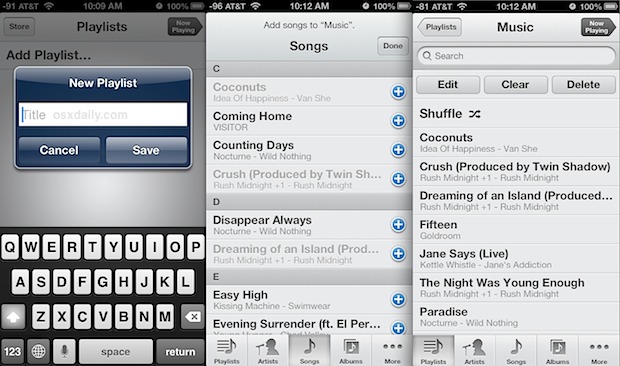




 The volume level of Siri can be independently adjusted from the rest of the system volume of an iPhone or