If you’re a developer (or anyone else) you may quickly get fed up with the Crash Reporter Dialogue box that pops up when an app melts down and crashes in Mac OS X. If you’re pestered by the crash reporter dialog window, then you can quickly turn the window on and off with a defaults command string.
Do note that turning off the Crash Reporter dialog window has no effect on crash reports, which are still visible in system logs and the Console app. It simply stops the window appearing in the Mac OS X GUI.
Mac OS has come a long ways since System 1.0, and there’s no better way to see just how far we’ve come than to look at screenshots. From the earliest years to the latest versions, it’s a journey that is rather remarkable over three decades of development and refinement.
We’ve included some of the great pictures below from earliest versions of Mac OS to now. Then, Francesco Mugnai went further, having compiled quite a comprehensive collection of screenshots that chronicles the evolution of the Mac operating system, it’s a fun walk through time, so check it out if you like to reminisce about the good old days of SE/30’s and LCII’s!
Are you wondering if your Mac is 64-bit architecture or 32-bit architecture? Well you might not be alone. The good news is it’s pretty easy to determine what CPU architecture your Mac is using.
You can either focus on the model year of the Mac, or the CPU architecture and processor chip itself. The most precise measure will be focusing on the CPU.
At its core, the file and folder explorer of OS X known as Finder is essentially an application like any other on the Mac. Accordingly, users can quit the Mac OS X Finder in a few different ways which we’ll cover here, but perhaps the fastest way is to just launch the Terminal app and use the killall command, which is located in /Applications/Utilities/, once the Terminal is open just type or paste the following string at the command line:
killall Finder
Hit the Return key and this will kill the Finder process, which will then automatically relaunch as a fresh new Finder process. This is a common trick to force many defaults commands to take effect, and it can be a valuable troubleshooting technique if the Finder is misbehaving for one reason or another, or just outright crashing. Once the Finder has exited, the Terminal app does not need to stay open and can be quit as usual.
If the command line isn’t your thing, you can also try the Force Quit approach, which is achieved entirely through the more user-friendly GUI. Read more »
Have an iPhone? Like to use gloves to keep your hands warm in the winter? Annoyed that you have to take your gloves off to use the iPhone? Keep those gloves on, because there’s a really goofy solution that has surfaced out of South Korea!
Yes indeed, innovative Korean iPhone users are driving a 40% increase in snack sausage sales because they’ve figured out the little meat sticks can be used as an iPhone stylus in cold weather… no really. Micro sausages are actually effective to use as a stylus on the touch screen, apparently. And no, we haven’t had a chance to actually try this out. Read more »
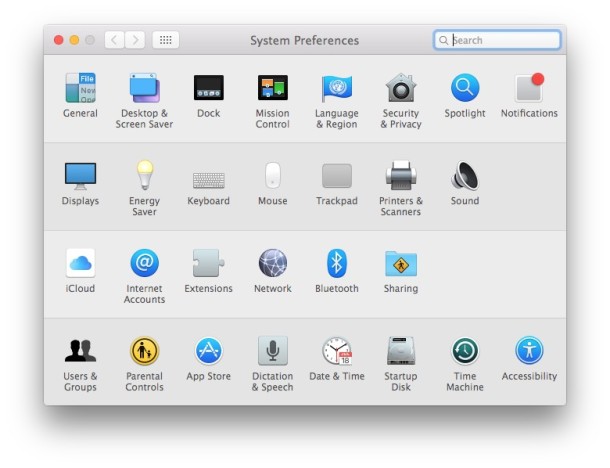
In some situations, you may wish to disable access to the System Preferences on a Mac. Often this is for lab environments or public use workstations, or perhaps for locking down a particular workstation for various reasons. While a common approach is to create a new user account that has limited access to system features and functionality, another method can be utilized with chmod that changes the access permissions to the System Preferences application itself within Mac OS, and when implemented properly all access to System Preferences on the Mac will be disabled and prevented regardless of how its attempted to be launched.
This approach to disabling access to System Preferences uses the command line and involves changing permissions to a critical system level application that is necessary for the proper functionality of all Macs. Therefore this is only appropriate to be used by advanced Mac users.
It’s no secret, I hate Flash. It’s the plastic pink flamingos of the web but worse, it’s crass, it’s loud, it’s obnoxious, it will crash your web browser, and on a Mac it is a literal drag on the machine, sucking up the CPU and memory as if there’s no tomorrow. Adobe really laid a pile of dung with Flash on the Mac, which is probably why Apple won’t allow Flash to run on the iPhone or the new iPad. Anyway, enough of my opinions and ranting about the Flash problem, here’s some solutions:
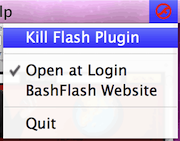
I am a huge fan of ClickToFlash, the Safari plugin that prevents all Flash from loading unless you approve it. But what if you allow a Flash object to load with ClickToFlash and it goes crazy? Now comes BashFlash, a perfect compliment to ClickToFlash. BashFlash is a little menubar extra that automatically warns you if Flash is taking up too many CPU cycles (usually is) and lets you kill the Flash culprit instantly. Hooray! Your web browsing experience is normal again!
The only bad thing about BashFlash is that it requires a 64 bit Mac, but this is because 64-bit Safari forces Flash to run within it’s own process ID on 64 bit systems (interesting, I learn something new every day!), allowing BashFlash to target the resource hogging process and end it instantly.
Spaces is a really nice feature of Mac OS X that lets you place different windows and applications within their own workspace. Dragging a window to a new Space is just a matter of holding onto the window and pulling it towards the end of the screen.
You may have noticed that there’s a delay when dragging a window to a new space, which is handy for not accidentally dragging windows into a new Space but kind of annoying if you are expecting it to enter a new workspace instantly. The instant switching of workspaces is a lot closer to how these workspace managers, or ‘virtual desktops’ work in the Unix world, and if you have a background of using a Linux desktop you may miss that instant desktop switching.
You can change the timing of Spaces switching rather easily though, using the Terminal.
The application Finder.app can’t be opened. -10810
I ran into the unpleasant 10810 error code recently and couldn’t find any workaround without a reboot. From what I’ve gathered by searchingaround on the web, Error 10810 occurs when the Launch Services framework has some sort of meltdown, causing the Mac OS X Kernel to run out of available threads for anymore processes to launch. In the event that some process has got errant and is in some infinite loop of launching and hoarding threads, this will cause a rather lovely barrage of error dialog boxes (see screenshot below).
It’s easy to accidentally change directories to something you weren’t intending to (say, accidentally hitting cd and returning home, thus losing your place in a complicated directory structure seep in the file system somewhere), but thankfully there’s a command that will immediately take you back to the previous directory, regardless of what it was. The jump-back to prior directory command is a simple variation on ‘cd’ followed by a single dash (the minus symbol), the syntax looks like so:
Did you know that you can put an iPhone inside a plastic bag and still use the touchscreen? Yes, that’s right, stick your iPhone in an airtight ziplock bag, and you’ll have an instant and amazingly cheap waterproof case for your iPhone. Well, waterproof may be a bit aggressive, and perhaps water resistant is a better term assuming you seal it off completely and are fairly delicate with it, but considering the extremely cheap price it’s hard to beat if you’re in a pinch and need some quick splash protection for the iPhone, whether that’s because you’re poking around in the kitchen or bathtub or simply because you’re spending a day at the beach.
If you need to prevent the Dock icons from changing or being modified on a Mac, you can use defaults command strings to lock down the OS X Dock and prevent any adjustments or changes to how it appears on screen.
If you’re a Ghostbusters fan you’ll get a kick out of this creative use of the Genie minimization effect in Mac OS X, which was used to re-create scenes from the movie.
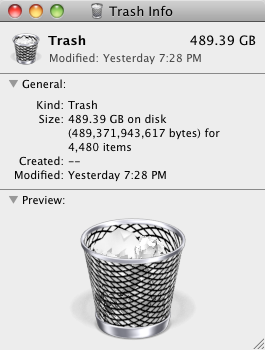
I often forget to empty my Trash, which can grow and grow and grow over time, but this picture shows a bloated trash can being taken it to a whole new level. 489GB!
You can set Mac OS X to always securely empty the Trash and add a significant layer of security when removing files from the Mac. This is done just by adjusting a preference setting within the Finder, and it’s very easy to configure, here’s what you will want to do to use this option:
Changing the iPhone root password is a good idea if you have Jailbroken your iPhone, it will prevent unauthorized users and applications from doing things you certainly don’t want them to do since the password is universal on all Jailbroken phones (unless it’s changed by the user). And yes in case it was not abundantly clear, you can not change the root password on an iPhone or iPad that has not been jailbroken as the user is not accessible, neither is the command line like this.
This is a very cool feature I had no idea existed but accidentally stumbled across while on a recent flight. If you have an iPhone, you probably know that the earbuds included with it have a button to adjust volume and what not, well guess what, you can control the volume level in iTunes and QuickTime with the iPhone Earbud buttons as well! This works at least on the Unibody MacBook Pro’s, but I’m not sure if it works on the Unibody MacBook. Just plug in the iPhone earbuds to your Mac and launch QuickTime or iTunes to test it out yourself.
It’s also worth mentioning that the iPhone earbuds microphone works fine with Mac OS X too, and it makes a significantly better microphone than the one that is built in. This is particularly handy for VOIP calls through iChat, Google Voice, and Skype.
I’m a big fan of distraction free writing space, and so far WriteRoom has this market cornered pretty well on Mac OS X.
OmmWriter looks like a worthy contender though, it’s got a beautiful unobtrusive interface and is complete with a relaxing background and subtle peaceful sound effects… if that sounds a little cheesy it sort of is, but it’s actually pretty nice to write in! Read more »

 If you’re a developer (or anyone else) you may quickly get fed up with the Crash Reporter Dialogue box that pops up when an app melts down and crashes in Mac OS X. If you’re pestered by the crash reporter dialog window, then you can quickly turn the window on and off with a defaults command string.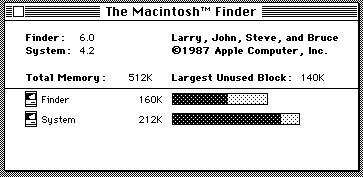

 At its core, the file and folder explorer of OS X known as Finder is essentially an application like any other on the Mac. Accordingly, users can quit the Mac OS X Finder in a few different ways which we’ll cover here, but perhaps the fastest way is to just launch the Terminal app and use the killall command, which is located in /Applications/Utilities/, once the Terminal is open just type or paste the following string at the command line:
 It’s no secret, I hate Flash. It’s the plastic pink flamingos of the web but worse, it’s crass, it’s loud, it’s obnoxious, it will crash your web browser, and on a Mac it is a literal drag on the machine, sucking up the CPU and memory as if there’s no tomorrow. Adobe really laid a pile of dung with Flash on the Mac, which is probably why
  Spaces is a really nice feature of Mac OS X that lets you place different windows and applications within their own workspace. Dragging a window to a new Space is just a matter of holding onto the window and pulling it towards the end of the screen.
 It’s easy to accidentally change directories to something you weren’t intending to (say, accidentally hitting cd and returning home, thus losing your place in a complicated directory structure seep in the file system somewhere), but thankfully there’s a command that will immediately take you back to the previous directory, regardless of what it was. The jump-back to prior directory command is a simple variation on ‘cd’ followed by a single dash (the minus symbol), the syntax looks like so: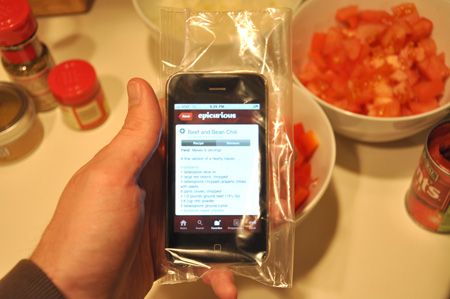


 You can set Mac OS X to always securely empty the Trash and add a significant layer of security when removing files from the Mac. This is done just by adjusting a preference setting within the Finder, and it’s very easy to configure, here’s what you will want to do to use this option: