Borderless QuickTime Playback in Snow Leopard

Wouldn’t it be nice for QuickTime to be borderless? In Mac OS X you can accomplish this with a little bit of a trick, so if you’re on Mac OS X Snow Leopard or before with Quick Time on those releases you can make a few adjustments for borderless playback.
MurphyMac has yet another great screencast covering a unique hack to allow QuickTime to playback without borders, creating a cool floating movie effect. Admittedly, the hack is probably not the most useful for the typical user, but it does make for some some great eye candy and could be really useful for presentations, screen demonstrations, or just plain showing off.
MurphyMac: Borderless QuickTime Playback
Even as a long time Mac user, I learn something new everyday.
Keep in mind that new versions of QuickTime default to borderless playback of videos, so if you’re on a modern system software version you would not need to do this to get borderless playback in Quicktime for Mac.

 TubeTV is a great little app that allows you to easily convert web videos to either iPod or Apple TV compatible formats. All you do is direct an URL to the app and it’ll download in either iPod or AppleTV compatible formats. TubeTV requires the Perian QuickTime plugin, but don’t worry it’ll tell you if you don’t have it installed and link to it for you. Other than the extreme ease of use, TubeTV is great because it’s totally free! Check below for a screenshot of TubeTV in action.
 Automator is a powerful automation tool that comes with Mac OS X, unfortunately it’s also another one of those applications that I basically never use. There are many tasks that I could automate, but I’ve just never gotten around to setting up automation. Well, if you’re like me, or if you’re new to Automator, this tutorial on MacApper might be beneficial to you. Covering the basics, it walks us through getting around Automator and how to setup a simple backup. Check it out if you’re curious:


 Wireless networks are nearly everywhere nowadays, often you’ll be in range of several at a time. With so many seemingly available wifi networks, how do you know which to join? Enter WiFind, a cool little utility that integrates seamlessly into your existing Airport menu as a plugin, allowing you to see more than just wireless networks. WiFind adds icons to display signal strength and if the network is locked or unlocked, saving you the time and effort of checking on your own. WiFind is shareware, and costs $8. Try it, you’ll like it. Read on for a screenshot and links to download.
 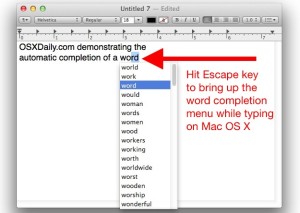 The Mac has a built-in word completion and word suggestion feature that is intelligent and works incredibly well. This OS X feature is not quite predictive text or QuickType like exists in iOS, but it’s fairly similar and all you need to do is give it a start. You’ll find this very useful if you can’t remember how to spell a word, or a word is on the tip of your tongue and you know it starts with a particular letter or prefix.

 This looks to be a week of SSH tips, beyond