Detect and Add iCal Events Directly from iChat
Nov 13, 2009 - 1 Comment

Did you know that iChat and iCal work very well together? If you’re having a conversation in iChat and you or anyone else mentions a date or a day, you can hover over that mentioned date/day and add an iCal event directly from iChat without ever launching iCal! Try it out yourself with any iChat conversation, just throw in a day and see how well it works, it’s quite impressive.
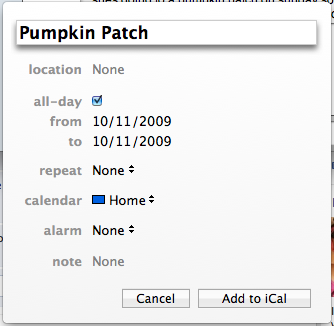
OS X Daily editor Ryan pointed this out to me via Twitter a couple weeks ago, and I was surprised to learn just how well it worked. It’s now part of my daily workflow, it is very handy. Thanks Ryan!
By Manish Patel - Mac Apps, Mac OS, Tips & Tricks - 1 Comment


 This works in many versions of Mac OS X
 Deleting cookies on the Mac depends on the specific web browser in use, thus if you want to delete all cookies, you’ll want to accomplish this for every browser app. Considering the web browsers most commonly used in Mac OS X are Safari, Chrome, and Firefox, we will show how to delete cookies in each of these browsers.
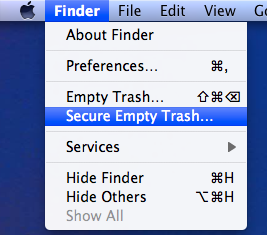 You can securely delete files from Mac OS X right from the Finder. This is by far the simplest method to securely delete something on the Mac, and the process is pretty straight forward, very similar to the normal procedure of deleting a file except that you will access a separate option to enable the ‘secure’ layer:
 When you’re viewing an image on the iPhone (or iPod Touch) you can tap and hold the image to prevent it from rotating, regardless of the devices orientation. Handy for showing off photos to friends!