Updates coming soon
Jun 19, 2007 - 2 Comments
We apologize for the recent delay here at OS X Daily, updates will continue as normal soon! Thanks readers!
By OSXDaily - Mac OS - 2 Comments

We apologize for the recent delay here at OS X Daily, updates will continue as normal soon! Thanks readers!
 Expose is an awesome feature of Mac OS X that functions as sort of like a window manager and app switcher all in one. I use the feature so often it is almost impossible to live without.
If you don’t use Expose, you should start, and this simple little list of keyboard shortcuts with each accompanying action is a good place to learn how to get started. These are set in a “Function Key – Function” list, so it’s pretty easy to follow and understand.
 Lots of Mac OS X news lately, and this blows in the face of last weeks news. Apparently, Apple will NOT use ZFS as the file system in Leopard. Information Week provides us with the latest news, which could come as a letdown for some, citing an Apple marketing official “ZFS is not happening,”. So who do you believe? Is Apple trying to keep ZFS under wraps or are they really not using the ZFS file system? Apple is notorious for leaking fake rumors and being sneaky with product features and releases. We’ll know for sure in October…
There has been some concern since the announcement that Leopard is a 64 bit operating system that those of us with 32 bit machines would be left in the dust with Tiger. Fear not though, Endgadget dispels this rumor after talking with Apple. This means that G4’s, G5’s, Core Solo’s and Core Duo’s will be allowed to run Leopard, they just won’t necessarily run at optimal performance for things built for the 64-bit platform. This is both good and bad news, good that we can all run Leopard, bad that we won’t have the same performance as Core 2 Duo Mac users will have. Perhaps this is a good excuse to upgrade your hardware come fall?
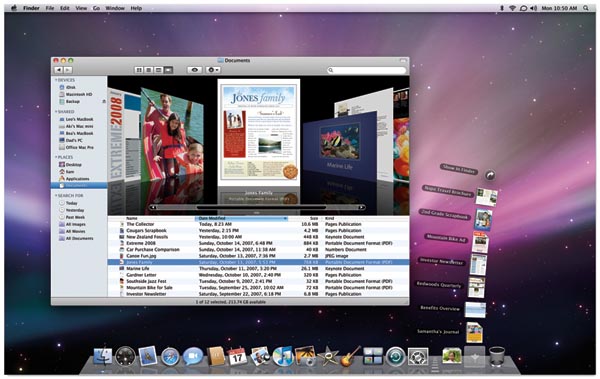
Some big announcements were made today at WWDC 2007, but amongst the most exciting is the introduction of a new Finder in Mac OS X Leopard.
The new finder functions a lot like iTunes, even down to Cover Flow, which is no longer for just flipping through albums.
In the new Finder, Cover Flow allows you to flip through documents, images, anything that you would normally browse through in the Finder.
The effect is pretty cool to see, so be sure to check out the official video on Apple’s website (scroll towards the bottom of the page to find the video).
The durable and powerful ZFS file system is said to be the official file system of Mac OS X 10.5 Leopard, this according to a report on MacNN. Citing the CEO of Sun Microsystems as the source of the information, Apple will reportedly announce the change this next week at the Worldwide Developer Conference. From MacNN: “ZFS is a filesystem developed by Sun that is 128-bit, meaning it offers 16 billion billion times the capacity of 32- or 64-bit systems — virtually unlimited by today’s standards. ZFS also offers increased performance because it is transactional object model rather than more traditional I/O mechanisms.”
 Here’s a great Firefox tip that I think you’ll appreciate as much as I do, which allows for a spell checking function in web based input forms.
To accomplish this, you’ll start by editing an entry within the about:config configuration menu of Firefox, where you can enable spell checking in text input fields. For example, as you type into Google or a search engine, your search term will be spell checked client-side! Or if you’re typing into a web form to fill something out, that will be spell checked too.
 Mac browser usage goes something like this: #1) Safari #2) Firefox and #3) Camino, after that not much is really relevant. While Camino is not as widely used as Safari and Firefox, it’s still a good browser, and some Mac users swear buy it claiming it is better than both it’s better known brothers. If you’re looking to try a new web browser, than now is a great time to try Camino, because version 1.5 carries a bunch of improvement and features that you will be sure to enjoy. Here’s a rundown:
* Spell Checking – spell checker built into every text field
* RSS Feed detection – automatically detect RSS feeds
* Session saving – remembers the sites you are currently visiting and saves them for another session
* Improved tabs – various tabbed browsing features and improvements
* Annoyance Blocking – block pop-ups, obnoxious flash animations, and plugins
Mac OS X is filled with useful features to make your computing life easier. Here’s a great Mac tip provided by Chad Barraford:
“Ever want to quickly save some content in any cocoa app? Maybe a phone number, directions, a picture, url, etc? Highlight it and hit Shift+Command+Y and your Mac will paste the content into a sticky note.”
Thanks Chad!

Wouldn’t it be nice for QuickTime to be borderless? In Mac OS X you can accomplish this with a little bit of a trick, so if you’re on Mac OS X Snow Leopard or before with Quick Time on those releases you can make a few adjustments for borderless playback.
MurphyMac has yet another great screencast covering a unique hack to allow QuickTime to playback without borders, creating a cool floating movie effect. Admittedly, the hack is probably not the most useful for the typical user, but it does make for some some great eye candy and could be really useful for presentations, screen demonstrations, or just plain showing off.
MurphyMac: Borderless QuickTime Playback
Even as a long time Mac user, I learn something new everyday.
Keep in mind that new versions of QuickTime default to borderless playback of videos, so if you’re on a modern system software version you would not need to do this to get borderless playback in Quicktime for Mac.
Want to see available disk space of drives and volumes on the desktop of Mac OS X? Perhaps you’d like to see information about files and folders that are on the Mac desktop as well, including dimensions of images, and data about file counts contained within folders. You can reveal this information easily with a hidden trick in OS X.
 TubeTV is a great little app that allows you to easily convert web videos to either iPod or Apple TV compatible formats. All you do is direct an URL to the app and it’ll download in either iPod or AppleTV compatible formats. TubeTV requires the Perian QuickTime plugin, but don’t worry it’ll tell you if you don’t have it installed and link to it for you. Other than the extreme ease of use, TubeTV is great because it’s totally free! Check below for a screenshot of TubeTV in action.
Update 6/19/2012: Great news! This is no longer necessary because Apple TV now includes the ability to watch YouTube videos directly on the device and your TV without any conversion at all.

 Automator is a powerful automation tool that comes with Mac OS X, unfortunately it’s also another one of those applications that I basically never use. There are many tasks that I could automate, but I’ve just never gotten around to setting up automation. Well, if you’re like me, or if you’re new to Automator, this tutorial on MacApper might be beneficial to you. Covering the basics, it walks us through getting around Automator and how to setup a simple backup. Check it out if you’re curious:

We love tips that make your computing life easier, and this command line tip from Cedrik Morgan falls into that category, making a lengthy ssh command quite a bit shorter by creation of an alias.
Here’s what Cedrik writes in:
Read more »

If you use your Mac on a cross platform network often, you’ve surely run into the obnoxious creation of .DS_Store files.
If you’re curious what the file is used for, DS_Store is a hidden file for Mac OS X that stores various bits of data for the Finder to remember, like icon position, making it completely useless for anyone besides you to see.
By default, your Mac will create the .DS_Store file’s all over the place including accessed computers that aren’t Macs, creating an annoying mess for network users to find.
Thankfully you can easily turn off the creation of DS_Store files on network connections:

Have you ever known that you need to open a specific text file to a specific line number? Perhaps for a code review or adjustment, whatever the reason this is fairly common. Rather than open the text file in nano or vim and then navigate to the line number you want to access, there is a faster way available to command line users.
In fact, you can jump directly to a specific line number of a text file on launch of vim or nano.
If you want to quickly shut off your Mac without seeing the warning dialog and without any sort of confirmation from the familiar power dialog box or otherwise, you can do that with a little known key modifier trick. Be aware that this approach is fairly abrupt, so you’ll want to use this sparingly for most purposes.
To shut down a Mac without seeing the warning dialog box, try holding down the ‘Option’ key while selecting “Shut Down” from the Apple Menu.
Holding the Option key while choosing to turn off the Mac will cause the system to shutdown without the two minute dialog box coming up to verify your shutdown or restart plans.
Do be careful with trying this one out casually, because there’s no warning, and the power controls box does not appear at all. Instead, all of your open apps will immediately begin to quit as the OS X shut down process begins and completes itself without any further user intervention (some apps with certain background processes may intervene unintentionally, such as Terminal with an active system specific task, but don’t rely on that since it certainly doesn’t apply to most users).
This is the power confirmation dialog box that gets skipped during this shut down process:

Even if the Auto-Save and Window & System Restore features of Mac OS X will save you sometimes from losing data, some apps don’t support those features, and with an abrupt system shut down, the Mac may not have enough time to generate adequate cache for the active applications to be able to gracefully restore. So again, use this sparingly, since most users like to keep their data.
 Wireless networks are nearly everywhere nowadays, often you’ll be in range of several at a time. With so many seemingly available wifi networks, how do you know which to join? Enter WiFind, a cool little utility that integrates seamlessly into your existing Airport menu as a plugin, allowing you to see more than just wireless networks. WiFind adds icons to display signal strength and if the network is locked or unlocked, saving you the time and effort of checking on your own. WiFind is shareware, and costs $8. Try it, you’ll like it. Read on for a screenshot and links to download.




