
Secrets of the Command-Tab Mac Application Switcher
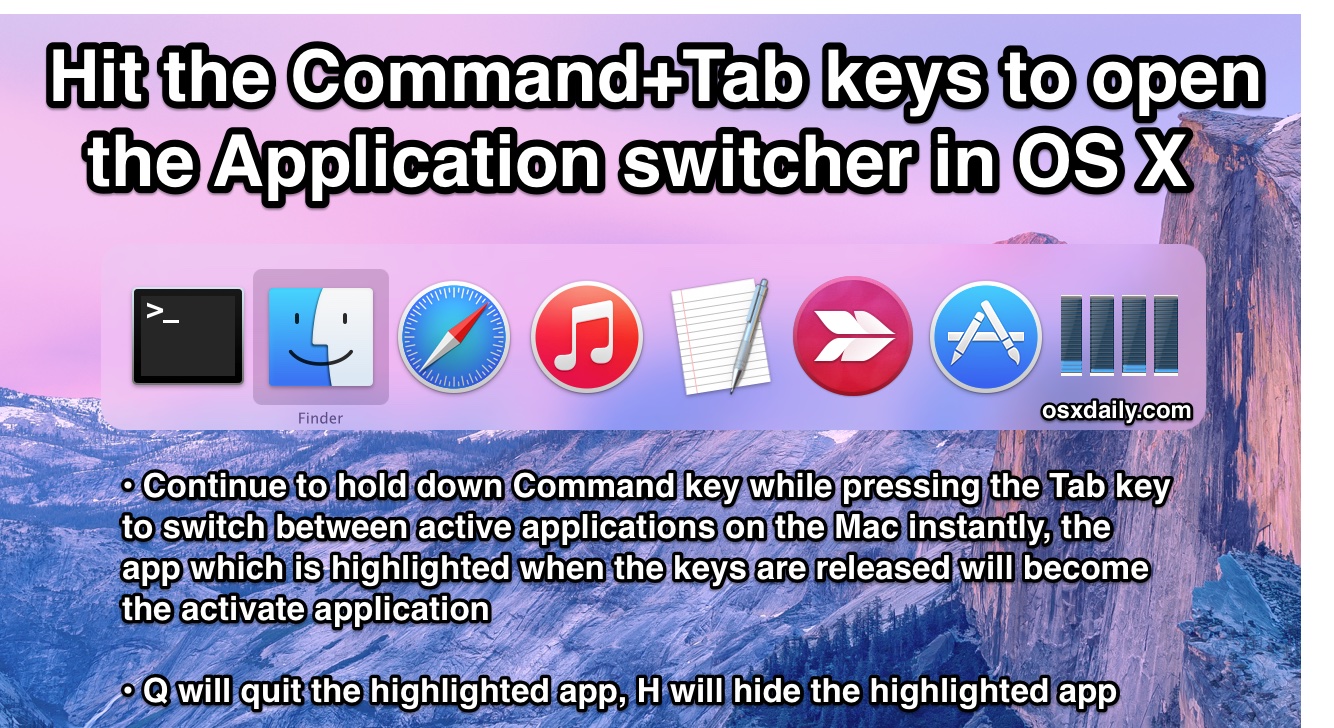
 The Command-Tab key sequence in Mac OS X works to summon a quick application switcher, it’s an excellent trick that many advanced users frequently use to switch apps and help multitasking, but it seems lesser known amongst Mac users in general. Even if you know of the Command+Tab trick, it turns out there are many more features available within the Command-Tab application switcher than just hitting Command+Tab itself, in fact you can navigate within the app switcher, hide apps, quit apps, and more.

To use the instant application switcher and additional commands, summon the App Switcher as usual and then, once you’re in the application switcher, you can try some of these other modifier key sequences for different behaviors.
10 Command+Tab Application Switcher Tricks for Mac OS X
Command+Tab launches the Application Switcher, that’s the first step. Then, continue holding down the Command key and then try the following buttons to modify the behavior of the app switcher of Mac OS:
- Release the Command+Tab keys when the highlight is on a selected app to switch to that highlighted app
- tab – move selection to the right in the app list
- ` – move selection to the left
- h – hide the selected application
- q – quit the selected application
- mouse scrollwheel – move the selection back and forth
- left arrow – move selection to the left
- right arrow – move selection to the right
- up arrow – enter expose (Mission Control) within the selected application
- down arrow – enter expose (Mission Control) within the selected application
- Handoff – for Macs with Mac OS X Yosemite and newer, you can also find available Handoff sessions in the Command+Tab app switcher, these appear on the far left and can be navigated to with the above tricks
Even if you can’t memorize them all for now, remembering the three basics is a great place to start to help navigate around your open Mac applications: The core Command+Tab switcher trick, plus Q and H to quit and hide the chosen app, respectively.
Memorize these tips to master the Mac application switcher and speed up your workflow!
Note: the Expose / Mission Control orientated features will only work on fairly newer versions of MacOS / Mac OS X, meaning beyond Snow Leopard, but including Mountain Lion, Mavericks, OS X Yosemite, MacOS High Sierra, Sierra, Mojave, Catalina, macOS Big Sur, Monterey, etc. The Application Switcher may look slightly differently dependent on the version of Mac OS X, but it has been around since the beginning of the operating system and will almost certainly carry forward in future versions of Mac OS.






Mashing Command+Tab and circling apps is quite annoying sometimes. https://assignee.app is a great companion, yet simple and all you need
Quite a specific one here – is there a way to make tab switch show files opened in a particular application?
IMO, the ‘option’ key (bring up application to front, even if docked) should be the DEFAULT. I’m disappointed that it isn’t. I’ve seen numerous Apple publications which don’t even mention the OPTION key and its use when referencing the Command-Tab functionality — including this very website article.
pressing alt key on an app, and then release keys switch to this app **even if it was docked**
When I do it, it won’t go to my selection. It just stays on the page screen I’m on. Why is that?
Command-Tab doesn’t get much use because it is not very useful. The H toggle for visibility is kludgy and still no support for multiple windows. Try this app.
http://manytricks.com/witch/
[…] is a great feature of Mac OS X, although I tend to use the Command+Tab application switcher for switching between […]
If you select 1 it will do the same thing as selecting up or down, which is great for one-handed operation.
awesome tip!!
Another way to move the selection to the left is “shitft + tab”. Its more common (imho) because many Tab actions can be reversed by holding down shift. Thanks for the tip, great page!
[…] This is just one of many cool tricks you can do with the Command+Tab application switcher. […]
great resource as alwasy. thx
Actually, pressing ‘H’ toggles visibility. It can be used to unhide as well as hide.
If you tab in exposé you can quickly choose between applications with previewing them.