
How to Delete Pages in a PDF Document with Preview on Mac OS X
 You can delete specific pages from a PDF file with the built-in Mac Preview app, available in all versions of OS X. This is really useful for paring down large PDF documents if you only need a few select pages, and learning how to delete specific pages from PDF files is bound to make any student or researchers life easier when emailing or printing documents.
Deleting a page (or multiple pages) from PDF files is remarkably simple from the Mac, you can then save the modified PDF, or export and create a new PDF file with the pages removed.
Here’s how to do this:
- Open the PDF file into Preview app on Mac OS X
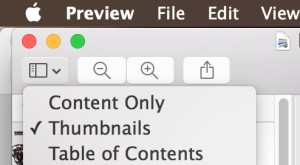
- Be sure that Thumbnails View is enabled so that you can see all pages in the PDF file:
- Select / highlight the page you want to delete from the page thumbnails list
- Now hit the DELETE key to delete the selected page(s)
- Repeat as necessary, then save the file or export the changes with File menu > Export as PDF
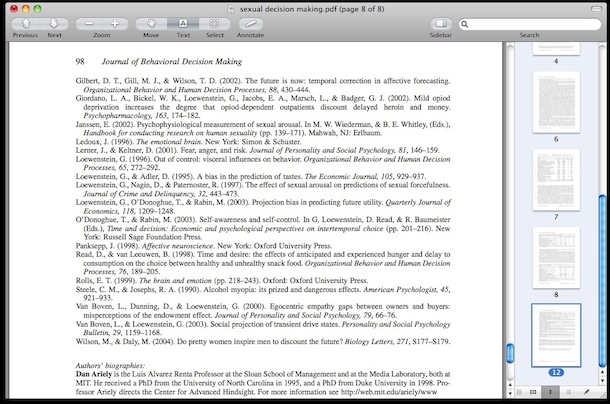
In the above screenshot example, I have deleted multiple unnecessary pages within a research PDF document before I printed it, my school charges for each page so reducing the printed page count is particularly valuable.
You’ll notice that the PDF page numbers don’t change though, which is both good in that you can quickly identify which pages are missing, and bad if you are hoping the pages would reorder themselves after others were deleted.






Deleting the pages works fine, but you really have to re-export the whole thing as PDF in order to get rid of the cache left out by the pages you deleted?
I have a PDF with 10 pages, I deleted 9 of them and the size is the same if you just “save” you have to export it again for the file size to come down
Doesn’t work. In majority cases to open “Edit” menu and click on “delete” is all what is needed. But sometimes “Delete” is greyed out and then nothing works. The question is: Why sometimes “Delete” id greyed out?
Problem I find is that with a PDF generated by Quark XPress (very efficient) removing pages in Preview actually make the PDF file size *larger*! I can’t remove the pages in Quark due to the way it required odd-even page pairs. Any advice?
Awesome tip – worked like a charm!
Thanks.
dear
how to delete in pdf file in 2 page.
It’s an awesome trick to delete pages from PDF file, very simple and easy to handle one. But it may be a little lame to delete pages in PDF file in more possible ways. I use a PDFsplitter to split PDF to multiple small files.