
How to Disable Access to System Preferences on Mac
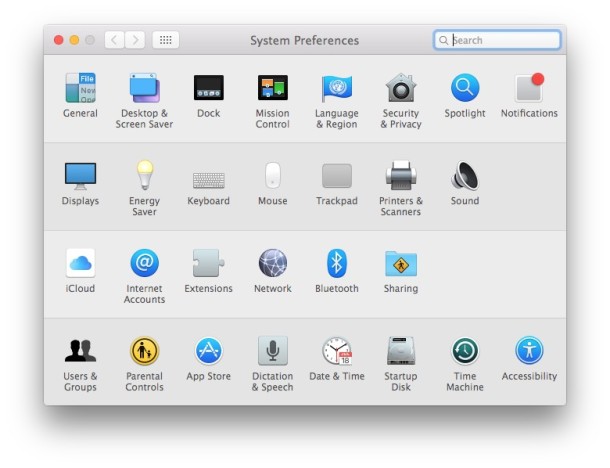
In some situations, you may wish to disable access to the System Preferences on a Mac. Often this is for lab environments or public use workstations, or perhaps for locking down a particular workstation for various reasons. While a common approach is to create a new user account that has limited access to system features and functionality, another method can be utilized with chmod that changes the access permissions to the System Preferences application itself within Mac OS, and when implemented properly all access to System Preferences on the Mac will be disabled and prevented regardless of how its attempted to be launched.
This approach to disabling access to System Preferences uses the command line and involves changing permissions to a critical system level application that is necessary for the proper functionality of all Macs. Therefore this is only appropriate to be used by advanced Mac users.
It’s always a good idea to backup a Mac before making any modifications to file and app access. Failure to do so may result in data loss or a broken system.
How to Disable All Access to System Preferences on Mac Completely with chmod
Using the following command you can preview all access to System Preferences control panels on a Mac, note this impacts all users as it is run at the root level (sudo):
sudo chmod 000 /Applications/System\ Preferences.app
Note this impacts all users on the Mac, including new created administrator accounts on the Mac and any newly created standard user accounts too.
How to Re-enable Access to System Preferences on Mac with chmod
You can re-enable access to System Preferences for all users by issuing the following command in Terminal:
sudo chmod 774 /Applications/System\ Preferences.app
Note that you may find the permissions are set by default as 775 as well, in which case the proper command would be:
sudo chmod 775 /Applications/System\ Preferences.app
Generally speaking, if you don’t know what you’re doing with permissions changes and chmod, you should leave them alone since it can cause all sorts of problems and unwanted behavior. With that in mind, this is certainly an effective technique at limiting access to certain applications within Mac OS X.
Note: thanks to Jasper for pointing out the syntax error and proper permissions in our comments.
I stumbled into this particular method when trying to lock down the machines in a small Mac lab, where I came across an interesting piece of advice from John Mairs who was tasked with basically the same thing. He suggests disabling access to System Preferences because it “accomplishes (and halfway accomplishes) several things. First, it completely prevents students from changing all settings on the computer. This includes account changes, security settings, Apple Remote Desktop settings, and screen saver settings.” Valid points certainly, but what I think is much more interesting is the way that he chooses to disable the System Preferences access: changing the applications permissions using the command line. This is crafty thinking and it works.
There are certainly other methods to locking down System Preferences, including making a new user account on the Mac that has limited ‘Standard’ access to System Preferences. You can also setup the Guest User account on Mac for limited Mac access including to System Preferences. Other options include using profiles and other sysadmin level approaches to preventing access to System Preferences as needed.
If you have ideas or thoughts about this particular method for preventing System Preference access in mac OS, or you know of other helpful tips or tricks for disabling access to System Preferences on a Mac, share them in the comments below!






Just go into Accounts/Parental Controls /select the controlled account/Finder and Systems/Config/check This user can only use these applications/allow/click applications/scroll to Prefs and uncheck. OK
Hi
The system preference of my mac OS is not working when I click on it, it does nothing. I dont know what have to do is it possible to enable it from graphical user interface.
thank you.
Yup 774 won’t work. The least you can do to restore it is use 775 to enable read and execute flag.
I agree with Nick. 774 does not work, at least with Snow Leopard version 10.6.6. I had to use 777 also. I almost freaked out when 774 did not work.. phew 777 was able to revert… won’t do this again :-( and i think it’s a really bad idea.
I don’t know what Jasper is thinking of, but I tried using 774. I could not open system preferences. Changing it to 777 was the only way to restore full functionality.
Hmm.. If one runs a repair disk permissions in the disk utility, won’t that revert the permissions back to default?
That won’t work – the file mode goes before the path:
chmod 000 /Applications/System\ Preferences.app
And don’t change it to 777 – that’s silly. Change it to 774 (what it was before you 000d it!)
chmod 774 /Applications/System\ Preferences.app
You’ll probably need to do this as root, too.
I believe the default permissions are 775, thus the command to restore permissions would be:
chmod 775 /Applications/System\ Preferences.appYou likely want to confirm before making this change yourself in Mac OS X.
I LOVE this method, its quick and easy, however when I tried this in terminal, I got a “chmod: Invalid file mode: /Applications/System Preferences.app” did I miss something?