
How to Move a Home Directory to Another Location on a Mac
Changing the location of your home directory is pretty easy in Mac OS X, and it can be desired for a variety of situations to store a home folder elsewhere on a Mac, or even on another drive. This is valid and works the same in all versions of OS X.
Though it’s not particularly difficult, moving a home folder is somewhat advanced and therefore should not be attempted by users who are not sure what or why they’re doing it.
Always be sure to back up your Mac before making any modifications like this.
Moving a Users Home Directory to a New Location in OS X
- Make a backup with Time Machine of the Mac before attempting any of this, then be sure you’re logged into an admin account
- Launch System Preferences from the Apple menu of OS X
- Click on ‘Accounts’ then click the unlock icon to be able to make changes to user accounts
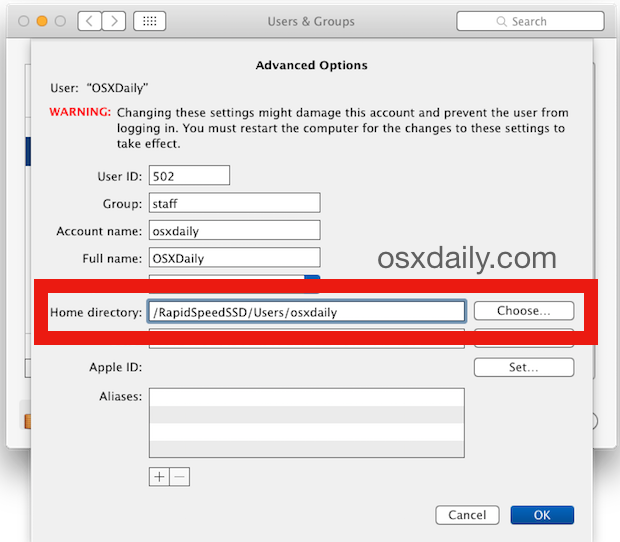
- Right-click or control-click your main user account and select ‘Advanced Options’
( Important Note: if you don’t know what you’re doing, don’t mess around in this screen! ) - Navigate down to ‘Home directory’ and see your default path as /user/David or whatever
- Click ‘Choose’ and navigate to the location you want to set as the new home directory path
- Click ‘OK’ and you’re all done, the account will have been moved
This is where you’d want to make the change in OS X Yosemite:
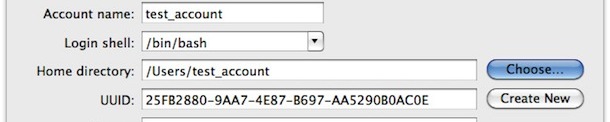
In prior versions of OS X it may look slightly differently but the function is identical:
Now as I mentioned before, if you don’t have a compelling reason to change the location of your home directory to somewhere else, don’t do it! You can really mess things up.
In a similar manner, you can also move iTunes libraries (even to another different hard drive), move iPhoto libraries, and just about anything else, though this method is all inclusive because anything in the user library also moves with it (iTunes, iPhoto, etc)
So why would you want to do this then? Well, there are various reasons why you’d want to move your home directory to somewhere else, here’s a few:
* OS X Daily reader Kemmon offers his reasons and great advice in the comments:
” Moving home folders is a great way to establish disk quotas on a shared machine. I have four kids who share a Mac, so the drive has 5 partitions: One for the OS, and one for each kid. Their home folders are on their own partition, which sets a hard limit on how much disk space they can hog, and the OS partition is frozen with ARDs Deep Freeze. Permissions keeps each partition private form the others. 4 Kids sharing a Mac and NO maintenance issues for over 3 years! And if I ever want to do a clean install of the OS, I can re-format the OS partition without touching any home folders.”
* You have a smaller Solid State boot drive and you want to conserve disk space, so you move your home directory to another drive source (obviously this isn’t practical on a Mac with only one internal hard disk). If you’re thinking of doing this, there are some additional steps to take to be sure everything is flawless when changing your home directory location.






I have been doing this since 10.1 and have a lot of battle scars.
It’s CRUCIAL to add another admin account—by default it is created on the boot drive. DO NOT move this mew accounr to the external drive.
The reason is that you can get locked out of your default account for various reasons—the latest is when upgrading macOS to 14.1, on reboot as part of the installation process, you cannot complete as macOS pops up a message:
“You are unable to login to the user account “your-account-name” at this time”.
Your only recourse is to login to your other Admin account to complete the installation.
Another advantage of moving the home folder is that you will likely never run out of swap space—after moving the home folder, I delete the contents from the boot drive home folder. This frees up a large amount of space.
It also confers a huge advantage in that if things go wrong, and they will at some point, you can always point the home folder back to the boot drive and log in to a clean home folder. You will not experience access issues as the home folder also has a User ID of 501. From the vantage point of the boot drive, you can perform operations on your external home folder, when these inevitable problems arise. For example, from time to time I create a clean home folder, and move selected items from the old home folder, after inexplicable problems arise in the existing home folder.
As part of this strategy, I also create an Applications folder in my home directory and move as many apps as will happily operate from this location, as I can—see the next point below.
Another huge advantage, is the ability to do a clean macOS installation. Do a manual Time Machine backup, then, in Recovery Mode, open Disk Utility and erase the boot drive. Then proceed to do a clean installation. I do this with each major release of macOS, as cruft begins to accumulate over time. After booting, you will be asked to create a home folder and this will be created on the boot drive. Ensure you name it the same as your external home folder. You now have a clean home folder. Go to Users and Groups and point it to the external home folder.
The only downside to this is that you lose File Vault—Apple didn’t bother implementing File Vault for this circumstance. You can get around this by encrypting the external drive using Finder. This however, creates a problem in that you can no longer login—Apple again, didn’t allow for this.
The tedious work-around, is to log in to your alternative Admin account that is on the boot drive. Once logged in, use Disk Utility to mount the external drive, which will prompt you for the encryption password. Then use fast user switching to log in to your external home folder.
I did a silly thing. I changed my home directory to a network location i,.e \Volume\.. etc etc.
I can’t login now because I presume that I don’t get logged into the network before I log into my account. Cart before the horse indeed.
I’ve gotten to a terminal window via comman-R. Is there a way I fix this via the macOS Utilities terminal?
Thank you
I have some one in my Mac Pro group on Facebook, http://www.facebook.com/groups/vintagemacpro , that is having an issue with his home directory on his SSD, and creating a new symbolic link seems to difficult for him, is there a easy GUI tool for newer versions of OS X that do not have the advance option tab in users and group?
I’ve used this. It’s recommend by a lot of IT Admins because it’s stable, reliable and is easy to use.
https://github.com/nickzman/symboliclinker/releases
I confirmed that it advanced user options works in OS LION, be sure to unlock the padlock prior.
Yes but the control click on the user doesn’t work under OSX lion anymore. How to get around it?
It does work in Lion. Did you unlock the controlpanel before you control clicked?
Yeah, but it can be a really good idea if you want to use File Vault, and you’re already over 50% of your boot drive capacity, and the reason has nothing to do with Music/Movies/Pictures.
It’s not really a good idea to move your entire home folder to another drive if you want to gain significant speedups from an SSD since lots of small config etc. files are stored inside your home/Library/… folders.
Instead just move the big stuff (Pictures, Movies, Music) to another drive and symlink them back to your home folder.
Moving home folders is a great way to establish disk quotas on a shared machine. I have four kids who share a Mac, so the drive has 5 partitions: One for the OS, and one for each kid. Their home folders are on their own partition, which sets a hard limit on how much disk space they can hog, and the OS partition is frozen with ARDs Deep Freeze. Permissions keeps each partition private form the others. 4 Kids sharing a Mac and NO maintenance issues for over 3 years! And if I ever want to do a clean install of the OS, I can re-format the OS partition without touching any home folders.