
How to Disable the “Are you sure you want to open this file?” Warning Dialog in Mac OS X
“[Name] is an application downloaded from the internet. Are you sure you want to open it?”
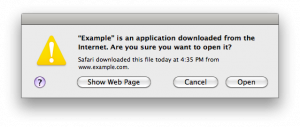 Starting in new-ish versions of Mac OS X, you may have noticed that when you download a file from the web and go to open it, you will get a prompt saying something along these lines, warning that an application has been downloaded from the internet, and asking to confirm if you actually want to open it or not.
This is Mac OS X just being safe, which is generally a good thing for most users, but if you always know for sure what you’re downloading it could even be overly safe. For users who wish to stop those messages, you can turn off that warning dialog by turning to the command line and a defaults write string. We’ll show you how to turn this off (and back on) if you don’t want that message to appear.
How to Turn Off “Application Downloaded from Internet” Warning in OS X with defaults write
You can disable this quarantine message by launching the Mac Terminal and typing the following command:
defaults write com.apple.LaunchServices LSQuarantine -bool NO
You will then need to reboot (although killing the Finder should work as well) for the changes to take effect.
This has changed from time to time after being introduced with OS X Leopard, through Snow Leopard, Mountain Lion, and Mavericks. Even OS X Yosemite carries the warning, though it’s easier in modern versions of OS X to simply toggle the warnings by going through GateKeeper in the Security preference panel on your Mac.
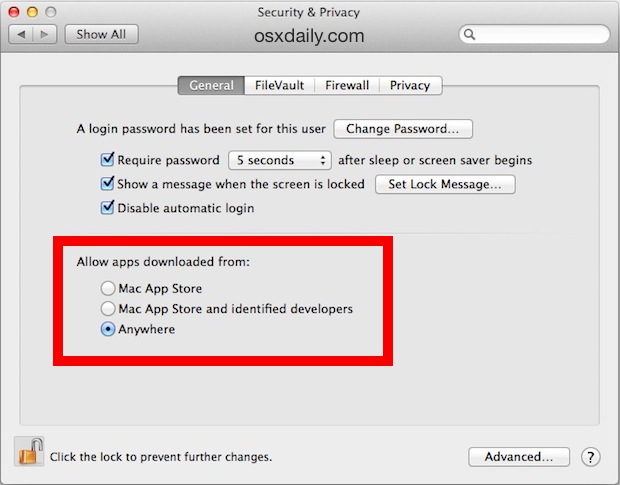
Using Gatekeeper can also bypass these alerts on a one-off basis for applications.
How to Re-Enable File Download Quarantine Warning in OS X with defaults write
To reverse this and get the file quarantine message back, type:
defaults write com.apple.LaunchServices LSQuarantine -bool YES
Again you will need to reboot (or kill the Finder) to have the changes back.






[…] of malware. Apple didn’t seem to mind that the DB will continue to collect data even after file quarantine was turned off for files and […]
[…] list even works if you have file quarantine turned off for files and apps, thanks to inket for verifying […]
I was looking for this for a while now, Thank you for posing.
Every time I log in, this happens for dropbox, and the command in terminal doesn’t work
Thank you. This helps.
To Shut Down (or Restart, or Sleep for that matter) without the ridiculous waiting period that Apple imposes on you, go to the “Keyboard” Preference Pane in System Preferences, click on the “Plus” sign at the bottom, copy the Menu Title you want (without the ellipses, of course), thusly – – “Shut Down”, or “Restart”, or “Sleep”.
Make sure the Application drop-down menu is set to “All Applications”. I always make the keyboard shortcut itself into something hard to hit by accident, but fairly easy to access (and not used by other apps), like “Shift-Opt-Command F1”. Restart and enjoy!
[…] Disable the “Are you sure you want to open this file?” warning dialogue in Mac OS X. […]
[…] Remember this method only effects items you choose to specify. If you want to disable this message from ever appearing again for any applications downloaded, learn how to permanently disable the file warning dialogue. […]
[…] when lazy programmers don’t do their job and sign their apps. IF you don’t want to go here then do this on the terminal […]
You can immediately shut down your MacBook Pro for example by using the following simultaneous key sequence:
Control Option Command Eject
Have fun!
:)
@MilkyTech
Hold down option when choosing restart or shut down. Doing so will eliminate the dialog box that normally appears.
but I want to eliminate it permanently, not just for 1 instance
thats cool, but how about some code to disable the “Are you sure you want to restart your computer now?”
That and the Shut Down warning also.
Or at least a command to reduce the timer from 1 minute to 5 seconds or something
Yes! I find this very annoying and Un-Mac like to be so annoying. The shutdown timer makes some sense even though that is too long. The restart timer is absurd. Oh, let me think about it for 1 min to see if I really wanted to restart. Should be 10 seconds at most.
Or, you could ask the developer to “sign” their apps so everyone is a little safer.
http://developer.apple.com/mac/library/documentation/Security/Conceptual/CodeSigningGuide/Introduction/Introduction.html