
Create a Hidden Folder in Mac OS X
 You can create a folder that is hidden from the default Finder GUI view by taking advantage of Mac OS X’s unix underpinnings. That probably sounds a lot more complex than it is however, and it turns out it’s actually really easy to make a completely hidden folder on the Mac.
This walkthrough details how to both make the hidden folder, and then how to access it yourself in Mac OS.
First let’s create the hidden folder, then we’ll access the secret folder on the Mac, and also show how to make it visible again if you change your mind. All of this relies on placing a period in front of the file name.
How to create the secret folder
* Launch the Terminal (located in /Applications/Utilities)
* At the command line, type:
mkdir .hiddenfolder
Feel free to replace the name hiddenfolder with anything else, leaving spaces and special characters out of the name will make it easier to deal with in the future.
How to access the secret folder
* Now click back to the Finder, and hit Command+Shift+G to bring up the ‘Go to Folder’ dialog box
* Type in the full path to the folder you just created, replacing ‘username’ and ‘hiddenfolder’ with your username and folder name, respectively:
/users/username/.hiddenfolder/
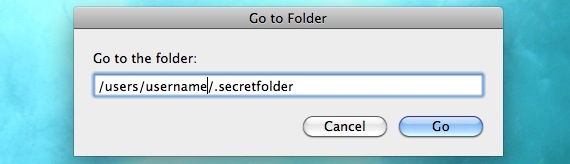
* Your hidden folder will now be opened in the Finder, you can drag and drop whatever you want into the directory
Making existing folders hidden and making hidden folders visible again
You can actually make any folder invisible from the Finder (and most apps) just by adding a period to the front of the name, you can do this with existing folders via the command line:
mv Folder .Folder
And you can make any invisible or hidden folder visible again by reversing this and removing the period from the front:
mv .Folder Folder
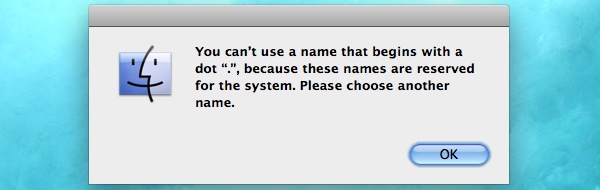
Note that you can’t enter a period in front of a folder or file name in the Mac OS X Finder, if you try you will be presented with this dialogue box telling you the dot “.” is reserved for the Mac OS X system software:
Setting Mac OS X to display hidden folders
You can actually set Mac OS X to show hidden files by issuing a command in the Terminal. This will expose your hidden folder completely within the Finder, but you’ll also see tons of other important system files and folders. This is generally not recommended to keep activated as it is both confusing to many users and it makes it easy to accidentally delete important files.
Notes on hidden folders
Remember that these folders are not hidden completely, they are just not visible from the Mac OS X Finder. Many applications won’t see the folder either, but various FTP programs like Transmit have the option to show invisible files and the folder would be visible to those applications. Likewise, the folder would always be visible via the command line to anyone who typed the ls command and added the -a flag, signifying to display all files, like so: ls -a
If you have Apple’s Developer Tools installed you can use a utility called ‘setfile’ which allows you to set any directory or file as invisible, you can read more about hiding files and folders with setfile in Mac OS X, but the limitations on visibility are practically identical to the above technique: file is invisible from the Finder but visible with ls -a or certain applications.






When I look for my secret folder, it isn’t there anymore! What should I do? I had important files there.
The article details how to find and reveal the hidden folder and make it unhidden to the user with Command+Shift+G and entering the proper path to the hidden directory.
You can also use Spotlight to search directly for the files contained within it, it’s only hidden from the Finder not anything else.
If you deleted the hidden folder or formatted the Mac, it will no longer be there.
Hello,
I had created the folder a while ago. But now, the finder can’t find it. Can you please help? There were really important files in it.
Use Spotlight to search for a file name that was located in the folder, should find it quickly
help, i make this .hiddenfolder long time ago in my ext harddrive and put 2 folders and files in it. but when i open.. it’s empty! and when i see the info folder it said “10GB items”.. yeah that’s my total files. how can show it again?
hope you guys understand my english :| sorry.
Use “defaults write com.apple.finder AppleShowAllFiles YES” in terminal to show all hidden files.
tnx m8. works just fione :)
[…] folder or two on a Mac? A while back we showed you how to make invisible folders and to even how to make hidden folders in Mac OS X, but now we’re going to demonstrate how to turn an existing folder into a hidden […]
Thanks a lot, this is just perfect for my needs!
i put my documents in my new .hiddenfolder, but as soon as i tried to re open , the folder finder said ” unable to find folder”
PLEASE help!!
Hello Rodrigo,
I have the same problem. How did you solve it? I’d be glad if you could help. There were really important files for me in that folder.
i put my documents in my new .hiddenfolder, but as soon as i tried to re open , the folder finder said ” unable to find folder”
PLEASE help!
if you have this problem
go into terminal and type in…
open .hiddenfolder
or whatever you named the folder
that will open it up instantly!
hope i helped!
[…] Want to hide some files in plain sight? You can make a folder invisible to the eye, but not to the click with this neat trick. I learned this in 6th grade to hide files and apps from prying eyes, and despite it’s simplicity it worked to store games, movies, and pictures on school computers without anyone knowing where they were kept. Believe it or not it works, and if you have limited access to the Terminal it beats using the period method to hide folders. […]
Right,
do you guys know how to make invisible folder out of invisible folder?
4-way window pane should do the trick.
Great tip!
Further to using the Cmd+Shift+G function in the GUI for opening the hidden folder. You can also use the ‘open’ command from Terminal.
E.g. open .hiddenfolder will cause finder to open a new window on that directory.
In addition to this, you can use the ‘open’ command to launch Applications!
E.g. open -a “iTunes”
Type the exact name of the Application within the quotes as it appears in the Applications folder.
You can even pass arguments (to applications that take them) using this method.
E.g. open -a “TextEdit” /Users/user/Documents/document.rtf
This will open the file “document.rtf” in TextEdit.
Have fun :)
Also forgot to mention.
You can use “tab autocompletion” with the Cmd+shift+G functionality – nifty!