
NameChanger Will Batch Rename Files for Free in Mac OS
 NameChanger is a free app solution to quickly and easily batch rename files in Mac OS X. It has all the features you’d expect in a batch renaming app, and you can replace occurrences of text in filenames, use wildcards, append text or characters, add dates, make files sequential, and even remove characters, just select your options and you’ll see a live preview as to what the new names will be.
Using it is very easy, you can import files from the app, or use the standard drag-drop support feature. Adjust your parameters for renaming the file(s), and when you’re satisfied with the output of how you want the files to be renamed, all you need to do is click a button and away you go, the files are renamed quickly. There’s even a live preview of the changed names so you can be sure you get things right before initiating the changes.
NameChanger is impressively fast, free, and incredibly easy to use, which makes it my preferred third party app choice for renaming a ton of files in Mac OS. If you’d rather not build your own solution through Automator, this is an immediately solution that works immediately upon download.
The Name Changer tool works great in just about all versions of Mac OS X, ranging from Snow Leopard, Mountain Lion, to OS X Mavericks. Of course, users with OS X Yosemite and later will have the native built-in Finder Rename Tool they can utilize instead, though the OS X function doesn’t have wildcard support.
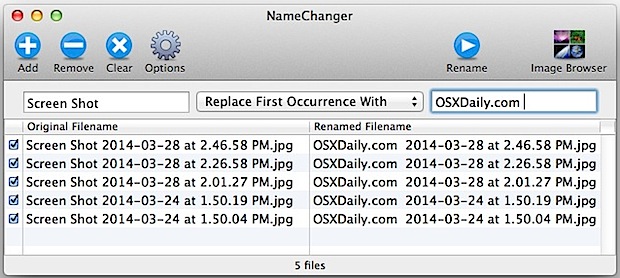
If you’re happy with NameChanger and decide you’re likely to use it often, you may consider throwing the developer a couple bucks to show your appreciation, it’s donationware which is sort of like a modern version of ShareWare without a set price.
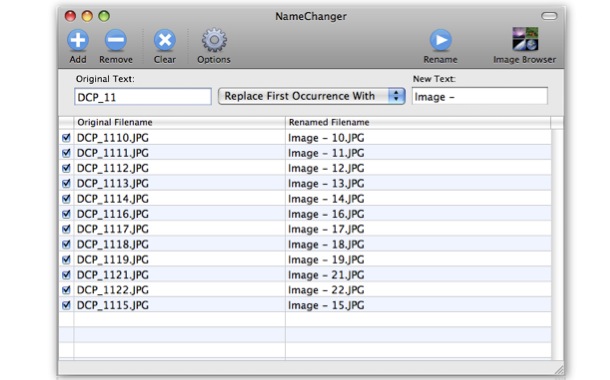
And yes, you may recall that we did a prior post on software to complete a similar task of renaming files in OS X, but after we linked to it the developer decided to turn the once donationware software into a paid app solution. While that is still a great app, we wanted to offer a free solution to our readers. Accordingly, we figured it would be worth while to mention NameChanger too, which, as of now, remains free, and is a highly functional excellent application to get the job done.






I downloaded NameChanger last night to change a ton of picture’s names at once from my trip in London this past summer. I’ve changed the names respectively but I cannot open any of the pictures and it seems that I have lost all 900 of them (yes, that is a lot I know) Please help me! I will be very very upset if I cannot view these pictures.
J, you forget that OSX has free GCC compiler, why bother with Automater when you can simply wright a quick little something in C++. Actually, my bad, I forgot that Mac’s now run on X86 hardware. Screw C++, just code a quick renaming script in some Assembly, but no cheating, pop a hexeditor open, and start typing hex in.
Actually, that’s too complicated as well, you don’t want to rely on OSX hard drive drivers and such to do something as simple as renaming a few files. Ok, here is the trick, far less complicated. Just grab a screwdriver, pull that harddrive out, pull the platters off, grab a small magnet, and you are in business!
Jesus, people, the guy wrote a nice little utility, and it’s free, for god sakes. And it works ok, not the best I have seen, but easier then bash or automator. And I have done this in bash in the years past, you need to use padding, BTW.
Tried Name Changer today and it worked flawlessly on batch renaming about 400 files, highly recommend it.
Tried namechanger today (Jan 1st 2013) and it works beautifully – thanks for the recommendation
You coul try this is bash: for i in *JPG; do j=`echo $i | sed ‘s/DCP_11/Image – /g’`; mv “$i” “$j”; done
Good point. While I’m all for ease of use, nothing beats good old bash and the rest of the (free!) gnu utilities when you wanna deal with a lot of files. As per db, there’s tons of renamers on Windows that are free as well, but in the Mac world, we seem to have to usually have to pay a premium for everything.. including the hardware. oh well..
You guys forget that your OS is based on a unix-style OS.. use bash
Do you have a simple command to rename a bunch of items from the command line with bash? I don’t like downloading anything new if I can prevent it, but I can’t think of a good way to do this with bash either, I am a bash newb.
I once suggested this software as an alternative to the software in the other post mentioned, and it seems to be what triggered this post. Awesome! although I didn’t receive any credit for it.
One of the most needed utilities for changing names is a random number generator for slideshows, etc. As Chuck stated this program can easily be replaced with Automator. All the developer would need to do is add the ability to prepend a randomly generated number and he would have something. Easy to find renamers on Windows to do this but all but impossible to find a free version on a Mac to do this.
why not just use automator that comes standard with all macs?
How do you do this with automator? I have tried to use automator in the past and it is too complex and did not perform the tasks I wanted it to: resize images and change to black and white. For me, automator is not a solution.