
Remove or Disable “Sent from my iPhone” Email Signature
 You can easily stop the “Sent from my iPhone” text from appearing on your outbound iPhone emails, or change it to be something else. Removing or customizing the signature applies to emails that are sent as replies or as new messages from the iPhone, and you can set it to whatever you want, or to absolutely nothing, by modifying the iOS signature settings. It only takes a moment, and here is exactly how to do that on an iPhone or iPad.
This works the same in all versions of iOS.
How to Remove the “Sent from My iPhone” Signature
This is actually the same on an iPhone, iPad, or iPod touch, though we’ll focus on the iPhone for obvious reasons:
- Tap on the “Settings” app
- Tap on “Mail, Contacts, Calendars”
- Scroll down a ways and then tap on “Signature”
- Tap “Clear”, or just select all the text and delete it manually
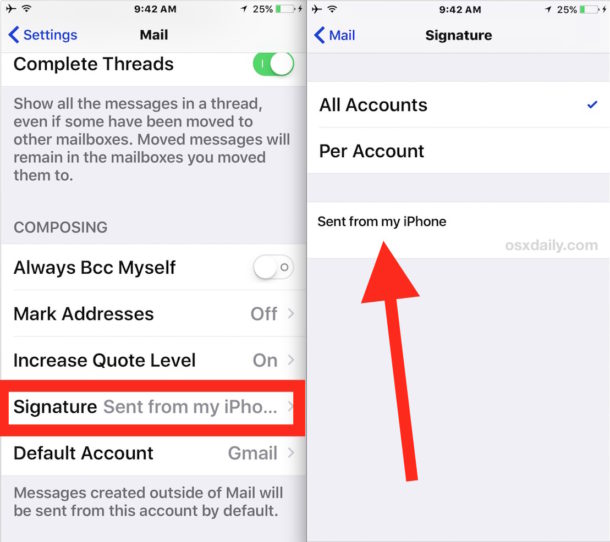
Now exit from Settings. Any time a new mail message has been composed, sent, or replied to, the iPhone will no longer attach the “Sent from my iPhone” message with any emails.
This can be reenabled at any time just by reentering into those same settings, but you can also customize the Mail signature to something else if that’s what you’d rather do.
How to Change the iPhone Email Signature
If you just want to change the iPhone email signature from the ‘Sent’ message, the instructions are very similar to that mentioned above:
- Again, go back to “Settings”, then go to “Mail, Contacts, Calendars” and choose “Signature”
- Delete the existing signature by tapping “Clear”, and replace it by typing in the new desired signature, exit out of settings to save the change
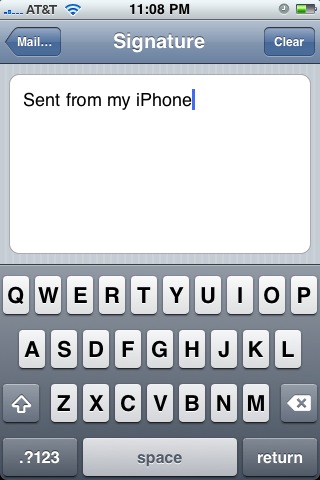
Placing things like phone numbers, business addresses, job titles, and even social information like Twitter accounts can be useful customized signatures, just don’t overdo it because it can be quick to be obnoxious with lengthy or overly complex signatures.
When you exit the Signature Settings, any new email sent or replied to from the iPhone will include your newly customized signature.
This tip applies to the iPad and iPod Touch as well, since they also apply the signatures to their messages sent from Mail app, replacing them with their respective product names.
Removing the “Sent from my iPad” Signature Message
You can delete or customize the “Sent from my iPad” and “Sent from my iPod touch” email signatures the exact same was as described on the iPhone.
Should You Remove, Keep, or Customize the Signature?
There are many reasons to remove the signature, and some organizations have policies in place to remove them as to obfuscate the location of a sent email message, if not the devices in use themselves. There’s also plenty of personal reasons to not want it in mail messages, maybe you’re just not interested in the brand aspect of it, or maybe you just find it unnecessary.
Customizing the sig is also a great option, particularly for business purposes.
One unintentional benefit to keeping the signature as the default “Sent from the iPhone” setting is the unspoken expectation of such an email. Anything that identifies as being sent from a mobile device includes the assumption of brevity, thus it becomes much more socially acceptable to type out quick emails and responses, even to lengthy initial messages. We’ve actually recommended exactly that as a tip before for both desktop and Gmail or other webmail clients, because it can improve email productivity and help to reduce some of the overload we all experience looking at inboxes.
Ultimately, what you want in your devices signature – if anything – is entirely up to you, just be sure to choose something appropriate for your iPhone usage.






This phone belongs to me
thanks for the information
I still cannot get rid of a thread from my an old employer.
Why not change it to “Sent from my iPhone, but not when driving!”
What I want to know is why this signature showed up even though I erased it. I haven’t disabled it in settings, but when I was typing an email and saw that signature, I manually erased it. Yet when I looked at the email later on my computer, I saw that the message had shown up anyway. It’s not really that big of a deal, but I feel like it lowers the professionalism of the email. Plus, it’s just the principle of the thing. I erased it. It should have been gone.
Thank you so much this answered so many questions
Changing group defaul email account was easy once I knew the proper war to change it. It should be in settings of the app to make it easier
Happy .
my iPhone signature has been disabled in setting totally but whenever I text message someone that doesn’t have an iPhone (not iMessage) it always has my name signature under the text!! This has been happening with my iPhone 4, 5 and now 6! I’ve tried everything, PLEASE HELP!
Justine
I don’t mind the sent from my iphone sig that is put at the end of my emails, however, today I sent a text to my husband, by going to his contact info and at the very bottom it said send message and I was able to choose his work email to send it too, not only did it say sent from my iphone but after that it put enjoy… what the heck? That’s the stupidest thing I’ve ever heard…enjoy… Not sure how to remove that!
There is too much advertising in the world that we don’t need an advert at the end of emails we receive.
If you want the recipient to know it came from a cell phone, change your signature to say “Sent from my phone” or “Sent from my tablet.”
Thanks a million!! Now it seemed so easy!
Brilliant and so easy, why couldn’t I find that! Thank you!
Thank you very much!