
Disable iPhone GPS & Geographic Tagging Data in iPhone Photos
 Want to disable iPhone GPS geotagging of photos and the camera? Many users may wish to turn off geotagging on iPhone photos for privacy reasons. In case you didn’t know, the iPhone Camera defaults to storing GPS and geographic tagging information in the EXIF data of your iPhone images. If you don’t want this type of location information stored in a pictures EXIF meta data, you can disable the feature easily in iOS settings, which essentially prevents the image from keeping location details within the file and can help to increase privacy. We’ll cover how to make this settings adjustment on all versions of iOS so you can disable the location feature of the camera and snapped photos.
How to Disable iPhone Photo GPS Geotag Location Data
This will prevent the location GPS coordinates from being embedded into all photos taken with the iPhone Camera app, this settings adjustments is available to and works in all modern versions of iOS:
- Open the Settings app on iPhone
- Go to the “Privacy” settings
- Tap on “Location Services” and find “Camera” in the list of apps
- Flip the switch next to “Camera” to “Never” or OFF so that Camera never uses location
- Exit Settings, or turn off location data for other photography apps if desired

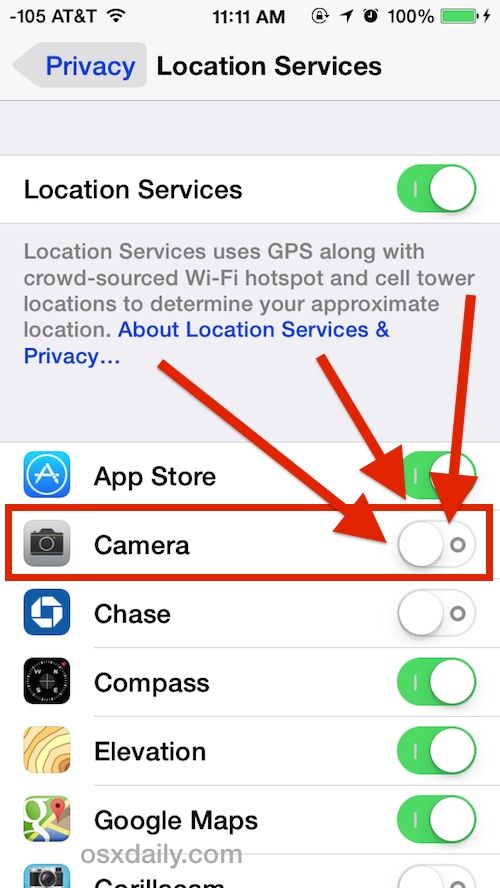
The above setting screenshot shows what the Privacy > Location Services > Camera setting should look like to prevent location tagging of iPhone photos.
It’s important to point this settings adjustment only changes photos taken with the Camera app on an iPhone.
If you want to prevent other apps from being able to geotag images taken within their respective application, say like Instagram, you’d need to locate that app from the same Privacy > Location Services list and disable those apps as well.
Do not overlook other apps usage of geolocation data if you are aiming to maintain maximum privacy with geographic location data and GPS coordinates, because it’s not only the iPhone camera that will attempt to store and gather geolocation in images metadata.
You’ll find this privacy setting in all modern iOS versions, from 6, 7, iOS 8, iOS 9, iOS 10, iOS 11, iOS 12, and onward. New versions of iOS actually gave “Location Services” it’s own separate preference settings within the Privacy section of Settings app, whereas old versions of iOS still allow you to disable the settings but you have to go deeper into the iOS preferences to do so, which we’ll cover next.
Turning Off Camera Location Services in Older iOS Versions
If you have a much older iPhone model with an older iOS release you can still turn off this feature too. Turning off Camera GPS data with older models iPhone running iOS 5 and iOS 4 is done through the following settings adjustment, note how it’s different from doing so in modern iOS releases:
- Tap on Settings
- Tap on General
- Tap on “Location Services”
- Select the On/Off switch next to “Camera” so that the switch is set to OFF
- Exit settings
The appearance of these Camera location data and privacy Settings also has changed slightly, but again the functionality remains the same across all versions of iOS that include the ability to toggle the setting on or off.
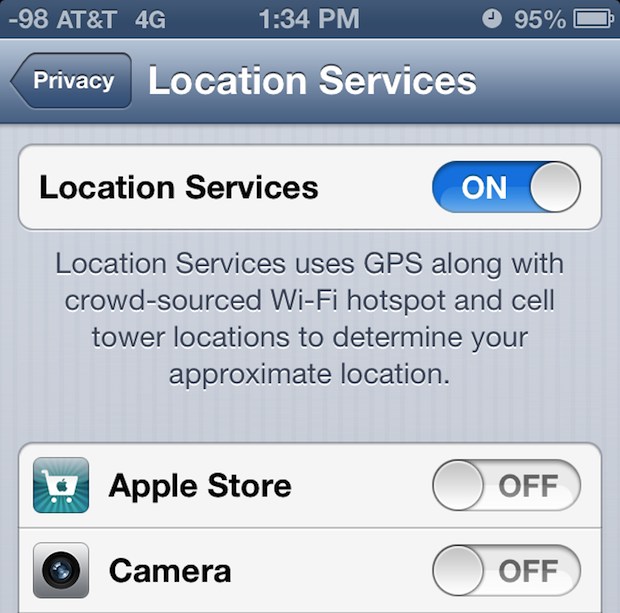
Images taken from the iPhone will now no longer include GPS and location data when taking photos, and your privacy concerns should be alleviated.
For those interested, it’s fairly easy to see the iPhone photo GPS data by using the Preview app or any other EXIF viewer on the Mac. Likewise, it’s also fairly easy to strip the EXIF details using applications as well, so if you want to remove location data from past images that’s what you’d want to do.
There are many reasons to want to disable geotagging of images, but perhaps the leading reason is for privacy and security. Do you really want every photo you take to have the precise GPS coordinates and location of the image stored in that pictures metadata? This is something to consider, especially if you put photos on the internet through a website or social media. Many photo sharing apps and services will also gather that GPS data from the photos too, keeping a record of exactly where images are taken. Thus for many of us, simply turning off geotagging of images is a simple way to not have to deal with any of that. Going beyond photos, if you care about this for privacy reasons, you might want to audit the Location Services access of other apps on your iPhone or iPad too, disabling location for social networks and social media along with other apps can be a simple way to enhance your own privacy and security a bit.
If you have any thoughts, tips, tricks, or helpful advice about turning on or off geotagging camera photos on the iPhone or iPad, share them with us in the comments below.






That’s why I love my Android. I use an app named “GPS Privacy” that automatically deletes the GPS location tags if the photo is taken in a privacy area – like around your home, school, work, etc.
This way you don’t have to remember whether you have the GPS tags on or off. Simply define your privacy areas, and your pictures won’t have GPS coordinates when made in these zones.
I am yet to find an app like this for my iPhone…
[…] details like precise geographic coordinates where the image was taken, (though that’s easy to disable), and overall that metadata can just make images more bloated than they need to […]
[…] Disable iPhone GPS & Geographic tagging data in iPhone Photos […]
[…] feature is only accurate to use if you have Location Services and geographic tagging enabled for the photos app. stLight.options({ […]
My iphone did not follow these instructions to turn this off. My were: Setting, General, Restriction, enter pass code and then enter again – Enable Restrictions – Location – Then Camera – turn off.
Hope this helps anyone having problems
[…] isn’t the first example of the iPhone tracking location data, by default iPhone photos store GPS metadata, which can then be retrieved through Preview.app on any images taken by an iPhone. That feature can […]
There is an alternative to turning off geotagging on your iPhone. I use a free application called Pixelgarde Photo Privacy Editor for iPhone, which lets me control when I share this type of information in my photos. It’s a simple tool and its free so why not use it?
[…] For more information on how to protect your information and turn off your GPS photo function, click here. […]