
The Mac Menu Symbols & Keyboard Symbols Explained
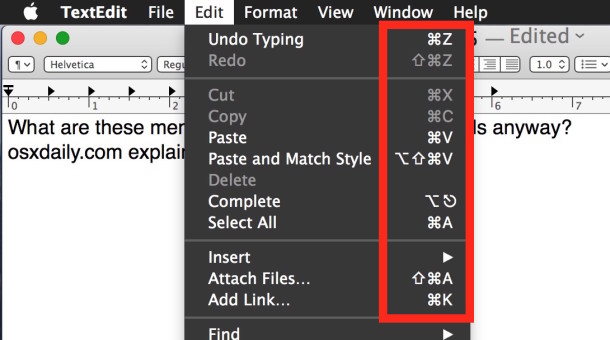
If you’re new to the Mac or Apple platforms, learning the menu keyboard symbols that appear in the menus and on some keyboard keys, can be a little daunting. Nonetheless it’s not too complex, and knowing what the Apple keyboard symbols mean and what keys they stand for to access the function is essential for accessing various shortcuts throughout Mac OS X and iOS. Not only do the Mac menus use the symbol short form as seen in the screenshot, but many websites will refer to the symbol rather than the text printed on the keys (⌥ instead of Option, for instance).
With this in mind, here are the Mac menu symbols, and Apple keyboard symbols as translated to the keys they represent:
Mac & Apple Menu Symbols and the Related Keyboard Symbols
The three symbols you’ll find most often in menu items on the Mac and iOS are control, shift, command, but sometimes you may see others too. Typically the full menu symbol list and their associated key is as such:
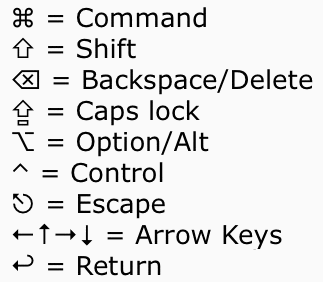
This is the full list in text form, note these symbols only display properly on a Mac:
• ⌘ = Command (sometimes displayed as an Apple logo)
• ⇧ = Shift
• ⌫ = Backspace/Delete
• ⇪ = Caps lock
• ⌥ = Option/Alt
• ⌃ = Control
• ⎋ = Escape
• ←↑→↓ = Arrow Keys
• ↩ = Return
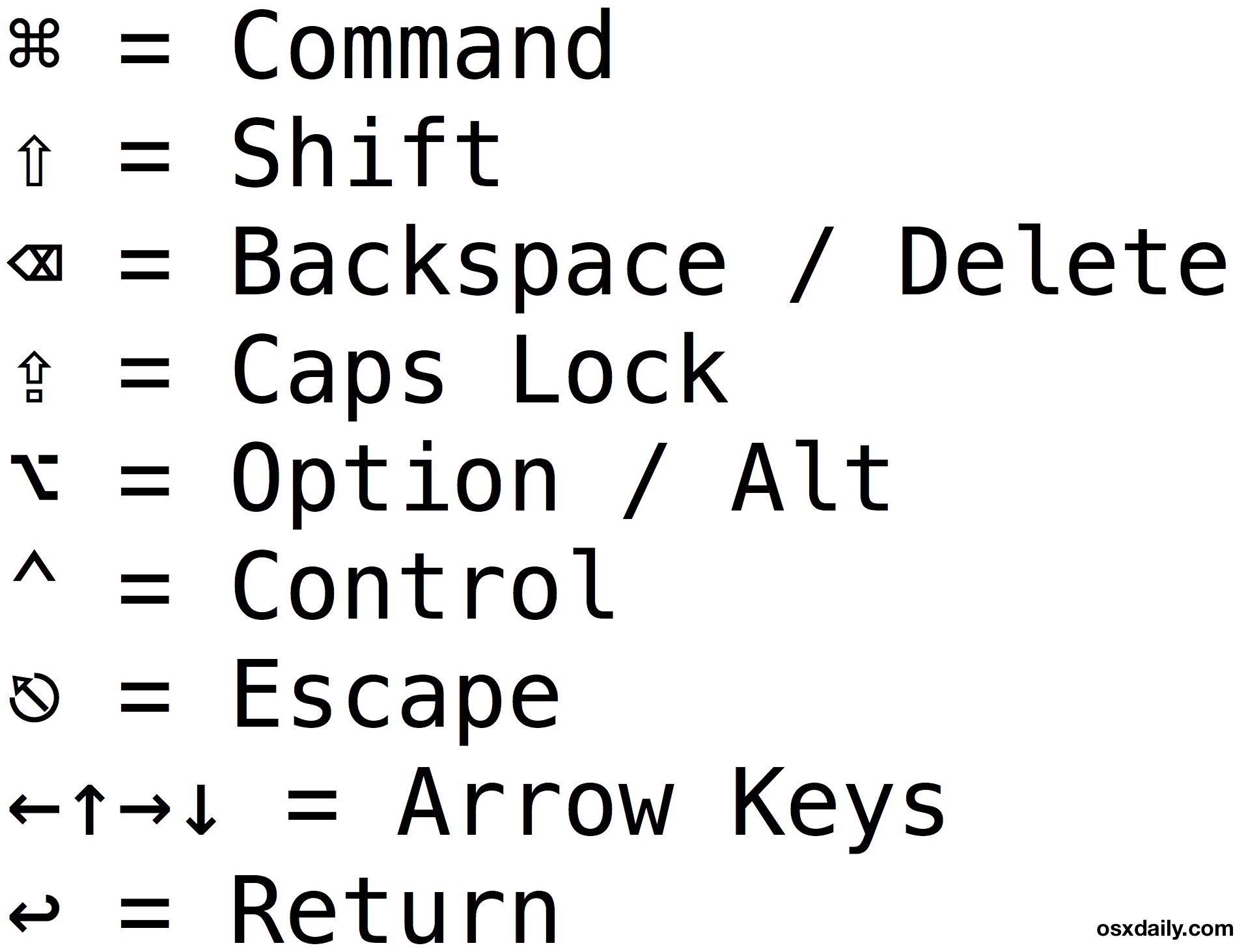
Refer to the graphic at the top if you’re currently on a Windows machine or Android, as the above symbols sometimes only render on Mac and Apple devices.
This little hand cheatsheet below can be printed out if you want to access and reference the Apple keyboard symbol explanations often, click the image below to launch a large version into a new window to print or refer to as needed.
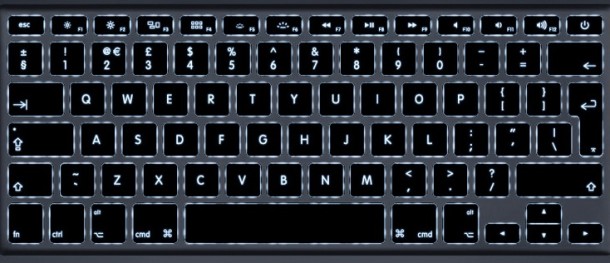
Keep in mind the keyboard symbols may look a little different and be labeled differently depending on the keyboard layout and region the Apple keyboard comes from, as well as the age of the keyboard itself, but regardless all of the keys functions are the same. You’ll also encounter these symbols throughout the operating systems, in menu items and elsewhere:

Thanks to Pat for suggesting this tip and sending in the list!






Maybe the next time you write an article about symbols on a Mac keyboard you could talk about the whole row of symbols at the top of the keyboard? What do the sun symbols at F5 and F6 do?
They change the screen brightness.
where can I find following symobol on the ipad:
§
Clarification of Backspace/Delete icons: “Backspace” removes the letter before the cursor, and that icon there is correct. But “Delete” (also called “Forward Delete”) removes the letter AFTER the cursor, and looks like the mirror image of the “Backspace” icon: ⌦. On the laptop, you can accomplish this by pressing Ctrl-Delete which will do forward-delete.
All of these symbols are listed with their explanations in System Preferences/Keyboard/Keyboard/Modifier Keys, & always have been, BTW… You can also change them their if you want to.
“…their if you want to.” s/b “…there if you want to.”
Oops!
OK, I miss-wrote: “…All of these symbols…” s/b “…All of these MODIFIER symbols…”
[…] or if the beeping is “normal.” Ah but wonder no more! Thanks to the awesome folks at OS X Daily we now have a nice quick reference […]
And the key “fn”. On the it laptops it activates the “F1-12” keys.
There is the “tab” too ⇥
Another one you may see on sites is the Enter key, displayed as this symbol: ⊼
Thanks for the ⊼ symbol. It’s used in Apple’s ‘Pages’ Mac app to create a ‘Page Break’. The keyboard shortcut is NOT found in the Pages Help documentation.
Option/ALt makes no sense to me at all, and why Apple doesn’t put these on the keyboards is also strange… talk about confusing for newbies
I stared at it for a long time before I got what the symbol was. It is like a train track that breaks off to the right. It would be a straight line (a non-alternative click) but instead, by pressing the Alternat (ALT) you are changing lanes, so to speak. That may not be it at all but it makes sense to me. And yes, the symbols should also be on the keys.