
Check and Install Mac OS X Software Updates from Terminal
Want to update Mac OS software from the Terminal? You can check for available updates, ignore packages, and install any or all Mac OS X Software Updates directly from the command line.
To see what updates are available for a Mac, or to install a software update from the Terminal of Mac OS X, amongst many other options including how to ignore particular updates, you’ll use the ‘softwareupdate’ command line tool as we’ll instruct below.
Read on to learn about using the command line software update utility on the Mac.
How to Check For & Install Mac OS Software Updates from the Command Line
We’ll break this down into a few sections. First we’ll show you how to check for available software updates and get a list of all available Mac software updates from the command line. Then we’ll show you how to install software updates from the command line, including installing all updates, recommended updates, or a specific update.
As this is using the command line, you will be using the Terminal application, found in /Applications/Utilities/ on all Macs. If you’re unfamiliar with the command line, it’s probably better to simply install software updates from the Software Update system preference or the Mac App Store.
List All Available Mac Software Updates from Command Line
To get a list of available software updates, type the following command in the Terminal:
softwareupdate -l
You will see a list of available updates.
Installing All Available Mac OS Software Updates from Terminal
You can then install all available software updates with the following command:
sudo softwareupdate -iva
The use of sudo is required to get superuser privileges to actually install the updates.
Install Recommended Updates Only from Terminal in Mac OS X
You can also install only the recommended updates with:
sudo softwareupdate -irv
Installing Specific Software Updates to Mac from Terminal of Mac OS X
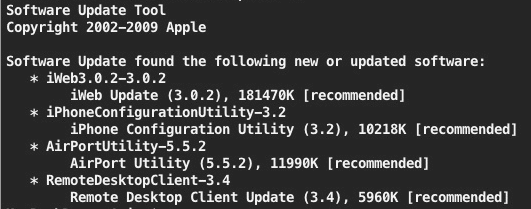
You can also just install specific software updates by specifying the shorthand package name from the previous list retrieved from the softwareupdate tool, just point the command at a particular package and make sure the syntax matches up like so:
sudo softwareupdate -i iPhoneConfigurationUtility-3.2
We’ve discussed different but similar approaches to installing specific software updates this way before in the past, so this may be familiar to you already.
How to Ignore Specific Software Updates from Terminal in Mac OS X
If there are any available software updates you want to ignore, you can do so with the –ignore flag, pointed at the package you want to ignore, for example:
sudo softwareupdate --ignore iWeb3.0.2-3.0.2
What other software update commands are available in Terminal?
If you want to see all the available command line options for Software Update, just type:
softwareupdate -h
Hit Return and you’ll see many other options for command line based software updates to MacOS, including how to set and clear the softwareupdate catalog, download but not install, cancel downloads, install, ignore, reset the ignore list, verbose mode, suspend options, pull logs from the softwareupdate daemon, and more, with the following output showing all options:
% softwareupdate -h
usage: softwareupdate[ …] ** Catalog Management:
–set-catalogSet the new catalog URL (requires privileges)
–clear-catalog Clear the catalog URL back to defaults (requires privileges)** Manage Updates:
-l | –list List all appropriate update labels (options: –no-scan)
-d | –download Download Only
-e | –cancel-download Cancel a download
-i | –install Install
(label) … specific updates
-a | –all All appropriate updates
-r | –recommended Only recommended updates
–background Trigger a background scan and update operation
–ignore (label) … Ignore specific updates
–reset-ignored Clear all ignored updates** Other Tools:
–suspend-background (on | off) Suspend background operations from occurring temporarily (uses –duration)
–duration (duration)) Optional duration in seconds to suspend background operations (defaults to 5*60 seconds)
–dump-state Log the internal state of the SU daemon to /var/log/install.log
** Options:
–no-scan Do not scan when listing or installing updates (use available updates previously scanned)-v | –verbose Enable verbose output
-h | –help Print this help
Optionally, you can use the softwareupdate man page:
man softwareupdate
The command line approach to software updates is really useful for remotely updating Macs with ssh, setting up automated updates via a bash script, or if you just want to geek out.
This tool is available in all versions of Mac OS X and macOS and therefore it can be used to update just about any Mac with necessary software updates.
This is one way to avoid using the Mac App Store to update a Mac if that is necessary for whatever reason. Another would be to use Combo Updates for updating Mac system software, or getting other packages from Apple via the Support Downloads page.
If you have any other tips or tricks for command line softwareupdate in Mac OS, share them in the comments below!






mine says “must be run as root” and nothing else.
With my OS X Sierra (10.12.x+) softwareupdate is in /usr/sbin.
Hi
I’ve recently purchased a refurbished MacBook Pro late 2012. Just about to update iMovie and the greyed out address of the previous owner came up with request for password.
It will not let me create my own id in this case and it works fine for other circumstances I think accepting my Apple id but not in this.
So how can I remove previous owner totally!!!so I can update blissfully!!
best wishes and congrats on an interesting site!
David
Hi David,
Unfortunately the previous owner has already “adopted” the application – only the first owner of the MacBook can adopt. The device combines a mixture of its serial, ethernet hardware address, and sends it to Apple to confirm if the device has already adopted.
There are less legal methods (such as capturing a pkg file of the updates), but they’re a huge pain to manage even if you’re technically able.
If the refurb is purchased from Apple directly you might be able to talk them into assigning the apps to you, and when you sign out of the App Store and sign back in they’ll appear in your “Purchased” tab and be updatable.
Good luck!
Andrew
Thanks work perfectly. For some reason, my AppStore is not connecting to the internet and this method worked perfectly.
While I am familiar with shorthands for flags, interestingly softwareupdate -iva fails, with “invalid option”, whilst softwareupdate –verbose -ia does work, hence the above comment…
If someone stumbles upon this, I believe -v is not a valid option, instead it would be –verbose to enable verbose output.
Your belief is incorrect.
-v is valid to specify for verbose mode, a flag at the command line is shorthand, so in this case it would be -v for -verbose which means it elucidates what is going on when the command for softwareupdate is being executed.
You can type ‘softwareupdate -h’ for a full list of softwareupdate commands.
Your belief that his belief is incorrect, is incorrect. -v is not a valid flag in this cli tool
It appears you are both correct, but it depends on the version of MacOS you are running!
All users can list software updates with:
softwareupdate -land install with:
softwareupdate -i (package)As for the -v and –verbose flags, they might be deprecated in later/newer versions
See what commands are available to you and your MacOS release by doing:
softwareupdate -hYou can also do ‘man softwareupdate’
How can you do manual updates if you have spotlight disabled. I had to disable it because my mac was stuck in the infamous “update loop”.
I realize this is an old thread, hopefully you’re still reading. :) This worked great for the OS updates. Any idea how to add the iWork updates or iLife updates too? Trying to remote manage 15 Macs and Apple doesn’t really do enterprise. I’d like to download .dmg or .pkg files to be able to update everyone at once, but the above command only pulls down OS updates.
You already probably found a solution but Munki is useful for installing custom applications (Skype, Google Earth etc), it also has its own command line tool for the client so you could set up a schedule (cron) to run the updates, or get a copy of Apple Remote Desktop
[…] the command line softwareupdate tool you can update Mac OS X system software without using the App Store. This is particularly […]
For me “sudo softwareupdate -i -a” worked, “sudo softwareupdate -iva” didn’t.
Thanks @mppa.
This one work for me too
sudo softwareupdate -i -a
What font is that? I have to try it on some code!
@chiggsy
The font in the screenshot is either Menlo Bold 14 pt or Menlo Regular 14 pt
Love terminal ‘shortcuts’…
btw:
“softwareupdate -h” or “softwareupdate” will do the same.