
Set a Screensaver as Desktop Wallpaper in Mac OS X
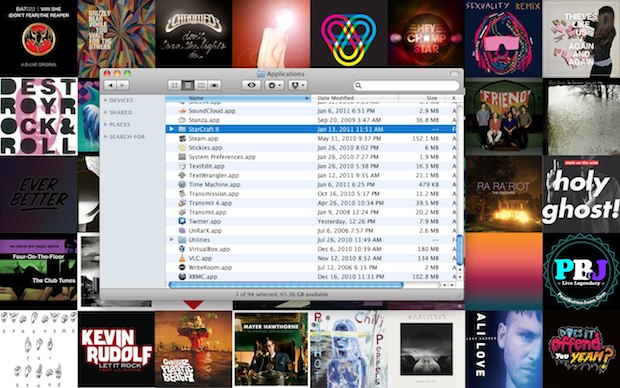
Using a Terminal command, you can turn any screensaver into your background wallpaper on the Mac. In the screenshot above I have the iTunes Album Art screensaver running as the Mac OS X desktop, but you can choose any screensaver you want. Here’s how to do this:
- Launch System Preferences
- Click on Desktop & Screen Saver and choose the screensaver you want to set as the background
- Open Terminal (located in /Applications/Utilities/) and paste in the following command:
/System/Library/Frameworks/ScreenSaver.framework/Resources/ScreenSaverEngine.app/Contents/MacOS/ScreenSaverEngine -background
Hit the Return key to execute the command string, this will start the screen saver in the background immediately.
As long as this command is running, the screen saver will be active. If you close the Terminal window, the screen saver will end and your Macs wallpaper will return to whatever you had previously.
Having trouble with the above syntax working? Make sure your syntax is correct, and that you’re using the proper syntax for each MacOS version.
If you’re on MacOS High Sierra or later, the command syntax must be modified slightly as so to run the Mac screensaver as wallpaper, like so:
/System/Library/CoreServices/ScreenSaverEngine.app/Contents/MacOS/ScreenSaverEngine -background
Also, recall that the above commands need to be on a single line in order to execute properly. If you’re having issues copying and pasting the above text, you can split it into two commands.
First change the directory:
cd /System/Library/Frameworks/ScreenSaver.framework/Resources
Then execute the screensaver command:
./ScreenSaverEngine.app/Contents/MacOS/ScreenSaverEngine -background
If you split the command into two, there is a period before the second part, so don’t miss that.
Stopping the screensaver is just a matter of hitting Control+Z, or closing the active terminal window. Although if you want, you can set the process to run on it’s own by adding an ampersand (&) to the end of the last command too, but then to stop the process you’d need to target it with Activity Monitor or the kill command.
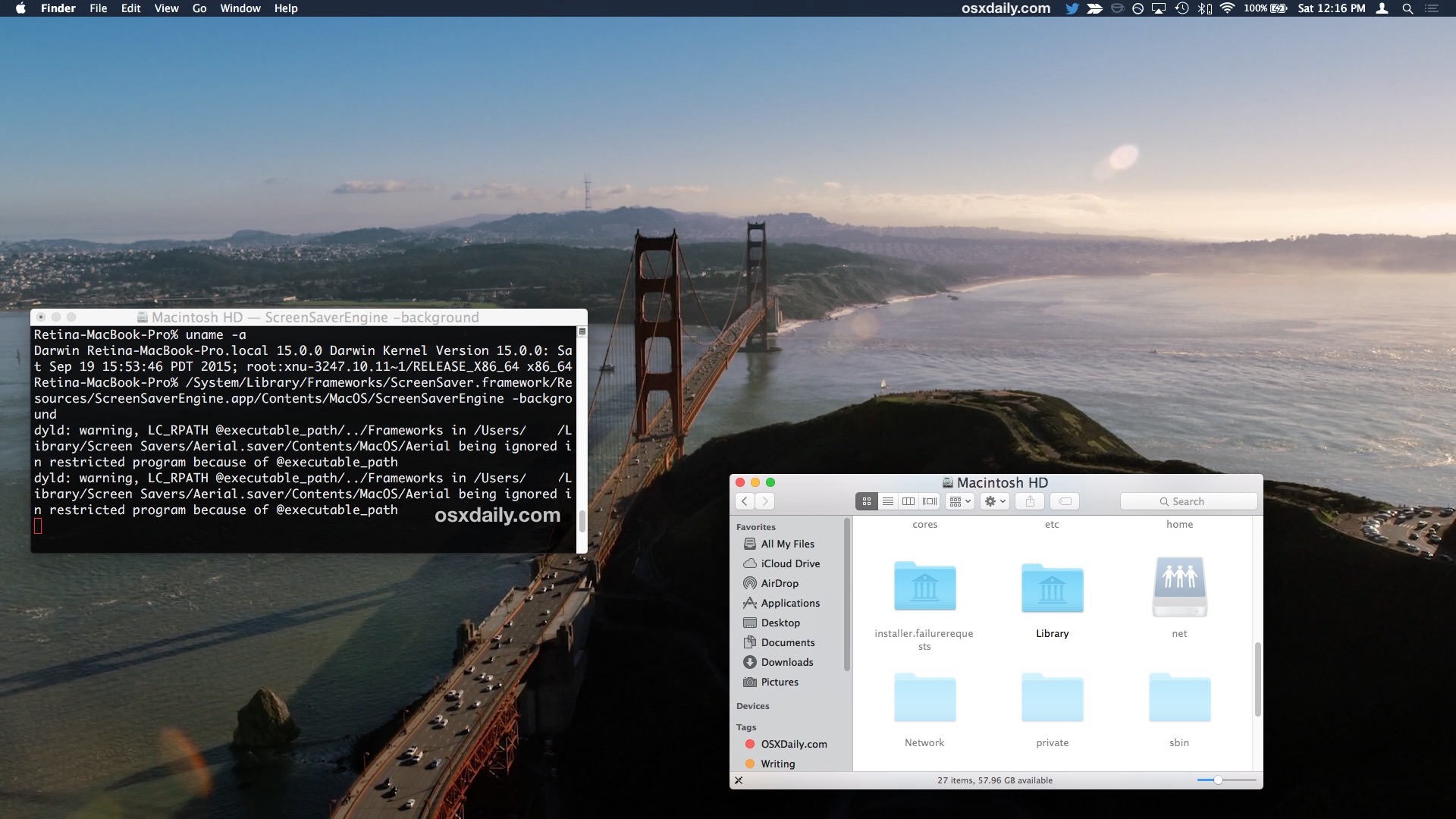
The screensaver will take a few seconds and load as the desktop wallpaper. This ends up giving your Mac an effect similar to Android OS’s living wallpapers (you can get living wallpapers on iPhone too but you have to jailbreak).
Most screensavers won’t use too much CPU, in testing they generally run between 4-12% although Arabesque spiked as high as 40% at times. The amount of resources taken up depends on the screen saver itself, and the size of the displays where the screen saver is being rendered on, as well as the Mac itself. Regardless, running a screensaver in the background isn’t a good idea if you’re trying to preserve battery life or you need CPU power for something else.
This trick is a bit of an oldie but goodie, but I still use it from time to time for the eyecandy. It works in all versions of OS X from the earliest releases of Mac OS X to El Capitan. One of the more pleasantly subtle backgrounds to use this with are the image based screensavers like Beach or Forest, or you can create one with your own pictures, the effect is a moving background that pans and uses the “Ken Burns” effect over the images.






Can this be done in Big Sur? I really hope so. Or is this hidden trick just gone?
Does not seem to work on Big Sur. Any solution?
The -background option doesn’t work on Catalina
yes this doesn’t work anymore, please someone find a solution.
Hello, I have the Problem that when I start it, it appears in front of everything and I can´t do anything. It isn’t going in the background as wallpaper for some reason. Does anyone have an idea how to fix it? I am using it on my early 2011 MacBook Pro 13inch i7, running High Sierra, which is used with an external display. I´m going to test it on my late 2011 17inch MacBook Pro asap.
Greetings from Germany
Constantin
Has anyone figured out how to make this work in High Sierra?
I have the same question. I have only figured out how to stop it once it’s been started.
I used this on previous versions and enjoyed it.
The command given for High Sierra:
/System/Library/CoreServices/ScreenSaverEngine.app/Contents/MacOS/ScreenSaverEngine -background
does not do the same thing as before.
Previously the screen saver would run behind all the active windows. Now the screensaver just runs, no windows visible, and mouse motions and key presses do nothing to turn it off.
The only way I was able to turn it off was to swipe up to get Mission Control and then drag the Terminal window to the top bar so it would be in full screen mode. I still couldn’t see it, but that seemed to allow Terminal to capture my ^C and stop the process.
That was much better than rebooting.
Click:
>System preferences
> desktop and screensaver
> + (on the left hand side pane, showing the resources you can get your wallpaper from)
> (Finder pops out) select the screensaver from where you saved it in your Macbook
Say I have Apple TV 2.
Can I install the screensaver on it?
I have install en the computer be nice on the apple TV 2
Thanks
Try typing in ‘ kilall Dock ‘ and this should get rid of the code and reset the backround!
how do i turn this off? i liked the idea and it worked but now my screen saver and hot corners won’t work at all no matter what i do. its bugging me a lot. so whats the command to turn screen saver back on?????
when I type the code in my mac says invalid frame buffer operation, and yes Im typing it in right but it just won’t work. It work fine on my old one but doesn’t seem to take it on this one. Any thoughts?
i am having a problem changing this back to its original background:(
Me too. Have you resolved it?
hold down the “Command” with “C” and it should stop.
PLEASE HELP ME GET IT BACK, COMMAND “C” DOESN’T WORK
Try “CONTROL-C”
[…] via OSXDaily […]
It only works as long as Terminal is open. Am I doing something wrong?
put “nohup” before their line and a “&” after their line to force it to goto work as a background process. Will then have to ps -ef|grep ScreenSaverEngine and kill the PID to stop it though. Or an all in one:
kill `ps -ef |grep ScreenSaverEngine|grep -v grep|awk {‘print $2’}`
included the entire command in my .bash_profile. nohup didn’t work. am I missing a flag?
it take from my cpu 25-45% RRRrRrrRR
[…] via OSXDaily […]
amazingly useless stuff… if you’re working with computer you’ll see you wallpaper few times a day for some seconds :) But maybe for some of users it will be very amazing feature :)
Ehhh I just set mine to auto-change for a nice look without the processor pegging