
Slow iPhone Wi-Fi? Speed Up iOS Wireless Connections with Faster DNS Servers
If your iPhone Wi-Fi connection seems inexplicably slow, particularly when having moved from one wireless network to another, try manually setting custom DNS servers. This speeds up the response time and your wireless connectivity in general.
For the best results and to find the fastest possible DNS for your location, you’ll want to use a tool in Mac OS X, Windows, or Linux like NameBench, a free utility to help find the fastest DNS server for your geographical location. Once you determine which is the fastest server for you, you can then change the DNS settings on the iPhone as appropriate:
- On a Computer, find the fastest possible DNS Server using NameBench – make note of the DNS servers IP that are selected by the NameBench benchmark service
- On the iPhone experiencing sluggish wifi, open the Settings app and go to ‘Wi-Fi’
- Tap the blue arrow alongside the wi-fi network name you are connected to
- Tap the numbers next to “DNS” to change them to the settings that were found to be the fastest through NameBench
This is where you’ll want to set your DNS as determined by NameBench. You can obviously use other settings but the whole point of this is to speed up your internet service by using the fastest servers as determined by NameBench.
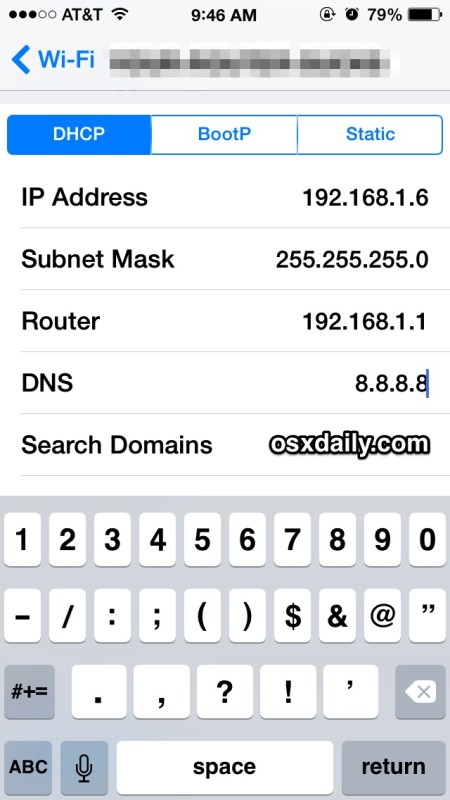
Modern iOS versions including iOS 7 and iOS 8 have the following appearance in DNS setting:
This is what the DNS settings panel looks like in older versions of iOS like 6.0 and before:
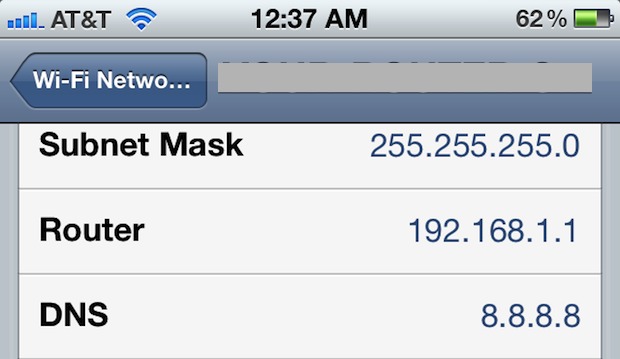
The function is the same, the appearance is different.
This is a particularly worthwhile tip for those using older iOS devices like the iPhone 2G and iPhone 3G devices, but it can also make a noticeable difference for newer hardware including any iPod touch, iPhone, or iPad.






Wifi working fast
I just need some help speeding up videos on my iPhone 4, everything is generally slow but I can’t even watch videos on anything, even when I download them! So slow! And now it’s saying I don’t have enough bandwidth to watch on some iplayer program’s. I’ve tried using a DNS of 8.8.8.8 but that’s all I’ve done and it’s not made a difference, don’t even know if I’m on the right tracks, any help would be much appreciated (:
Settings => General => Reset => Reset Network Settings
Unfortunately this may not work for those of us that like to take advantage of free public wi-fi.
Some of those free wi-fi spots may require you to use their choice of DNS.
Apparently less than half the commenters here realizes the DNS servers are only set on a per router basis, they’re not universal!
Anyone complaining about this obviously hasn’t tried it, it works. No, using a California DNS if you live in Namibia makes no sense, but that applies to who? Nobody? Run NameBench, find fast DNS near you, and set it. No different than doing so on your laptop.
Pretty sure everyone here just likes to whine about something, typical internet nonsense.
Great tip, Sebastian
You are boss, man! Thanks. It works with my IPad but I am still facing problem with opening youtube with my Sony Internet TV and Android Phone.
[…] |VIA| […]
My ISP’s DNS servers are very slow according to NameBench, I got a 65% boost in requests by going with Google DNS. Definitely sped up page loading, I changed them on my Mac too.
Thanks for the NameBench tip. Installing on Ubuntu to test Google’s DNS servers vs. my ISP’s. Cheers.
Worked great for me, although I live less then 45minutes away from google.
This smacks, again, of another red herring post on OSX Daily (are you listening, editors?)
They publish a tip without looking at the full ramifications. Case in point, one of the most popular is the pay-as-you-go iphone. https://osxdaily.com/2010/08/01/prepaid-iphone-setup-iphone-for-pay-as-you-go-plan/
The forum went on & on with all sorts of problems from doing that. While the post on this website worked as it was written, it did nothing to answer all the ramifications left in its wake.
Better editing, folks.
What are your suggestions?
I read these tips every day. They are always interesting, and some valuable.
But they should be vetted to include the ramifications. My case in point about the iPhone was that AT&T is watching and will nail a user with an arbitrary data fee in some scenarios.
It’s not learned until you read 100 comments. OK, so who knew? But if OSX Daily is paying close attention to the comments, it should go back in and edit to include information it didn’t know before.
Because this post paralleled the iPhone post, OSX Daily should get some measure of feedback from loyal readers.
doesn’t work with CDNs
not recommended.
works perfectly with CDN on Rogers here.
DNS doesn’t stop at the border.
I am seriously puzzled by this “hint”. Are you seriously suggesting that people bring along a laptop so that they can re-test for a faster DNS server every time they connect to a new WiFi network?
Also, using central DNS servers will in most cases circumvent geo-location on the server, and will serve you CDN servers near the central DNS location. In other words, when you hit the app store from a phone using Google DNS you’ll download from the overloaded Akamai cluster that everyone else using Google DNS is using in that region, instead of using the fast Akamai cluster closest to where you actually are.
yes you must bring a laptop with you EVERYWHERE YOU GO!!!!!! HAHAH! jokes on you!