
Password Protect an External Drive in Mac OS X with Encrypted Partitions
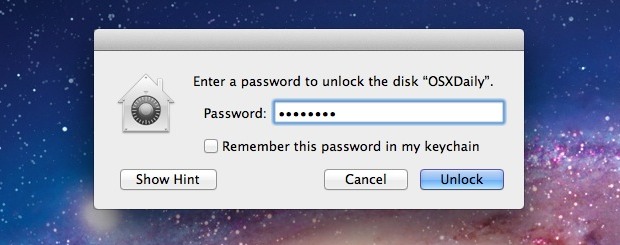
We recently showed you how to password protect files and folders using encrypted Disk Images in Mac OS X, but if you have an external drive you can go a step further. By using encrypted disk partitions, any drive, be it a USB key, flash drive, hard disk, or whatever else, can be set to require a password before the drive can be mounted and the files accessed.
Require a Password to Access External Drives with an Encrypted Partition
Doing this will format the external drive and erase all of it’s contents. Back up your data and all contents before proceeding, and do not lose the set password.
- Launch “Disk Utility” from /Applications/Utilities/
- Connect the drive you want password protected
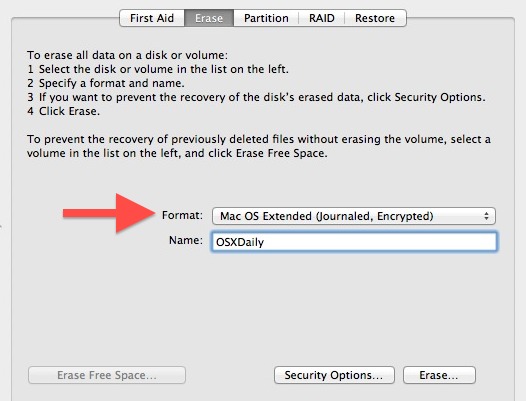
- Select the drive in Disk Utility, and click on the “Erase” tab
- Pull down the “Format” menu and choose “Mac OS Extended (Journaled, Encrypted)”
- Click on “Erase”
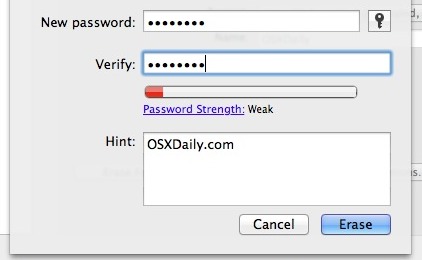
- At the next screen, set a password – do not lose this password or you will lose access to the drives data
- Set a hint that isn’t obvious and then click on “Erase”
- Let Disk Utility run, when finished the drives partition will show up on the desktop, the drive will be accessible for now without a password allowing files to be transferred over. Eject the disk when finished to require a password upon further mounting and usage.
Once the drive has been ejected, connecting it again will require a password before it is even mounted. That screen will look like this:
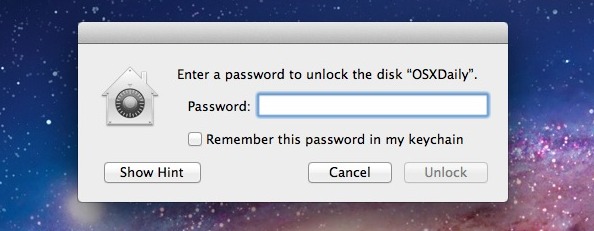
Clicking on “Remember password in keychain” will allow the drive to be mounted on the Mac without entering the password on that Mac, but it will still require a password to be used on another Mac. For maximum security, it’s best to leave that option unchecked.
For system-wide security measures, don’t forget to password protect a Mac with both login and screen saver passwords, and if you don’t mind the trade offs, to use FileVault to encrypt the entire hard drive and its contents.






but I can’t used this hard disk with windows
how it is working with both Mac and Windows
I forgot my external drive password. what can i do??
how to format disk to recover the password?? Please help me!!
Sadly, OSX 10.13.6 – High Sierra no longer has an encryption option for SD Cards. (Option still available for USB and Hard drives)
Guys will this encrypted pen drive work on windows also? i mean will it ask a password in windows too? coz my mac has less internal storage and m using an external hard drive want it to be protected on any computer plz reply me
Yes this is for Mac, Mac OS is not Windows. Encrypts the partition for Mac.
HEEELP…I did everything and when prompted for password on my encrypted Drobo drive, I hit cancel and now no matter what I do in regards to unplugging and checking disk utility makes it appear again. i have 2TB drive split into 2 – 1tb drives, the non encrypted is visible and the “cancelled” at password prompt is gone….*******Photos and business files dated back 15 years, very important please please please help…its almost hidden or something
Your responses are greatly appreciated thank you so much
Open “Disk Utility” and find the partition or drive in there and mount it manually and enter the password, the Disk Utility app is in /Applications/Utilities/ folder
That should work fine, the drive is still there it just needs to be authenticated again.
I disk utility in external drop down only shows “TRUSTED Mass Storage with other partition drive but no missing partition. There is also another “TRUSTED Mass Storage with nothing inside it stated “unformatted”. Also no option to mount any idea? I can see it in my drobo dashboard…
Your response is greatly appreciated thanks again
You should be able to select the drive in Disk Utility, then go to the ‘File” menu and choose “Unlock” on the encrypted partition.
If it’s not showing up, you could try the next step, it dumps some system caches and does a precursory disk check in the process:
– Disconnect the drive from the Mac
– Rebooting the Mac into Safe Mode (hold down Shift key on boot)
– Reboot again normally this time
– Connect the USB drive to the Mac again once the computer starts up, see if it mounts with the dialog again – if not, return to Disk Utility again and try to mount the partition, then File menu > Mount > Unlock
Another option would be to manually mount the drive through the command line, which is quite a bit more advanced:
https://osxdaily.com/2013/05/13/mount-unmount-drives-from-the-command-line-in-mac-os-x/
First you identify the drive UUID (it’s a long hexadecimal string) for the encrypted partition:
diskutil cs listThen you would mount it, you’d want to use something like:
diskutil coreStorage unlockVolume UUIDStarting to get into the weeds with that one, but it would work as well. Try to use Disk Utility if possible, it’s much easier.
this may sound dumb but i thought this method will only put a password on my external hard drive. but i think i deleted all my files on my external hard drive :”( I was just trying to put a password on it. is there anyway i can get my files back?
please please please do help. i’m crying
Is it possible to partition an external hard drive and then password protect only one of the created partitions?
Hello, i have tried to do this but when i go onto Disk Utility there is no option to encrypt? help please!
Ok, so it’s set… can it be changed? I recently purchased a new external to use with a Mac (that’s on loan). I set up the external with that Mac and put all of my information on it. It’s pw protected which I wanted, but now I want to change the pw now.
And also I can’t use it on any other type of computer but a Mac. Someone was helping me set it up, so something must have been done to cause this, but I wouldn’t know what. Still actually learning how to even use a Mac. I love my external and of course need it to work with my Mac and need it pw protected, but need it to work with any computer I hook it up to. What do I do? Thank you.
You jave to reformat it without the encryption
Great, but how do I remove the password protection from a drive I don’t want to be encrypted?
Hi, Is it possible to set different passwords for different partitions. I’m talking about network drive.
Thanks for your detailed explanation. I was wondering if I can encrypt/password protect only some of my partitions.
Or protect each partition with a different password. My drive(Seagate 2TB) is attached to the router WD Mynet N900.
I DID AS ITS SAID ON THE TEXT NOW I LOST ALL MY DATA ON THE EXTERNAL HARD DRIVE ICANT SEE ANYTHING ??? HELP PLZ ?
“Doing this will format the external drive and erase all of it’s contents, back up the contents before proceeding, and do not lose the set password.”
Were you able to find a way to recover it?
ha ha ha ha XD
I searched for a few hours online to find out how to add a password with encrypted partitions and every other source didn’t help much. I followed your steps and it works great! Thanks so much for the screenshots as well. It helped a bunch!
i used this but now my mac doesnt prompt for password anymore and i cant format it using disk utility.
what do?
[…] they are USB drives, Firewire, or even SD cards. While you can still use the traditional route to encrypt disks through Disk Utility, from OS X Mountain Lion onward the process is streamlined directly into the Finder and […]
Guys, try Lockngo. No need to prepare drive or reformat it. Very fast disk locking. It works for both Mac and PC.
Not free though. :-(
i passworded my external hard drive using this method. the problem now is i did a clean installation after i upgraded to mac osx lion. now the computer does not detect the hard drive. what do i do?
I don’t have the “Encrypted” option alongside the “Mac OSX Extended (Journaled)” option. In total I have 6 options, but none of which have the ability to encrypt. I tried making a new image on the drive since at least THAT one has the option (I chose 128 bit), but then it says “invalid argument” and doesn’t make a new image.
I really just want a basic password on my external HD so that the average joe won’t be able to accidently plug it in and sift though it.
I’m running 10.6.8 btw. What am I missing?
It’s only available in Lion 10.7+. You’ll have to upgrade.
Since you need Lion 10.7+ for that option, will machines running older versions of osx be able to interact with the encrypted drives?
I don’t have the “Encrypted” option alongside the “Mac OSX Extended (Journaled)” option. In total I have 6 options, but none of which have the ability to encrypt. I tried making a new image on the drive since at least THAT one has the option (I chose 128 bit), but then it says “invalid argument” and doesn’t make a new image.
I really just want a basic password on my external HD so that the average joe won’t be able to accidently plug it in and sift though it.
I’
[…] Via | OSXDaily […]
How long should this process take?
I tried encrypting an external 320GB EIDE drive, after erasing the drive. It took only a couple of minutes for DU to finish but then the drive would not mount. I waited about 10 minutes and finally rebooted the system. Did I not wait long enough?
Upon reboot, the password entry box came up, I entered my password and got an error that the drive was unreadable. I clicked on the “Initialize” option that I was presented with and DU opened but it was unable to re-initialize the drive.
It took booting into my BootCamp partition and using the Windows XP Disk Management system to perform a low-level format on the drive. I created a Windows partition on the drive and when I booted back into Lion, the drive mounted. I opened DU and was able to re-partition the drive with a GUID and format it unencrypted. It now works fine again.
What did I do wrong?
Any way to do this without erasing the partitions of a drive?
Good topic. Can you educate us further how I can use this encrypted drive when I am reading or writing to a windows machine?
I’ve done this, but the problem that I see is that if I eject the partition, it doesn’t ask me the password again until either the drive itself is unmounted, or the computer is rebooted (which of course unmounts the disk). Is there any way to just CMD-E eject the partition and still have it ask for the password?
I’m sorry but in my disk utility it simply doesn’t appear te be there…
I have lion so I don’t know if is a recent update op not but I really want to do this…
Okay forget about my first post, I clicked an existing partition instead of the harddrive itself SORRY :)