
Enable the iPhone Camera Grid to Take Better Pictures
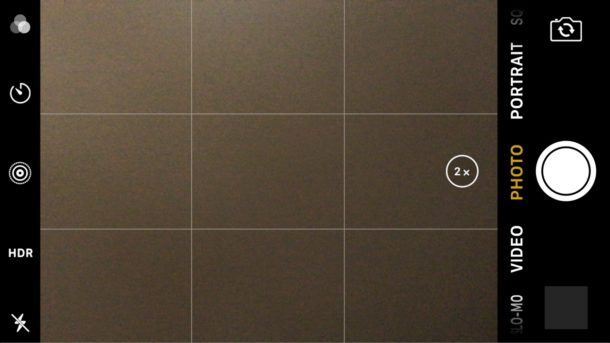
Turning on the iPhone camera grid makes it easier to take better pictures by offering a simple visual grid guide to improve photo composition. We’ll show you how to enable the grid on iPhone camera, and also how to use the grid to compose photos.
When the camera grid has been enabled, a grid will appear on the screen of the camera as a faint overlay of a nine quadrant, three by three grid, this can be referenced to ease photo composition using the “rule of thirds”. Let’s get right to it and enable the feature, then we’ll briefly discuss the rule of thirds as well.
How to Enable iPhone Camera Grid
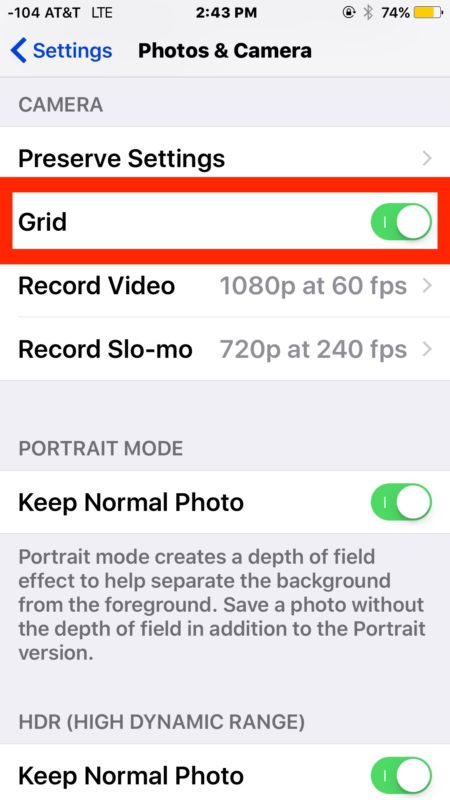
Modern versions of iPhone and iOS allow you to enable the camera grid through the Settings app, here is where to look to turn on camera grid:
- Open the Settings app in iOS
- Go to “Photos & Camera” to find camera settings
- Scroll down to “Camera” settings
- Toggle the switch for “Grid” to the ON position
- Open the iPhone camera app to see the grid immediately
The camera grid applies to the iPhone, iPad, and iPod touch running any modern version of iOS.
The grid will not appear on finalized images in the photo stream.
Enabling iPhone Camera Grid in iOS 6 and Earlier
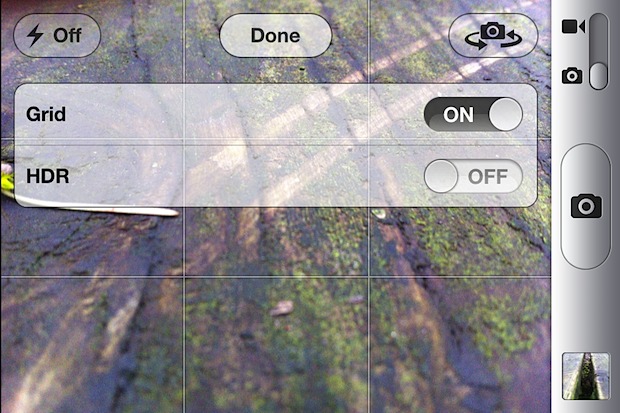
If you have an older model iPhone you can turn the Camera Grid on through the Camera app itself:
- Launch the Camera app from home screen or lock screen
- Tap on “Options” at the top
- Swipe Grid to “ON”
- Tap “Done” to hide the Options again and return back to Camera
Why Use Camera Grid on iPhone?
What’s the point of the camera grid you might be asking? If you’re new to photography or don’t know why the grid is potentially useful, the grid makes composing images using the “rule of thirds” easier.
Essentially the “rule of thirds” means by dividing a picture into horizontal and vertical thirds and placing compositional elements along those lines and intersections, you’ll end up with better pictures. It’s an old artistic technique that has been around for hundreds of years, often utilized in photos, portraits, paintings, drawings, and even sculpture.

The animated gif shown above from Wikimedia demonstrates this well, and there is more information on Wikipedia if you want an in depth explanation of the technique and its usage in art and photography throughout history.
The grid option is available only to iOS devices with a camera, obviously without the camera ability you would not have such a feature..






I still don’t know what grid means and what does it do. Can you please explain it to me in layman’s terms so I understand it? Thank you
Yes Rebecca, the iPhone camera grid must be enabled first, and then it displays on the screen of iPhone camera. This walkthrough details the process: https://osxdaily.com/2012/03/04/enable-iphone-camera-grid/
Once the Grid is enabled on iPhone camera, you can use it to help compose pictures either using the rule of thirds, or by aligning elements of a photo to the grid lines, like a horizon for example. Enjoy using the iPhone grid with your camera, it will make your photos better!
[…] features as TimerCam, but includes timing options of up to a minute before triggering, offers a grid guide like the default camera app for rule of thirds shooting, zoom settings, and then branches into more […]
I still do not know why the grid and how to use it…..cna you help?
[…] and you’ll be taking great pictures from your iPhone in no time. Don’t forget to enable the grid too to aid image composition. […]
Thanks … Will come back soon …
This is a great tip, but I must laugh at the sample photo where the rule is completely ignored ;)