
Making Sense of Mac Keyboard Symbols
Ever wondered what those Mac keyboard symbols mean and what they translate to? You see them on a lot of Mac keyboards and on plenty of keyboard shortcut lists, looking like strange glyphs (⌥), shapes (⇪), and bugs splattered on windshields (⌘). They can be fairly confusing, which is why we at OSXDaily.com always try to manually write out the key itself. Using the name of the key is becoming the norm on newer Apple keyboards, but many pre-2011 Macs have keyboard symbols on keys, and with really old Macs you get all symbols with no labels. Additionally, you’ll find the symbols in drop-down menus throughout OS X, so what the heck are they in plain english? That’s what we’re going to learn, first let’s cover the basics that you’ll commonly see in walkthroughs, menu items, and elsewhere.
⌘ is the Command () key
⌃ is the Control key
⌥ is the Option (alt) key
⇧ is the Shift key
⇪ is the Caps Lock key
fn is the Function key
Now you know, but if the symbols confuse you, don’t feel too bad about it. I’ve been using Macs since I was a little kid and the Option and Control key symbols have always perplexed me to the point where I’ll forget which each is, and that is precisely why Apple is gradually moving to the labeled keys rather than symbol keys. Simple is better.
The standard keyboard symbols you’ll encounter on most Mac and Apple keyboards are as follows, but we have a complete list below as well:
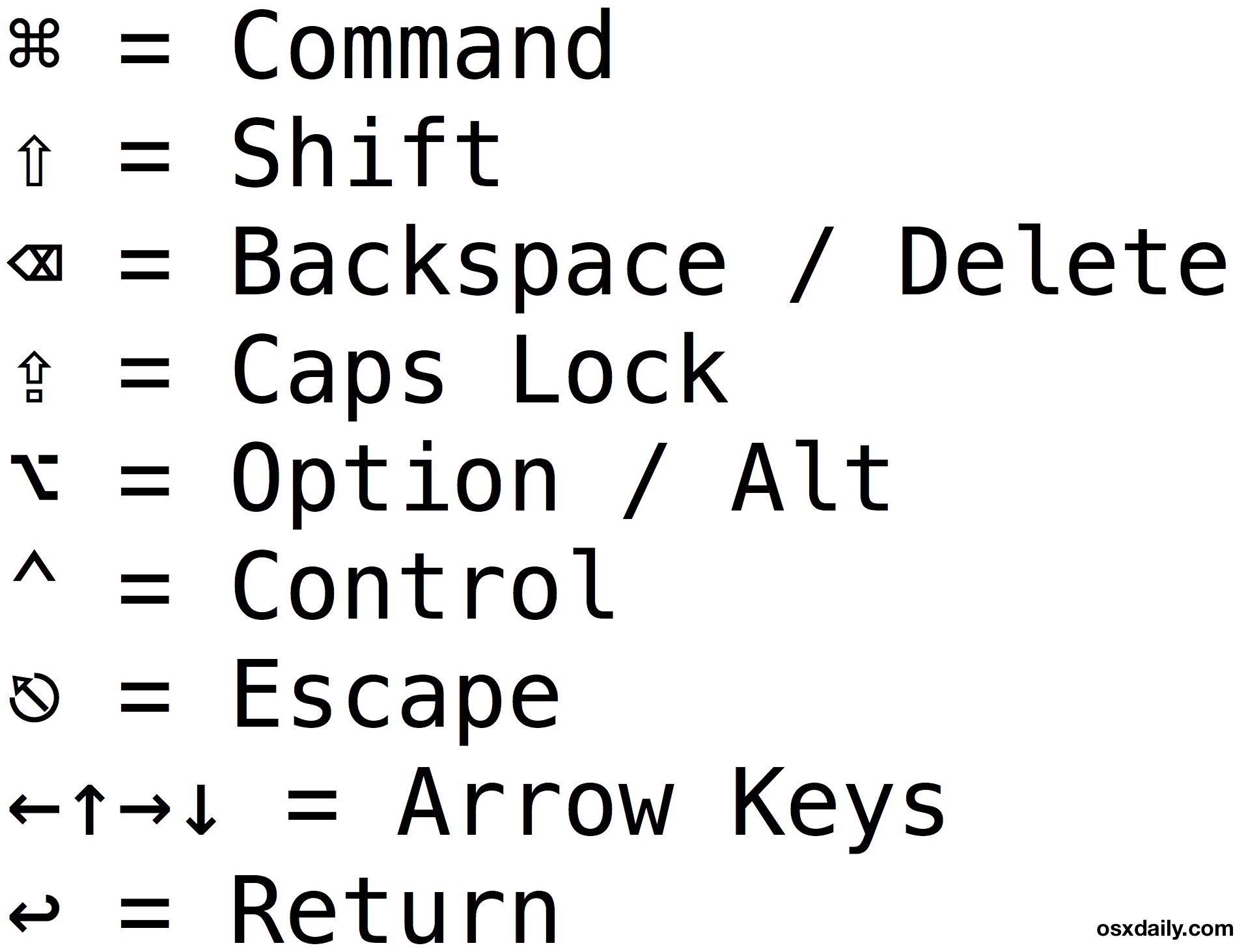
The above list is the standard keyboard symbols for most keyboard shortcuts, below is a more complete list of some of the symbols that appear elsewhere in menus and the keys they map to. Thanks to Lri for posting these secondary symbols in the comments.
Full Keyboard Symbol List:
⌘ is command
⌥ is option
⌃ is control
⇧ is shift
⇪ is caps lock
← is left arrow
→ is right arrow
↑ is up arrow
↓ is down arrow
⇥ is tab
⇤ is backtab
↩ is return
⌤ is enter
⌫ is delete
⌦ is forward delete
⇞ is page up
⇟ is page down
↖ is home
↘ is end
⌧ is clear
␣ is space
⎋ is escape
⏏ is eject






I can’t seem to access @sign on my apple laptop as anytime I press the symbol which is above 2 on the same pad, it brings out “ instead. With this I can’t set up my account on the new system
You may need to go into your System Preferences and ensure your input language is set correctly
So I still haven’t found an explanation for the pregnant S. It looks a bit like a python that swallowed an ostrich egg. Does anyone have any idea what it’s used for or where I could expect to find/ use it. I’m guessing it’s something to do with mathematics. It’s on the top left of my UK Mac keyboard, just under the ‘esc’ key and shares with the ‘+-‘ symbol. I don’t think it’s the same on the other keyboards, so I’m also interested in why it’s only the UK keyboard that has it?
In literature we use it to signify “paragraph”. I live in Europe so I don’t know about the US but I assume it’s universal. You can find it in articles about works of literature, like saying “the first § relates to…”.
The “pregnant” S stands for “section” in legal and antiquarian stuff.
Ex.: “Art. III § 4” means “Article 3, Section 4”
As an aside, in American English usage the “backwards P” ¶ is used as a paragraph sign.
Ex.: “Art. III §4 ¶8” means “Article 3, Section 4, Paragraph 8”.
Quite a savings of space, eh?
Most of these symbols can be found in the frontmatter or backmatter of the better printed American dictionaries.
I believe the pregnant S stands for SubSection, subsection. So it is two overlapping Ss.
What about this one? It’s the “Insert Page Break” command in Pages 6.0.5. It has a ^ with – above it??
Function + Command + Return
The option key finally makes sense to me. I think of it like a line that is travelling along from left to right and instead of the straight path it gets diverted by a switch to a parallel option that is available. Just wanted to add how I think of it. The control key makes no sense to me though.
“To remove a hyperlink, select the item in your file, click Insert > Hyperlink > Remove Link. If you want to remove multiple hyperlinks, press +A to select all text and then press +6.”
What the f*ck is “+” ???
fn?
It’s weird that there is no actual Symbol for the Function key. Tying fn is not the same as the rest of the modifier keys on your mac keyboard…
I guess until then I’m just picking one of the symbols and naming it the fn key. Let me see what looks like a function to me…
Why is the option key referred to as “option” when it has alt written on it?
Thanks. It helps.
However, I can’t find them all on my keyboard.
It would be great if you include a keyboard image and show where is each one.
I can’t find these:
⌫ is delete
⌦ is forward delete
⇤ is backtab
I have the apple wireless keyboard:
https://www.apple.com/keyboard/
Delete = backspace
Forward delete = fn + backspace
Backtab = shift + tab
geez this is sooo wrong!!!
i’ll have to print this and stick in front of my screen!
Hi I don’t understand what the § means can anyone explain ;-/
It’s a section mark.
The funny thing I’ve always noticed about Mac vs. Win is that when detailing shortcuts, Apple opts to use a series of lines, slashes, and circles, and hieroglyphics whereas on Windows, if you need to press Shift, it will say “Shift”.
One of the most frustrating things when teaching someone new to OSX, is the shortcuts. “Here’s a shortcuts cheat sheet!” “Great! ….but what do these symbols mean?”
“Here’s a cheat sheet for the symbols so you can use the cheat sheet for the shortcuts”
It confused the hack of me too. For example the Option symbol looks more like a shift because it looks like a ladder step up, and the shift key symbol is ^, how do the users supposed to know that that is shift key? the escape symbol looks like the TimeMachine icon. Why do Apple just print all these symbols along with the labels on the keyboard?
[…] or try releasing and holding Command again and it should activate. Also if you’ve forgotten the meaning of Mac keyboard symbols it may be a good time to review those really […]
[…] useful. If you’re looking through the menus and wondering what some of those symbols are, our recent post on Mac keyboard symbols should help decipher some of the peculiar looking […]
Harvey says it all…
But to nitpick, the “cloverleaf” symbol of the command key is actually not a campsite, it is used for “a place of interest”, museum, church, natl. parks etc. (campsite is a “teepee” tent).
As for remembering, it’s not that hard, command is by far the most common and is used all the time so it should be in the muscle memory quite fast.
I find all the other symbols are kind of descriptive when thinking about them, except control, so I came up with mnemonic way that works for me:
The control symbol looks like the v-stripes military officers carry, the more stripes you have, the more “control” you have over things!
In days of yore, when dinosaurs weren’t just in zoos and computers only had text-based applications, and screen space was at a premium, the caret was used to indicate control: ^C was control C for example. Back then, ^^ was control-caret. Run the terminal and type “nano” to see this convention in action. The light, caret-like symbol is perfect for Control. It goes all the way back to the days when Alan Turing said, “Let there be computers.” And there were.
The option symbol, as someone noted, looks like a railroad switch. Imagine a teensy train coming from the left; it has two possible ways to go. Options, if you will.
Apple needed a symbol for Command, so a woman at Apple came up with the “cloverleaf” symbol. It’s used on road maps in Scandinavia to indicate camp sites, and it was easily adapted to “command.”
I guess the original idea was that pictographs were easier to recognize at a glance, but as people switched to the Mac, it was easier just to spell out the words. I’m used to the symbols and I like them, but I understand the problems tyros face. I was one myself long ago.
I waited years for an explanation of the option switch, makes perfect sense thanks!
Option is the SAUCEPAN!!! Yes… the saucepan!! Mwahahaha… ahem, sorry :)
I am a fairly new Mac user (Made the jump from Windows) and I have always wonder how can do do this “- ⌦: forward delete” because sometimes It comes in handy, but I have no clue how to use it.
Can anybody help me with that?
THanks!
If you’re on a MacBook or using a wireless keyboard, Fn-⌫ will work as ⌦.
I notice some of these symbols don’t show up on the iPad at all. Looks to me that Apple is phasing them out then.
Wow glad I’m not the only one, I always wondered what these were!
A more complete list:
– ⌘: command
– ⌥: option
– ⌃: control
– ⇧: shift
– ⇪: caps lock
– ←: left arrow
– →: right arrow
– ↑: up arrow
– ↓: down arrow
– ⇥: tab
– ⇤: backtab
– ↩: return
– ⌤: enter
– ⌫: delete
– ⌦: forward delete
– ⇞: page up
– ⇟: page down
– ↖: home
– ↘: end
– ⌧: clear
– ␣: space
– ⎋: escape
– ⏏: eject
Excellent, thanks for the list I updated the article to include these.
Thank you, thank you, thank you to Lri and the article author! I’m a software engineer, a 15+ year Windows user, 10+ year casual Linux user, and just bought my first Mac (2012 MBP). The cryptic symbols have been the most perplexing thing about these first few days of ownership. Now if I could just get my Matrox TripleHead2Go working…
Thanks for this!
Note: the command-key to be specific is not a closed Apple symbol it was an Open Apple (just the outline). I still accidentally say the old OLD commands as Open-Apple+P or Open-Apple+S. The oldest of Apple keyboards had both Closed-Apple and Open-Apple. Thus the distinction.
I miss the original Apple symbols and don’t understand why they felt the need to go to the command symbol.
The “Command” key will always be the “Apple” key for me
(mac user for quite a long long time)!
I’m with you there!!!
I agree. I still call it the ‘apple’ key when I’m teaching and my students just have to learn both meanings. It’s the APPLE KEY! Put the apple back!
I agree. I still call it the ‘apple’ key when I’m teaching and my students just have to learn both meanings. It’s the APPLE KEY! Put the apple back!
Me too !
Still remember the time of Open-Apple and Solid-Apple keys! Abbreviated OA and SA ! You’ll need an Apple ][ + to see them again !
when I first got my mac, (about two years ago) it took me forever to figure out wth the symbol for the option key was.. At least the command key on my wireless keyboard has the clover leaf(thats what i call it) for the command.
but the option symbol baffled me. any idea where that came from? and why dont they show you what key it really is since that isnt labeled like that on my mac keyboard? some programmer just having his day i guess.
I’ve always though of it, starting from the top left of the symbol and traveling horizontally, the line is a route or a path and it could keep moving from left to right, but shows the path changing directions and taking the “optional” or “alternative” route
I use the keyboard with a numpad and it has two different keys doing the same thing – “Enter” and “Return”. Ones are called differently as well as marked. However, what is the difference in real life function of these keys?
Here’s an example: in Filemaker “Return” takes you to the next line in a field. “Enter” posts the data in the field. Back in the day there was a similar difference in Excel. There may be similar differences in graphics applications.
It’d be also helpful to know what key values and names are triggered. If not clear, recommend Karabiner Event Viewer which is extremely clear about what is going on in terms of data i/o between a keyboard and computer. Search on GitHub.
I always remember the ‘Option’ key now that I realized it looks similar to a switch in a schematic. A switch would be “this” or “that” so it gives you the “option” of one of those two things…. Anyway, it works in my head.
you forgot the circle with thw arrow going up to the left. I think it is escape or eject
It’s escape.
LOL at the graphic, too bad that’s not a real keystroke
Maybe I am old school but I don’t mind most of the symbols. My beef is with the Control key ⌃ which looks identical to the carrot key ^, trying to tell those two apart is damn near impossible. It does make a nice mountain terrain though…
^⌃^⌃^⌃^⌃^⌃^⌃^⌃^⌃^⌃^^⌃^⌃^⌃
It gets worse if you are ever working with Cisco gear in terminal. The standard CTRL-C sequence doesn’t work. Instead it’s CTRL-^ which means “Control-SHIFT-6.
oh I sooo much understand you mate.
What bothers me most about the used symbol for “Control” key is that there already is standardised (and unambigous) symbol given by the norm ISO/IEC 9995-7 “⎈”.
To save countless time, any further useful context. FOr example, ISO adopts Unicode wholesale. What terms do they use for that symbol? ControlL? Not meta or the few otehrs that used to be invogue, particuarlyu for MIT LISP Scheme machines. Are yuou sure they are the same thing everywhere and derive from the legacy? The point above about how the rpesent keyboard is not so great for a particular terminal cuts tot he chase – among many reasons some symbols or use of choice locations (eg the modifier-letter combos in the lower leftr of the mac keyboard) seem odd is because they were at one time closer to optimal for the terminals/hot key convntions/legacy demands of the past. Go back to the th ose keyboards and the oft-used combos, and they make great sense. Sometimes, they reflect extremely idiostyncratic but clever insights, like left-bit-shit a particular group of four keys and you happen tro get some desireable biti patttern for “free” – so yep they would exploit that. 40 years later, does that make sense? Zero sense.
Send complaints to the MIT AI Lab (CSAIL), where many of those who built those early keyboards, and founded companies with magical names like SYMBOLICS and THINKING MACHINES , are stildl there, including legends Prof. Knight and Prof. Sussman (FSF founder lucky enough to see hjis brilliant ideas distorted into “me want steal”). Lots of questions remain, just need to make sure recorded for postreritry.
If anyone might be intersted in applied, practical, we’re akk learning as we go FB group, for some non-extreme remapping libraries for particular uses (eg, generic remapper that generally gets a PC keyboard to behave like a Mac, vice versa, is the obvious first start; keypads woud be great app launchers; overlaying hyperkey again a no-brainer and def quality of life boost), or implement some maybe no-brainer feel-free-to-use or not (but if you use, might get 30%>> effiiency) libs, it could be fun, a service to us jand others, and open projects like this you never know where they lead.
Persoanlly, I want a killer WASD custom cherry brorwn that earns itrs keep.
Gene Rhough
That is the most beautifully incoherent post I have ever read.