
Set a System Preferences Keyboard Shortcut in Mac OS X
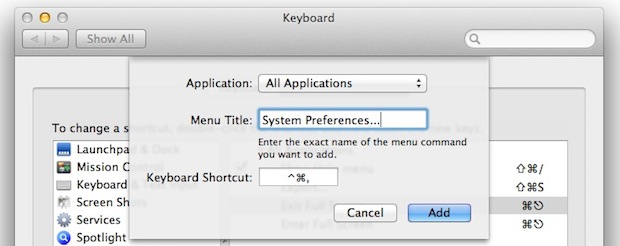
If you find yourself adjusting things in System Preferences often enough, it’s helpful to create a universal keyboard shortcut to quickly launch into the control panels on the Mac.
Here is how to do that in Mac OS X:
- Open System Preferences and click on the “Keyboard” panel
- Click “Keyboard Shortcuts” and select “Application Shortcuts” from the list
- Click the [+] plus button and choose “All Applications” from the pulldown menu, then alongside ‘Menu Title’ enter “System Preferences…”, and then click into “Keyboard Shortcut” to set your hotkey. For this walkthrough I chose Control+Command+, as the hotkey
- Click “Add” and close out of System Preferences
- Hit Control+Command+, or whatever your shortcut was set as to instantly launch System Preferences from anywhere
It’s important to select a keyboard shortcut that won’t interfere with other actions or apps, as far as I can tell nothing else reserves Control+Command+Comma and so it works perfectly for this purpose. Once set, you’ll notice the keyboard shortcut is now attached to the System Preferences item within the Apple menu.
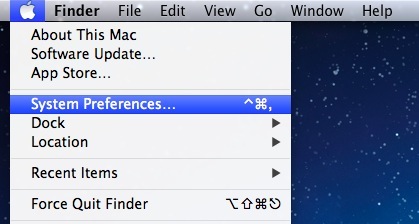
Without setting anything extra, you can also launch directly into select System Preference panels by using Option and the various function keys like Audio and Brightness.
This helpful tip comes by way of one of our readers, Esaruoho.






Thanks a ton man !!! I’ve been looking for this for so long…finally found it !!!
I opened the keyboard shortcut area and tried to enter the shortcut as stated, however it will not let me enter anything…I tried to put in the ^ symbol for “control” but it just beeps back at me. am I doing something wrong?
Thanks
Good tip, but FYI: That keyboard combination does conflict with SpellCatcherX.
Sure – however, this keyboard combination does not conflict with Renoise, Logic Pro X, Ableton Live or other such apps ;)
Dont forget to enter the … periods or it won’t work.
Thanks! This helped me a lot. i was about to flip my MacBook