
How to Speak Selected Text with a Keystroke in Mac OS X

Want to initiate Text to Speech with a keyboard shortcut on the Mac?
The excellent Mac OS text to speech function can be activated with a simple keystroke, but first you have to enable the feature. This is a great trick because it allows you to quickly speak what is in on the Mac screen like a document, PDF file, ebook, or web page, and all it takes is a keyboard shortcut to speak the text that is selected or in the active document.
This article will show you how to enable the Speak Selected Text keyboard shortcut on the Mac.
How to Enable Speech Keyboard Shortcut in Mac OS
For modern Mac OS versions, enabling a text to speech keyboard shortcut is simple:
- Go to the Apple menu and select “System Preferences”
- Choose the “Accessibility” control panel then select the “Speech” section
- Check the box next to “Speak selected text when the key is pressed”
- Optionally, change the keyboard shortcut, the default is OPTION + ESC
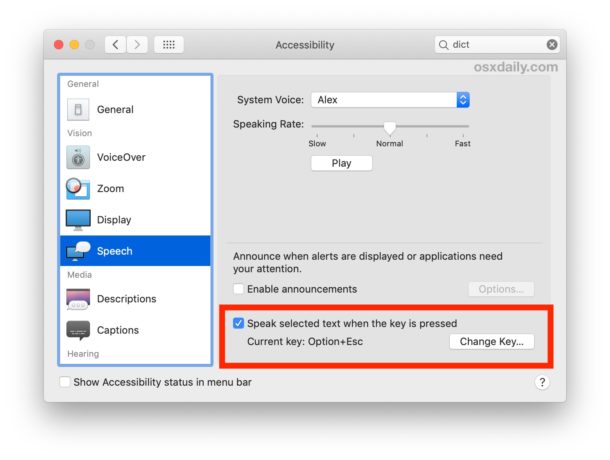
You can immediately test this out by going to any document or web page and selecting text (or selecting all with Command + A if you want to keep entirely to keystrokes) and then hitting OPTION + ESC keys to begin speaking the text.
This works in all modern MacOS releases, including Monterey, Big Sur, Mojave, High Sierra, Sierra, and El Capitan. Earlier Mac versions can also enable a keystroke for text-to-speech but it’s in a slightly different location, which we’ll cover next.
How to Enable Speech Keystroke in Mac OS X
In earlier Mac OS X releases, here’s how to enable the text to speech keyboard shortcut:
- Open System Preferences from the Apple menu
- Choose the “Dictation & Speech” panel then select the “Text to Speech” tab
- Check the box next to “Speak selected text when the key is pressed”
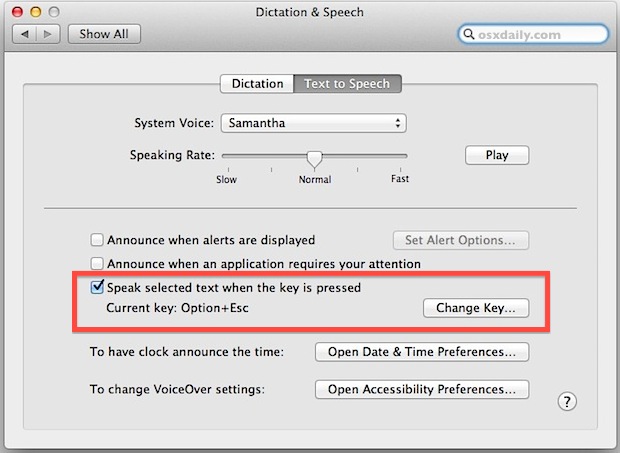
Once this is enabled, select any text then hit Option+Escape to speak the text in the system voice.
To speak all text, hit Command+A to select all, followed by the Option+Escape keyboard shortcut, and all words will be spoken using the Mac text-to-speech feature that’s bundled in both Mac OS and iOS. If you aren’t happy with the default system voice, you can add new high quality voices very easily.
The default keystroke is Option+Escape but can be adjusted easily, assuming it doesn’t interfere with any other custom keyboard shortcuts you set it’s probably a good one to keep as is.
This is a great trick to use to have webpages, documents, or emails read to you aloud, just like on the iPad and iPhone.






What I would love to find a way around are “footnotes”.
This feature works really well, but when you set it to reading a document with annotations, footnotes, etc. the narrative is interrupted as the computer reads through the “highlighted” input line by line.