
How to Disable Javascript on iPhone & iPad
 If you want to turn off Javascript support in Safari for iOS, all you have to do is flip a Setting on your device. Disabling Javascript may be desirable for a variety of reasons, whether it’s to reduce crashes with certain error prone webpages or to stop some obnoxious ads, and it’s also a decent trick to speed up web browsing on slower and older iPhones, iPads, and iPod touch models, since it removes some of the more busy and bandwidth heavy aspects of the web. With all of that said, do note that much of the modern web is reliant on Javascript, and so therefore disabling Javascript on an iPhone or iPad may cause some web pages to not work properly, or even not work at all. Accordingly you will only want to turn off Javascript in Safari for iOS if you have a compelling reason to do so. Of course you can also re-enable Javascript if need be.
How to Disable Javascript in Safari for iOS
Turning off Safari javascript support is possible with any version of iOS on any device (iPad, iPhone, whatever), though the setting is located in slightly different places in iOS 12, iOS 11, iOS 10, iOS 9, iOS 8, iOS 7 or newer vs iOS 6 and before. Here is what you’ll want to do, according to the version of system software running on your iPhone or iPad:
Turning Off Javascript in iOS 12, iOS 11, iOS 10, iOS 9, iOS 8, iOS 7 and newer
- Launch the “Settings” app and tap on “Safari”
- Go to “Advanced” and locate “Javascript”, then flip the switch to the OFF position
- Exit Settings
- Quit and relaunch Safari for the change to take effect
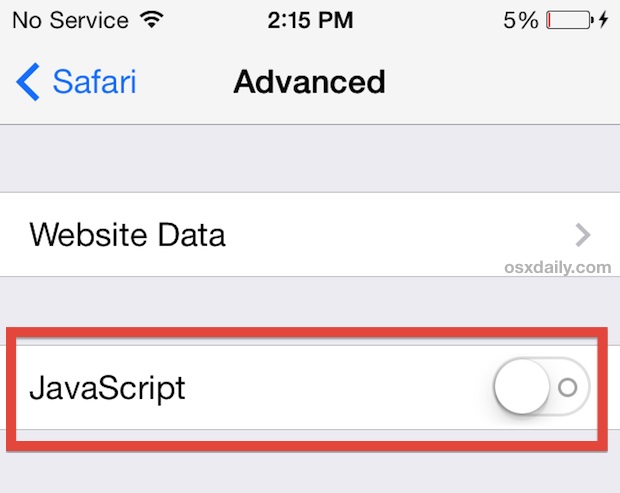
All modern iOS versions have this toggle in the Safari section of Settings app. Remember, turning off Javascript will change the web experience, so for most users you will not want to turn the feature off as many websites will no longer work properly.
To re-enable Javascript in Safari for iOS, you simply return to the Settings app and go to the Safari section and toggle the switch for Javascript back to the ON position.
Turning Off Javascript in iOS 6 or Before
- Open “Settings” and tap on “Safari”
- Locate “Javascript” and flip the switch to OFF
- Exit Settings and relaunch Safari

Active webpages may need to be reloaded for the change to take effect.
Navigating the web with Safari will now be javascript free, which can dramatically impact how some websites function, and don’t be surprised to discover some JS dependent webpages stop working at all. On the other hand, much of the web will be noticeably faster on older iOS devices, since AJAX, some ads, and a slew of other common aspects of the web will no longer load at all.
Not surprisingly Javascript can be easily disabled on desktop browsers too, though the process will be a bit different for each app. Much like on older iOS models, it can also be a helpful way to speed up older Macs and PC’s, though the limited web experience can make it a less than ideal solution.
If you have disabled Javascript and find the resulting web browsing experience to be incompatible with your needs, or too broken to function, simply leave Safari app and return to the Settings application to re-enable Javascript on the iOS device. Then returning to Safari and reloading the webpages again should fix whatever issue was caused by not having Javascript support.
Do you have any other tips or tricks relating to disabling Javascript on an iPhone or iPad? Share them with us in the comments below!






So, I re-enabled javascript and now everything works. For now. haha. Maybe it was resetting safari that was the key?
I disabled javascript, and now I can click links, but not videos. This is not really a fix.
I would not advise to switch off JavaScript for the following reasons:
1. It’s not the main source of bandwidth load, images can take much more of it easily;
2. Some websites and web apps (if not most of them) will become completely not functional without JavaScript.