
How to Fix Error Code 36 in Mac OS X Finder
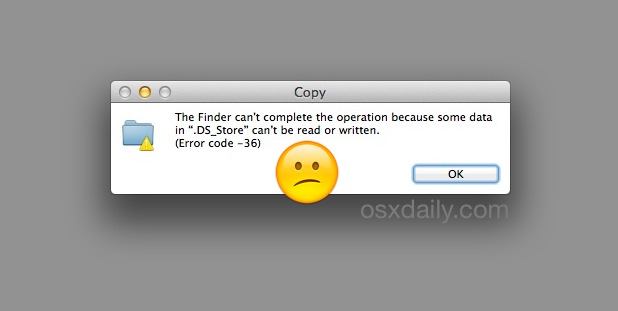
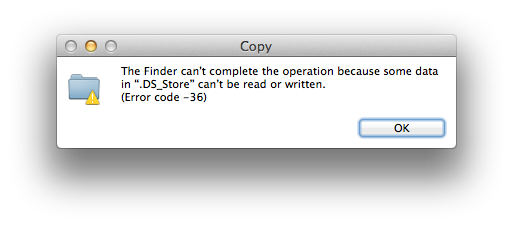
On some rare occasions when trying to copy files, Mac users may encounter “error code 36”, which completely halts the copy or move process in the Mac OS X Finder. The full error is usually read as “The Finder can’t complete the operation because some data in “FileName” can’t be read or written. (Error code -36)”. The filename is sometimes .DS_Store, but it can happen with just about any file on a Mac too.
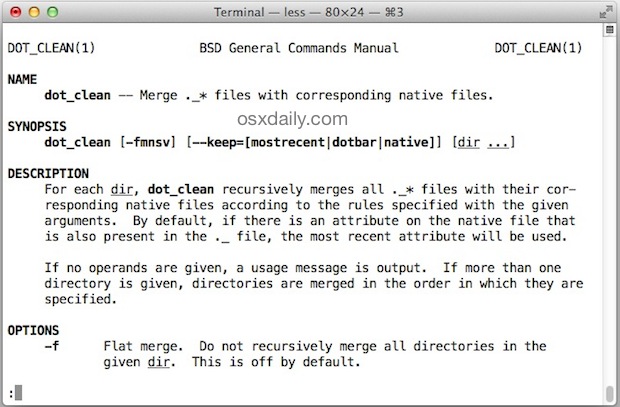
If you run into Error Code -36 on a Mac, there’s usually a really simple solution thanks to a handy command line tool called “dot_clean”. If you’ve never heard of dot_clean, you’re certainly not alone, and the manual page for the command explains that it “merges ._* files with corresponding native files.” which may not sound like much to the casual user, but given the oft cause of Error 36 are files prefixed with a dot, that can be exactly what you need to do.
How to Resolve Error 36 in Mac OS X Finder with dot_clean
To use dot_clean, you’ll want to point it at the directory which is being copied and throwing the Error Code 36, the basics look like this:
- Launch the Terminal (found in /Applications/Utilities/ or with Spotlight)
- At the command prompt, type:
- When dot_clean is finished, attempt the file copy again and it should succeed with no error code
dot_clean /Path/To/Directory/With/Problem/
For example, if copying ~/Documents/FileBackups/ is the problematic directory, use:
dot_clean ~/Documents/FileBackups/
That should be all that is necessary to resolve the issue, just be sure to attempt the file/directory transfer immediately after the command is run.
Technically you could point dot_clean at an entire volume but that’s probably not necessary unless the -36 error is continuously triggered in Finder when trying to backup an entire drive manually.
If the problem is recurrent and you get it constantly when trying to copy files to and from a networked Mac, a network share, external drive of some sort, or to and from a Windows computer, you can also try to delete all .DS_Store files on a Mac using the command line, which can work as a temporary workaround if for some reason dot_clean fails. That was actually what I had done in the past to get around this and other similar input/output error messages before discovering this specific command approach.
I just ran into this recently and found that dot_clean worked fine to resolve Error Code -36 when copying a directory from a Mac with OS X 10.9.5 to a Mac with OS X 10.10.3 and also to a Windows PC, the original machine was repeatedly throwing the error. It appears as if this error has had an uptick with Mac OS since Sierra, El Capitan, and OS X Yosemite as well, maybe suggesting some incompatibility with certain dot files from other OS versions. Unlike some of the error weird error messages in Mac OS X, a reboot or Finder restart didn’t do the trick. A big thanks to JacobSalmela for the easy solution.
If this worked for you, or you know of another trick to fix Error Code 36 in the Mac OS X Finder, let us know in the comments.






I found a workaround for this issue : with another computer with an old Linux, connect my external USB drive. I’m able to delete the problematic folder on macOS.
Back to MacOS, now everything is fine.
Regards
Daniel
Hello, I have following issue. I have a SanDisc SSD. It was working perfect until I tried to back up my data to a WD Elements HDD.
Both Hard Drives are formated to ExFAT. I work with a Mac Book Pro. Since I startet to copy from my SSD to my HDD I´m running into an error 36. After that the Data from my SSD disapears. When I plug it out and into the computer again the data is visible again. But after some time the error 36 will occur again. I tried to fix the hard drive via the mac books first aid option. The result was that the partition table is missing. And it could not be restored. Again when I remove the SSD and plug it in again and run the test no error can be detected. Do you know what could be the issue and how to fix it? It has to be related to copying to the HDD.
An old crappy USB-hub was causing me this! Unplugged it and now everything seems to work. Was so worried that I had more major issues with my old faithful cheesecrater..
I kept getting error 36 and disk I/O errors in the console from an external archive disk.
I’d mistakenly connected the USB3 cable into a USB2 extension. So user error in this case….
I’d like to share something that just worked for me. I am using an iMac with High Sierra 10.13.6.
I was having issues copying video from a read-only DVD and thought I was sunk as I suspected the dyes had faded and my data was gone forever.
I was able to establish that only two files were having issues when they were copied: a BUP and a much larger VOB file.
I believe that the BUP file is just a backup copy of the similarly-named IFO file, so I deleted the BUP file, made a copy the IFO file and changed the extension to BUP.
I was then able to copy the VOB file without errors.
Opened the video location in DVD Player, and voilà..! Ça plan pour moi!
I hope this works for you too.
(I wrote this up so I wouldn’t forget it!)
I also am having the error show up in copying my FCPX library (2.75TB) from one HD to another. Using a MacBook Pro 16, Catalina, all latest versions.
Here is a Q: Would it make a difference if one HD is formatted Mac OS Extended (Journaled), and the other is Fat32?
Thx!
2 4 hr sessions with different senior mac advisors. we tried at least 2 dozen solutions
ftom terminal to shutting down to safe mode
No solution worked
hard for me to believe that apple cannot
resolve this
sony video file from camera fails at every
copy attempt. error 36
Hello, I also did the dot_clean for my photo library as I have the same error message within the photolibrary. But stil gives me the same error message again . (MacOS high Sierra backing up on seagate 1T )
What else can I do ?
In my experience terminal did not work, dot_clean.
If it does not work download ‘Commander One’ and use this to transfer the files.
This worked for me and seems to allow transfer of files larger that 2GB.
Thank you so much, i used Commander One too and it worked perfectly fine.
I’m trying to copy a movie file to a USB stick. Your instructions are unclear to me. Please tell me what I specifically have to type into the terminal. I know nothing about the terminal, and I mean nothing.
Tried dot_clean…and most of the files in the Memory card disappeared…..almost had a heart attach….ejected the memory card…..plugged it back in and all was well….could copy again. Thank you very much
I’ve been getting error 36 moving MP4 files to an NAS Drobo 5N. Unfortunately, dot_clean doesn’t help. I’ve found that duplicating the file with the error using command-D works, but only one file at a time.
Did you ever figure out the solution? I am trying to clean up my Drobo 5N and I’m getting the -36 error when deleting off the Drobo. I’m talking hundreds of thousands of files…..so one at a time isn’t an option for me lol
HELP!
Thanks you so much.
The dot_clean worked a treat on my photos library file Pictures\Photos Library.photoslibrary when I was doing a big copy of all my files in my Pictures folder.
All the other files had been successfully copied except those that were alphabetically after the Photos library.
So I just copied those few independently.
I am really grateful to all of you. You saved me trauma and hours of work that I would have spent trying to solve the problem.
Carol
Easiest way around this is to copy the file using Terminal:
cp -R /source /destination
It just works.
cheers!
It didn’t work for me – I just got input/output errors on all the problem files.
Ok, guys! Robe is absolutely right. I tried EVERYTHING. Just coping fr SD card to external hard drive was an absolute nightmare with this 36 thing. I am no computer wizard, but what Rob said about cp-R worked! I just dragged the whole folder to be sure.
Elena & Rob, THANK YOU! Worked perfectly for me.
Attention: file-dragging (original/’troubling’ FILE) / FOLDER-dragging (destination FOLDER).
I dont understand….please explain step by step.
1. Open terminal and key in cp -R /source /destination??????
2. Then drag folder/file into terminal??????
Forgot to mention that I have used the USB between Mac & Windows to use the PDF files. Could this be an issue?
I have a Mac Mountain Lion – which I downloaded & upgraded into El Capitan, which works fine for me despite very few bugs – which occur like font list becoming invisible on Adobe InDesign. This is a simple, minor annoyance. Not sure if it’s related to this or not. Maybe it’s not.
But my real and more current issue is with the Kingston USB disk as I had files on it. However, it seems to think that there are files on it even if there’s not.
I get an error code -36 and I also get a RAISE without handler error message on this specific, single USB. (.Indd & .PDF files mostly) – when it first showed up, I attempted to erase all files but I fear it may have complicated the process.
I have looked at quick tutorials with dot_clean solution but it doesn’t seem to work. The USB is empty and yet when I re-insert the USB – sometimes the files show up, sometimes it doesn’t. Seems like a paradox to me.
I also tried out the disk utility in an attempt to use digital ‘first aid’ – under external drive:
⇒ Kingston Data Traveler 3.0 Media (reads as empty with blue bar with all space unused) – It says ‘first aid’ was successful, but ‘erase’ was unsuccessful.
Then there’s sub-header KINGSTON underneath it. ‘First Aid’ and ‘Erase’ does not work here.
Short of abandoning this USB, I am at a loss as to a solution to fix this USB or to use it again.
Any ideas or other options?
Wish I could test this out but I’m trying to transfer 45gb through my network and it takes a few hours. The damn error came up when it was at 43.15gb. FML!
Hi,
what if this error appears when I try to copy mp4 file from a DVD disk? does it necessarily mean that the disk is damaged?
thanks
Super great fix !
I had a dmg image on my Time Capsule on which I had saved all my TV shows that were not mounting anymore on my desktop : -36 Imagediskmounter
I just tried dot_clean ~/Desktop
Then restarted the computer and It worked
Thanks a lot !!!
This unfortunately wasn’t worked for me.
An external hard drive I keep around 600GB of music on was becoming unstable (unmouting randomly and not appearing in finder window for up to an hour) so I got another external drive and tried to move everything across.
I type dot_clean then leave a space and drag the folders to be copies in. Once it shows the paths to those folder I hit enter and drag everything to the new drive. Sometimes I get another error 36 before the first folder has transferred, sometimes after a dozen. No real. Noticeable pattern.
Any updates tips would be appreciated
I just wanted to say thank you for this page, both the article and the comments. Just wanted to share my experience in case it helps someone too.
I use Lightroom, so have all my managed photo files and folders on an external hard drive, which is copied to another drive by Carbon Cloner. I wanted to copy it again to a mobile hard drive for use away from home.
I used File Synchronisation at first to copy the files and repeatedly got errors – sometimes 900 of them. Same of I just dragged and dropped manually. I tried the dot clean on every single volume involved but it didn’t help. I manually went through each folder and removed the offending file and then copied it back – aargh. I got my first copy/
Then I messed up after some big changes to the library and decided to start again with a new copy – the error 36 started again. I couldn’t bear the thought of going through the files again. I ran first aid on the drive with disk utility – and a couple of changes were made, I then used Carbon Cloner to copy the files and it worked – there were only 2 errors – a random photo and an iPhone video – apparently ‘sitting on bad sectors”. I have deleted them from within lightroom and copied back back ups so we will see if this solves the problem. I am very happy to have a complete copy though – and v. chuffed that CC overlooks the errors. In my case think it might be a sign the the drives are failing, so another reason I need so many back ups (there’s another in the cloud). Time to restructure!
Thank you for this. It solved my problem.
I was trying to copy an old SD card to my hard disk. There are no dot* files on the SD card yet I was receiving -36 error code.
This immediately solved the issue. I don’t know why but it has.
Thank you,
Tony
Hi there,
Please advise and help for the following issues. I want to copy from USD to MAC. its show error-36. I try to follow your guide solving this issues. the problem is idk what is ‘Path’, ‘To’, ‘Directory’, ‘With’, ‘Problem’ in my mac since i am not familiar with computer as i am only user.
please advise if you can help me. thank you.
best regards,
Victor Dragono
This worked for me! Thanks so much!
So I can’t do the dot clean to fix a file that’s on a mounted disk? The file that is giving me the error when I try to move it is on my main drive. I’m trying to move it to an external…
Having the same problem… I want to move a 50Gb Final Cut Pro library to an external harddrive to free space, but after copying around 2Gb it shows “error -36”.
I don’t get anything to work with the description above using the “dot_clean” function.. or I’m missing something?
I have the exact same issue transferring FCP library, Bjorn – did you manage to fix?
I also am having the error show up in copying my FCPX library (2.75TB) from one HD to another. Using a MacBook Pro 16, Catalina, all latest versions.
Here is a Q: Would it make a difference if one HD is formatted Mac OS Extended (Journaled), and the other is Fat32?
Thx!
That’s basically where the problem arises. I reformatted a Fat32 flash drive to Mac OS Extended (Journaled), which I copied a bunch of folders to and when I tried to drop them back onto an SD card I got the ‘Error 36’ message.
I did manage to get all of my folders and files across with the ‘dot_clean terminal tip’ eventually. I found that making a new folder on my flash drive and moving everything into that, then dropping that folder into the ‘dot_clean terminal’ did the trick.
If you are getting the error while you are copying things to external NTFS drive, try to mount the drive in Windows and remove the the Mac specific files. In case you run into difficulties, you may need to run check disk to clean the drive and you can run it from command or from the Drive properties toolbox on Windows.
Same problem here as well, but not with all CD’s that I am uploading. I am transferring old CD-R discs of images to an external hard drive and getting the error 36. Not all folders have the error on the same ‘CD. This is occuring maybe 5% of the time. I’ve tried copying to my Mac’s desktop, but the same error occurs. Any thoughts?
…..Also, In all cases, I will transfer a certain portion from the folder with the rest receiving the error. On occasion, I can transfer 1 by 1. Is this signs that my burner is failing?
Are the CD’s scratched or damaged? I find that this error also occurs when a file can’t be read because the physical media is damaged. A solution that I found was to use
cp -R /path/to/damaged/folder /an/external/hard/drive
It did not successfully copy everything, but unlike Finder it did not stop when it came across a bad file. It displayed which files it failed to copy as it went, also.
Thanks so much ….. : cp -R
I have the same problem!!!
My Cd-R’s are in perfect condition and have been stored properly. They were all burned in 2007 and 2008.
I am transferring old images from CD-R’s to an external hard drive and I get this error on my mac – “The Finder can’t complete the operation because some data in “IMG_8834.JPG” can’t be read or written.
(Error code -36)”. The error occurs usually part, mid or towards the end of transferring a folder of images. Some folders go through without an issue, most don’t.
Note, I only receive the error on Imation CD’s. I’ve been transferring from Sony, TDK and Memorex without issue. Some Imations give me no trouble, but most do. I borrowed a friends mac and got the same issue however I was able to get a few extra photos before ether error occurred.
Also, when I put my CD-R in and search it up on disk utilities, my repair disk option (first aid) is grayed out so no go on the disk repair.
What to do
Got a fix for people with a similar issue!!! Originally, I burned all images to CD-R’s using a Windows based computer (non-mac) and decided yesterday to try to copy images from an old Dell. Well, it worked perfectly and I have transferred all images no problem to an external hard drive. The issue would appear to be my Mac having difficulty reading the Imation CDs. I borrowed a friend newer mac (2014, compared to my 2011) and the same issue occurred, except I was able to get a few more pictures from the newer computer than my own.
See my reply below. Hope it works for you!
Solved the problem for me (copying a CD file to HD). Thanks!
I simply went into Disk Utilities on the Mac, selected the Volume
in question and clicked on the “Repair Disk” button. This fixed
this issue for me this time.
If this had not worked, I would next plug the drive into a Windows
platform and perform chkdsk /f on the corresponding drive letter.
This is exactly what i did, when copying large video files from the external hard disk(Seagate) happened. It solved the problem for the time being.
I used Disk Utility just like you said. That solved the problem for me.
This is one of the reasons people dont want to use MACs. So many errors. It is not fun to use a MAC. It is very difficult and you must hack everything to get it to work right. This is simply trying to copy a file, and I am getting this error which cannot be fixed. All I am trying to do is simply copy a file.
Can this dotclean work on a folder in an external hard drive? I keep getting the error when trying to transfer music files from one older hard drive to the new one. thanks!
I am getting this error 36 repeatedly also, I have tried Dot clean, an app to remove the ds files, and still I get this – why does Apple not fix this?
Oh trying this over and over. It says “done” for the dot clean, but I try to copy it right after and it doesn’t work. I am getting repeated errors from a hard drive that I am trying to remove everything from and reformat (if possible) and I even tried dot cleaning individual files and it’s still not working. Help!!!
I am trying to backup a large video file and I get this error. Even when I am duplicating the file in the same directory.
This dot_clean thing does not work for me. I also tried removing the .dsstore in the folder.
It stops at 1.56G of 3.4 always. I wonder if this is a bad sector or something, I tried a ‘verify disk’ but didn’t return anything so ‘repair’ is disabled.
I have just attempted the above fix and i am happy to say it has worked a treat. please note one you write dot_clean you can then drag the file into the terminal window which will convert it into the correct file path :-)
help please my external disk doesn’t copy any file , i try to fix it by terminal dot_clean but i got this message:
Failed trying to change dir to .DocumentRevisions-V100
Bad Pathname: Permission denied
Failed trying to change dir to .Spotlight-V100
Bad Pathname: Permission denied
Failed trying to change dir to .Trashes
Bad Pathname: Permission denied
can somebody help me !!
i have this exact same issue, is this something to do with El Capitain release? I’ve read that this was an issue with previous versions of OS X
One problem: IF you’re dealing with an old file saved to a DVD, as I am, files on a DVD/CD are not changeable (the source is not editable). This creates a catch-22: I need to remove the “dots” to transfer; I need to transfer to remove the dots! I’m sure that there’s a solution … a clone, mirror, disc image … something. I’ve just begun to look.
I’m trying to copy some files to an external hard-drive and I Keep getting error-36. I noticed that it only happens with large video files, can anyone help? I’m using a macbook 15″.
Thanks for the SMB tip! Had tried several of the suggestions and none worked. Switched back to AFP and worked like a charm.
I found mine to be an SMB problem, and connected over afp and it solved the problem. Apple’s SMB has had issues since they rolled their own in 10.7
Thanks, BI, that solved my issue. Could not copy more than one file from Yosemite desktop to Yosemite server until I opened via AFP.
AFP? SMB?
Okay, so I’m running Yosemite and here’s the issue I’m having here. Due to a long story I don’t want to get into I ended up losing a LOT of photos from my iPhoto with no backups to recover from. One of these albums was my professional wedding photos. FORTUNATELY I still have the original DVD so I figured it would be simple enough to just import them back into iphoto. for whatever reason, it will copy/import up to about the 115th picture and then I get this:The Finder can’t complete the operation because some data in “DF0117.JPG” can’t be read or written.
(Error code -36)
I was hoping I could get around this by using the “ignore permissions” trick when i select the disc and hit cmd + i but it says I can only read.
COMPLETELY at a loss here. (why let me import some files but not the rest? WTH?!) I also attempted to sidestep the import process and just copy the files from the DVD right to a folder on the desktop to no avail. (actually that’s where I got the error noted above if that’s relevant)
any suggestions/advice would be greatly appreciated.
Last login: Mon Jun 15 11:12:55 on ttys000
gerard-gallaghers-iMac:~ gerardgallagher52$ /Volumes/AirServer 5.3.2 dot_clean
still wont let me launch airserver after this am i doing this right.
No you are not doing it right, and you can not modify a mounted volume disk image. Your disk image of AirServer is probably corrupt and may need to be downloaded again, your best bet would be to contact the creator of AirServer and ask them for support about their product.
The proper command would be (it won’t work because mounted images are locked)
dot_clean /Volumes/AirServer\ 5.3.2/
Great tip thank you. Having alot of issues with this error code myself lately. I will pass this tip to our users. :)
Thanks for sharing this Terminal command.
For users not comfortable with the command line interface you can use the free utility Onyx (www.titanium.free.fr) which has a feature to remove .DS_Store files.
In Onyx navigate to Maintenance > Rebuilding, second paragraph down “Appearance of folders’ content” is the option you need to tick. This option (singularly) will delete ALL .DS_Store files on your startup volume. Below that there are options to select a specific folder and options to remove .DS_Store file from only this folder or another option to remove from this folder and ALL sub-folders.
THANK YOU!!! I was not comfortable with the command stuff and downloading Onyx maintenance and running it with the mentioned box checked worked for me – thank you so much!
Any ideas why my Time Capsule has decide that some of the files on there no longer belong to me. When I look at the permissions I am no longer listed as the owner and no only have custom permissions that no longer allow me to edit the file or delete it?
There are a couple of things worth trying, in my experience (someone correct me if I’m off base, please). 1) If you can get to the TC drive (I think that it should be visible in Disk Utility) try repairing Permissions. I’ve heard that many times about Macs – they usually work well, but if they start acting squirrrely, repairing permissions is a good first step. 2) Try a utility like Onyx. Onyx is from France and is free. One of the things it does when you run it is to repair permissions. Use the “Automation” button from its menu and it’ll do its actions automatically. 3) As suggested above – DiskWarrior. I just got my copy, (which comes on a flash drive), but haven’t run it yet. It ‘s had a good reputation in the Mac community for many years.
Yea I have seen persistent file system errors when a drive is failing too so that’s something to consider if this has no resolution
Hi, Prescott, before ripping your ‘mini’ apart have you tried any disk repair utilities like Apple’s “Disk Utility” or—way better—”DiskWarrior”?
I had the same problem. I used DiskWarrior = no problem. thanks Bernhard.
Dot_clean did not work for my iPhoto Library… But Carbon Cloner works well, for what ever reason Carbon Cloner just moves past the error and clones the directory no problem.
Didn’t work on my Macbook either. Got this on terminal:
Last login: Wed May 2 12:24:28 on console
Evas-MacBook-Pro:~ evagotzsche$ dot_clean /Path/To/Directory/with/Problem/
Failed trying to change dir to /Path/To/Directory/with/Problem/
Bad Pathname: No such file or directory
Evas-MacBook-Pro:~ evagotzsche$ dot_clean /Path/To/Directory/With/Problem/
Failed trying to change dir to /Path/To/Directory/With/Problem/
Bad Pathname: No such file or directory
Evas-MacBook-Pro:~ evagotzsche$
Anyone with other ideas to fix error code 36??
You have to change /Path/To/Directory/With/Problem to the file path the the problem folder
Oh my goodness, I’ve been suffering from exact issue recently! In fact, I had to decommission an old Mac Mini because both the internal HDD and an add-on Lacie drive suffered this problem when trying to move *any* files. I’m going to resurrect the Mini to try and salvage the files … and use the external drive for future storage!
I just ran into it continuously and dot_clean did the trick, let us know if this works to resolve it for you as well.
I spoke too soon. That drive is completely done — won’t even mount. Considering I’d have to starting taking things apart with crowbars, I’ll just call it a loss.
Hello, i tried dot_clean and it didnt work for me, ive been trying to move my photo library to my Lacie back up but with no success. Does anyone have another solution for me? Thank you.