Subscribe to OSXDaily

Subscribe to RSS Subscribe to Twitter Feed Follow on Facebook Subscribe to eMail Updates

Shared on Facebook

Shop at Amazon

Ad

OSXDaily on Facebook

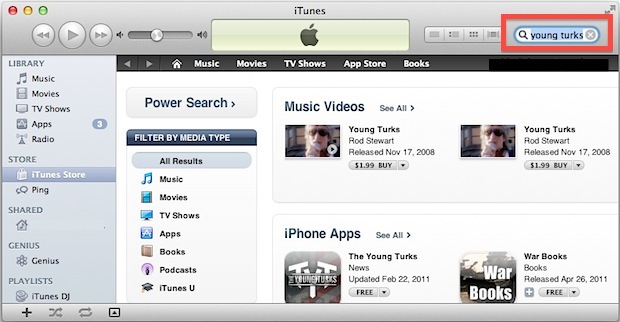
Search iOS App Store

How to Stop an App Downloading in iOS

May 10, 2012 - 4 Comments

Stop an App Download in iOS

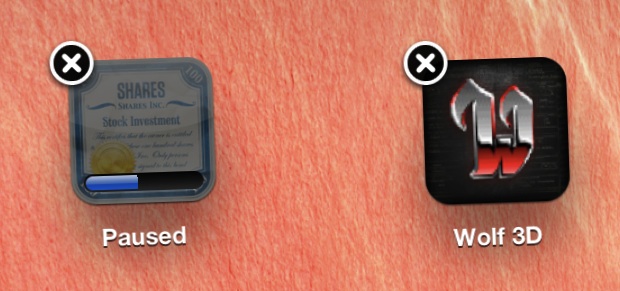
If you’ve ever started to accidentally download something on an iPhone, iPad, or iPod, or you just decide you want to stop an app download for some other reason, all you need to do is tap on the app icon and hold until the icons begin to jiggle, then tap the (X) button to stop the download and remove the app from the home screen. Similarly, if you just want to pause the download instead, just tap on the icon while the download progress bar is active, then re-tap it to begin the download again.

This does not remove the app from your purchase history though, meaning you can redownload it again at any point for free either on the same iOS device or a different one attached to the same Apple ID without purchasing again, the same way you would with an accidentally deleted app.

This is a great tip for downloading temporarily free non-universal apps for the iPhone on an iPad or vice versa, that way the app is stored within the App Store’s Purchase History but it’s not taking up any space on a device it wasn’t intended for.

App Store Not Working or Showing Updates? How to Refresh the App Stores

Apr 4, 2012 - Leave a Comment

Refresh App Store

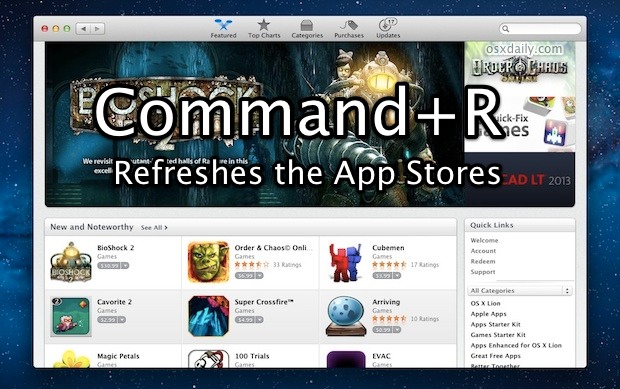
Need to refresh the App Store or iTunes Store? Hit Command+R at any screen in the iTunes, iOS, or Mac App Store, and the page will reload with whatever new data awaits, whether it’s a revised Top Charts listing or just to see the latest Featured apps. You can refresh any screen in any of the Apple iTunes or App Stores with this method,

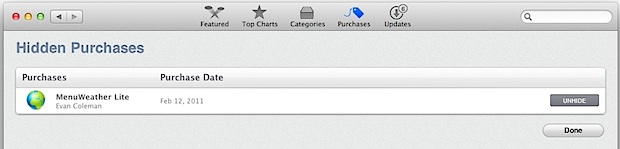
Reloading an App Store page is also an easy way to resolve quite a few common issues, like when the App Store claims to be inaccessible, new app updates aren’t displaying, or when recently purchased items are missing from the Purchased list. If something is still not appearing in the purchases list after a refresh, it could be hidden, here’s how to unhide it.

Note this is for the desktop versions of the App Store, on the iOS side you can typically just quit and relaunch iTunes or App Store to resolve any problems. If that doesn’t work, you may need to manually force quit the App Store itself or even reboot the device to fix stalled downloads and force updates to the page.

Use the App Store Without a Credit Card

Apr 2, 2012 - 11 Comments

Use App Store without credit card

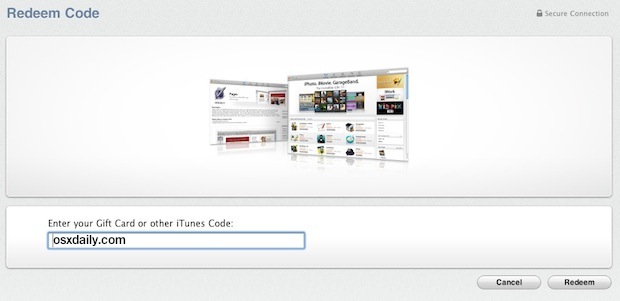
Signing up to use the App Store requires a credit card, right? Wrong. We showed you how to use iTunes without a credit card, and it turns out you can do the same thing with the iOS and Mac App Store. This is a perfect solution for setting up an iPhone, iPad, iPod, or Mac for a kid or for use in a public space, when you want to provide access to the free downloads and updates in the App Stores without the ability to make purchases through it. Even without a credit card attached to the Apple ID, you can add gift certificates and redeem codes through this account, making for an easy budgeting system should you wish to provide limited access to App Store purchases down the road.

How to Setup and Use iOS & Mac App Store With No Credit Card

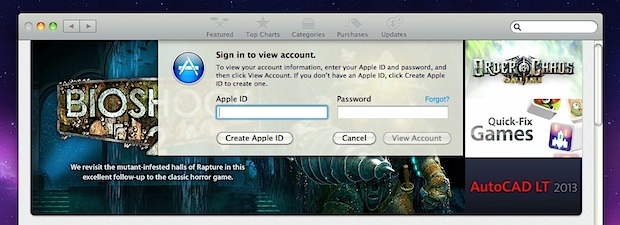
  • Open the iOS App Store or Mac App Store and click on “Account” from the right-hand side
  • If currently logged into an Apple account, click on “Sign Out” otherwise click the “Create Apple ID” button (alternatively, you can sign up on the web directly from Apple)
  • Agree to the Terms and Conditions and fill out the Apple ID creation page, set this up for a new email address than your primary app store account
  • At the “Provide a Payment Method” screen, select “None” as the payment option
  • Optionally, add a gift certificate to pad the account with an app purchase budget
  • Click “Create Apple ID” and verify the email address you provided earlier, your credit card free Mac App Store login is now active

Now log into the App Store with the newly created Apple ID and the user will be able to download any free apps or download updates to existing apps. The credit card free account can also redeem promo codes and add gift cards to their account should they need to make purchases.

How to Gift an App from iPhone, iPod touch, or iPad

Dec 21, 2011 - 12 Comments

Gift This App in iTunes App Store

Want to give someone an iOS app as a gift this holiday season? You can gift apps directly from the iPhone, iPod touch, or iPad, without ever touching a computer and without the need for purchasing an iTunes gift card. This makes for a perfect last minute Christmas shopping or birthday present, since you can literally buy someone a present on the car ride over to their house Christmas morning. Gifting apps is very simple:

Gift an iOS App from an iPhone, iPad, or iPod touch from the App Store

This process is done directly on the iOS device within the App Store, but it can be repeated in iTunes as well.

  • Launch the App Store
  • Find the app you want to gift and tap on it
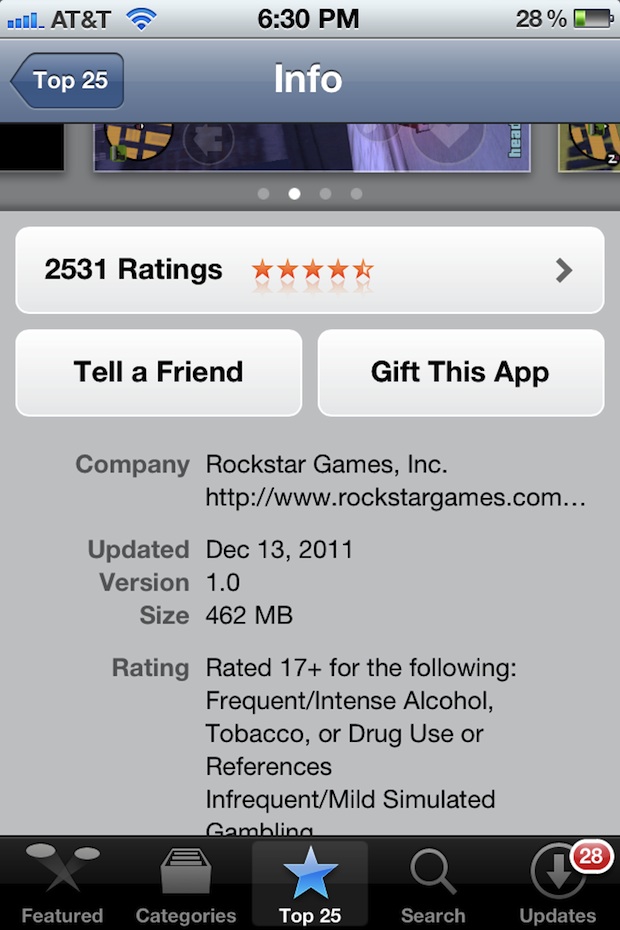
  • Scroll down below the screenshots of the app and tap on “Gift This App”, then sign into the iTunes Store
  • Tap “Next” on the app summary screen
  • Fill in your name, the recipients name, and the recipients email address, as well as a note to attach to the gifted app (note: including several recipients email addresses will buy the app for each person)
  • On the purchase summary screen, tap on “Buy Gift” in the lower right corner

The app will immediately be sent to the gift recipient, who receives an email with a link to download the iOS app to their iTunes library.

If you’d rather wrap the app as a physical gift, you can do so with iTunes by choosing to print a redeemable code instead of emailing the app. Gifted apps will appear in your purchase history, so if you or the recipient loses the redemption email, it can easily be retrieved again.

Note that you can not use redeemed credit from iTunes gift cards to purchase gifted apps, and the recipients iPhone, iPod, or iPad must be compatible with the app you are sending, which most are.

Apple Names Best Of 2011 for iTunes, Mac, and iOS App Stores

Dec 8, 2011 - 1 Comment

iOS App Store Rewind for 2011

Apple has posted their annual iTunes and App Store rewind lists for 2011, naming the best music, movies, TV shows, books, podcasts, iOS apps, and Mac apps for the year. We’ll cover the best apps for iPad, iPhone, and Mac, and you can check out the rest of the winners on the iTunes or Mac App Stores:

iTunes & iOS Apps of the Year 2011

  • iPhone App of the Year – Instagram
  • iPhone Game of the Year – Tiny Tower
  • iPad App of the Year – Snapseed
  • iPad Game of the Year – Dead Space

The App Store 2011 Rewind for iTunes can be found here and also includes the top music, movies, TV shows, books, and podcasts for 2011, in addition to showing the runners up.

Mac App Store rewind

Mac Apps of the Year 2011

  • Mac App of the Year – Pixelmator
  • Mac Game of the Year – Civilization V

The runners-up for the Mac App Store are djay and Anomaly Warzone, and the full list for the Mac can be seen here.

Quickly Search the iTunes Store & iOS App Store from Anywhere in iTunes

Nov 17, 2011 - 2 Comments

Option Return searches the iTunes Store

You can quickly search the iTunes Store and iOS App Store from anywhere within iTunes, all you have to do is hold down the Option key while hitting Return in the standard search box.

That’s really all there is to it, with Option+Return you search all purchasable content through the online stores whether its an iPhone app, movie, song, artist, anything, rather than the iTunes local media library.

Minecraft for iPhone & iPad Released

Nov 16, 2011 - 2 Comments

Minecraft for iPhone

The highly anticipated official version of Minecraft for iPhone and iPad has been released to the iOS App Store. For those who don’t know, Minecraft is a virtual sandbox building game with a focus on creating your own worlds and structures that are subject to in-game physics. Thanks to basic electrical circuits and logic gates, some extremely elaborate creations can be built in your own virtual world, it’s kind of like virtual Legos on crack, and is known to be very addictive.

Here’s the official description from the App Store:

Imagine it, build it. Create worlds on the go with Minecraft – Pocket Edition

Minecraft – Pocket Edition allows you to build on the go. Use blocks to create masterpieces as you travel, hangout with friends, sit at the park, the possibilities are endless. Move beyond the limits of your computer and play Minecraft everywhere you go.

* Randomized worlds
* Build anything you can imagine
* Build with 36 different kinds of blocks
* Invite and play with friends to your world (local wireless network)
* Save multi-player worlds on your own phone

Minecraft for iPad

There are a ton of nonsensical knock-off titles trying to capitalize on the Minecraft name on the App Store, so be sure you either click directly through a verified link or search for “Minecraft – Pocket Edition” , making sure it’s by Mojang.

Hide Purchases from the App Store in iTunes, iOS, & Mac OS X

Oct 14, 2011 - 9 Comments

App Store New to Mac OS X 10.7.2 and iOS 5 is the ability to hide purchases from appearing in the Mac App Store, iOS App Store, and the iTunes Store purchased items lists. This is great if you download tons of stuff but use only a fraction of apps, and you don’t want the other items clogging up your purchase history. It’s also really easy to unhide purchases from all the online stores, and we’ll cover that too.

Hide Purchases from the iOS, Mac, & iTunes Stores

Hide a Purchase in iOS:

  • Swipe over any app to reveal the “Hide” button

Hide App Purchases in iOS

Hide a Purchase in iTunes App Store or Mac App Store

  • Click on the “Purchases” tab, hover over any purchased item and click on the (X)

Hide Mac App Store purchases

Of course hiding the purchases is only useful if you can see them again if you need to. That’s just as easy, and regardless of iOS or Mac OS X it’s done through the account settings of iCloud:
Read more »

Access and Download iOS Apps from the US App Store Outside of the USA

Aug 22, 2011 - 16 Comments

Access and download USA App Store apps from outside the US

A common complaint about free app giveaways is that they’re often constrained to the USA based iOS App Store, in other words if you’re outside of the US you don’t get in on deals like the recent Rage HD giveaway and the ongoing myriad of other free app offers. This is a bummer for anyone outside of the USA, but thankfully, it’s somewhat easy to alleviate.

How to Access and Download US-based iOS App Store Offers from Outside the USA

The core solution here is to just create an alternate iTunes account that is based in the USA. If you’re going to follow this solution and juggle multiple iTunes accounts, this menubar utility makes switching between them easy and is highly recommended.

Before you get started, you’ll need two things:

  • Register another free email account, Gmail is free, quick, and easy
  • Any valid US address – use your cousins, uncles, Apple’s, Google’s, etc

Got that? Let’s get started.

  • Open the App Store from an iPhone or iPad, and from the “Featured” section scroll down to the bottom and select “Sign Out”
  • Now while signed out, locate a free app to download in the App Store, anything in the ‘free download’ section should work
  • Try and download the free app, and then select “Create Apple ID” when asked
  • Follow the instructions to create a secondary iTunes account, be sure to select United States as the country
  • At the credit card and payments screen, select “None” and continue – if you have any problem with this step read our guide on how to create an iTunes account without a credit card
  • After you have registered the US iTunes account, verify and activate the account by checking your freshly created email account from the first step

Now you should have complete access to the US iTunes and App Store, which lets you download any of the free apps only available to US-based users. Yes, this technique should also work for the Mac App Store.

Additionally, if you want to access paid US App Store downloads, you can always buy a iTunes gift card and redeem the code on the credit-card free iTunes account to have a balance that is then able to purchase apps as usual.

Get Free Weekly iPhone Apps at Starbucks

Aug 16, 2011 - 6 Comments

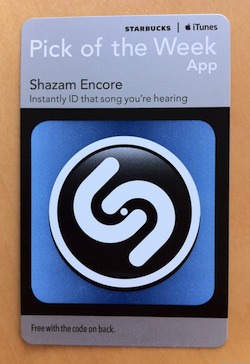
Free iPhone apps from Starbucks Apple and Starbucks have partnered up to offer free weekly iPhone app downloads to patrons of Starbucks stores. The free apps come in the form of a promo code printed on cards available at the register, those promo codes can be redeemed on the iOS App store.

The first free app offered through the new “App Pick of the Week” program is Shazaam Encore, a $5.99 iOS app that lets you determine what song is playing by listening to the music and identifying the song name.

Offering free apps in the “Pick of the Week” program looks to be an expansion of the existing free weekly iTunes song offered by Apple and Starbucks, which are also available via redemption code cards. The free app program was first discovered by CNET, who points out that Apple and Starbucks have had a partnership since 2007 for offering free music downloads.

Earlier in the year, Starbucks also released an iPhone app that lets you make coffee purchases through an iPhone, in addition to tracking customer rewards and purchase history.