
Add Full Screen Widgets on iPhone with iOS 27
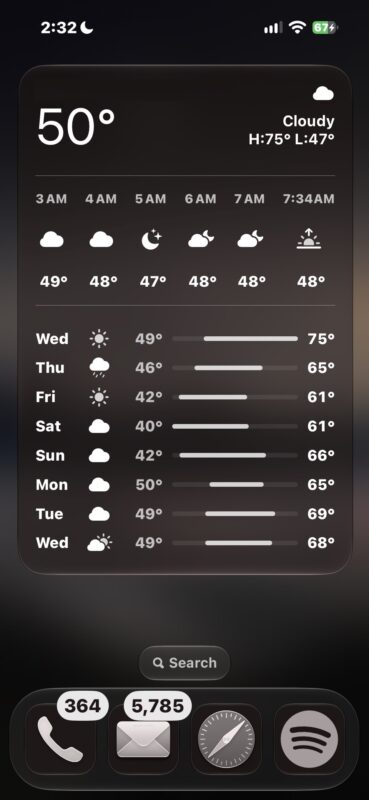
One of the more compelling new subtler features introduced iOS 27 pertains to the ability to use full screen Widgets on iPhone. Full screen widgets can effectively turn a Home Screen page into a full mini-app of whatever the full screen widget is.
For example, you can have the full screen Weather widget, which shows a full longterm forecast and weather conditions right on the iPhone Home Screen, without having to open the Weather app. Or another popular example, is to use the full screen Photos widget, which lets you have a full Home Screen page dedicated to the photos widget and showing photos you might enjoy.
Full screen widgets are compelling for iPhone, here’s how to add one on your Home Screen.
How to Add & Use Full Screen Widgets on iPhone
Your iPhone must have iOS 27 or later to have full screen widgets available:
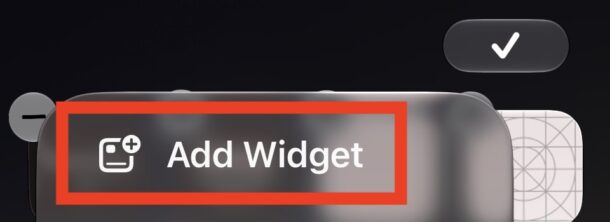
- Long tap anywhere on the iPhone Home Screen so icons start jiggling, then tap on the edit/paintbrush/add button in the corner and choose “Add Widget”
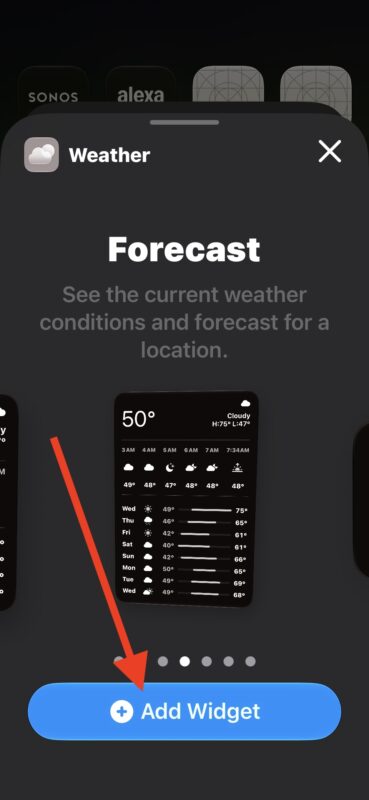
- Find a widget that is compatible with full screen widgets, for example Weather or Photos, and swipe through the widget carousel to the full screen version and tap on “Add Widget”
- The full screen widget will now take up an entire Home Screen page on your iPhone, when satisfied with where the Widget is located in your Home Screen carousel tap on the check/done button to set the widget
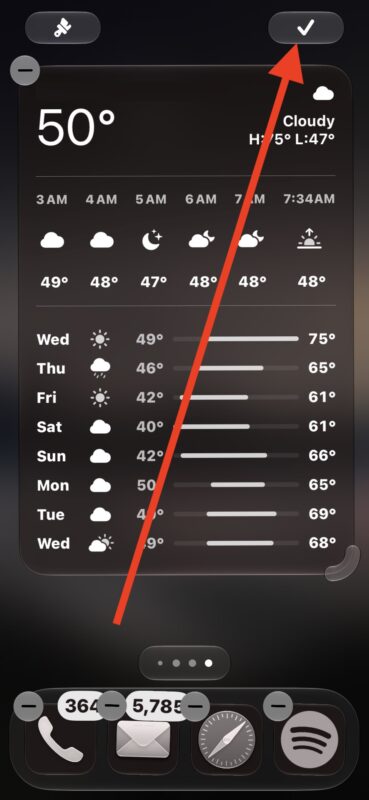
Now the full screen widget is in place, and if you swipe through your Home Screens on iPhone you will find the full screen weather widget, or whatever full screen widget you chose.
Quite a few of the default Apple apps have associated full screen widget support, including Calendar, Weather, Music, Photos, Notes, Reminders, and Home. You can even make a Widget Stack of full screen widgets if you’d like.
As usual, if you tap on the widget, the associated app will open.
Full screen widgets aren’t necessarily a revolutionary feature but they are convenient and worth exploring, so try them out on your iPhone and see how you like it.





