
How to Boot in Safe Mode on MacBook Air, Neo, & Pro (Apple Silicon)
You may find yourself in a situation when you need to boot into Safe Mode while troubleshooting a MacBook Air, MacBook Neo, or MacBook Pro.
Safe Mode boots a Mac without loading third party login items, system extensions, and non-system fonts. Additionally, Safe Mode runs a disk check to verify the startup disk, clears system caches, and prevents third party drivers from loading, helping to narrow down potential issues, and sometimes even resolve them through the safe mode boot itself.
If you’re unfamiliar with booting into Safe Mode on modern Apple Silicon equipped MacBook laptops, including the Air, Neo, and Pro, it’s a pretty easy process that is the same on all Apple Silicon Macs, including M1, M2, M3, M4, M5, M6, A18 chips.
How to Boot in Safe Mode on MacBook Air, Pro, Neo
- If the Mac is currently turned on, you need to turn it off by going go the Apple menu and selecting “Shut Down”
- When the Mac is off, now press and hold the Power button / Touch ID button, and continue holding the Power/Touch ID button until you see “Loading startup options”
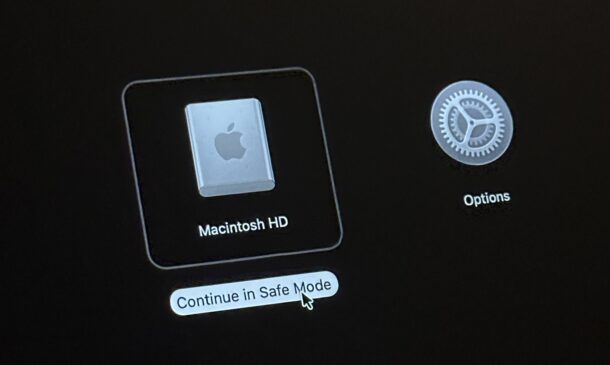
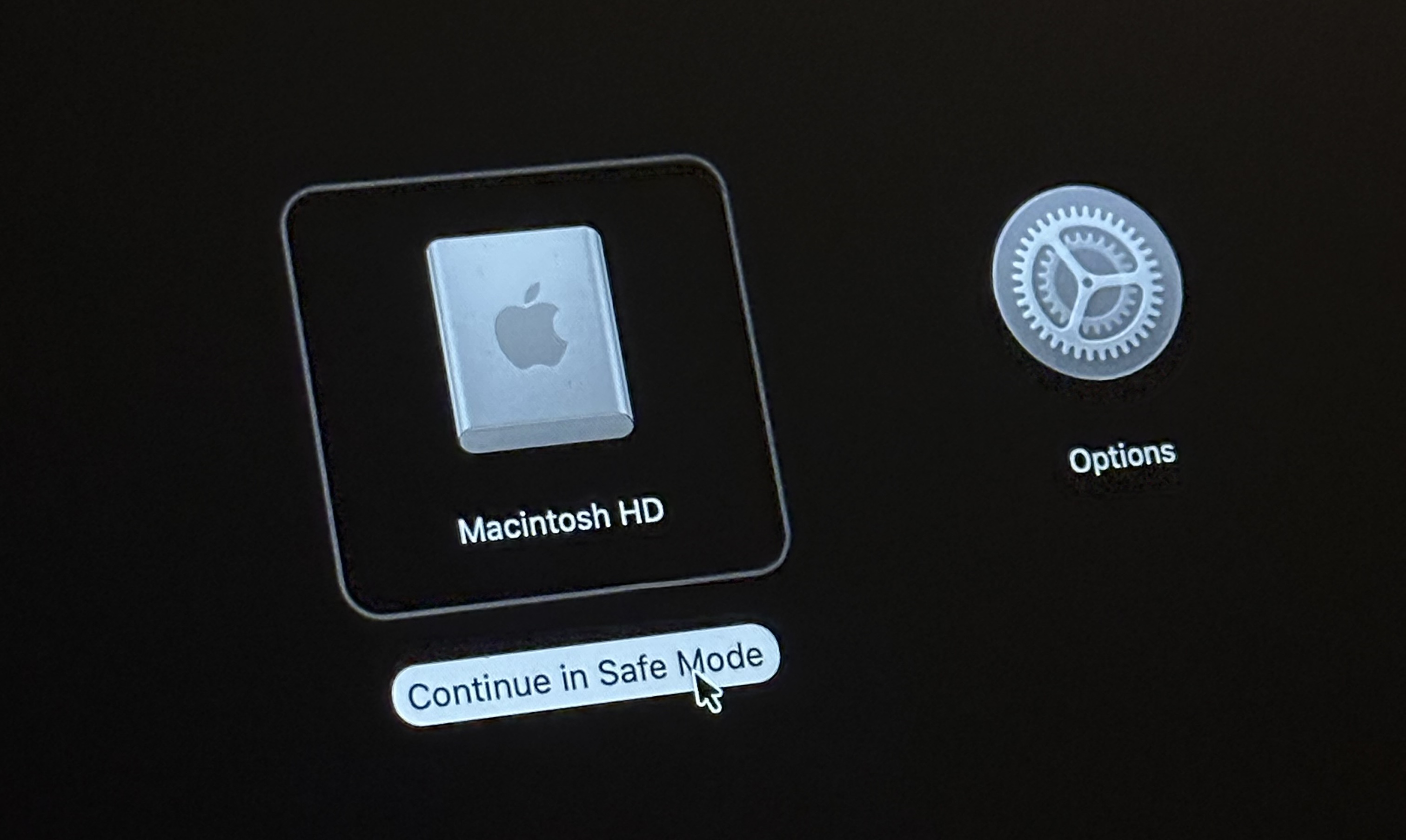
- At the startup disk screen, now hold down the SHIFT key and click on “Continue in Safe Mode” and select “Macintosh HD” (or your boot disk)
- Once Safe Mode has started booting, you can release Shift key
The Mac will now be in Safe Mode, where you can perform whatever troubleshooting tasks you had in mind.
As mentioned before, simply booting into Safe Mode can sometimes remedy an issue if it’s related to a cache or third party extension or tool. If the problem is absent in Safe Mode but you boot normally again and the problem returns, that suggests the issue is related to some third party extension, tool, login item, or otherwise.
And sometimes problems persist in Safe Mode too, which usually suggests a system level problem. I ran into that recently when troubleshooting ‘dasd’ process 100% CPU usage over several days, even in safe mode, and eventually resolved that issue by removing a corrupt system database.
Exiting Safe Mode and Booting Normally Again
- Simply restart the Mac as usual to boot the Mac as normal, from the Apple menu choose “Restart”
This process obviously covers Apple Silicon Mac laptops with Touch ID and the power button, but if you have an older Intel Mac you can use Safe Mode on those Macs too by simply holding Shift key during the entire boot process, arguably a bit easier.





