
How to Use Siri & Visual Intelligence on Anything in MacOS 27 with a Keystroke
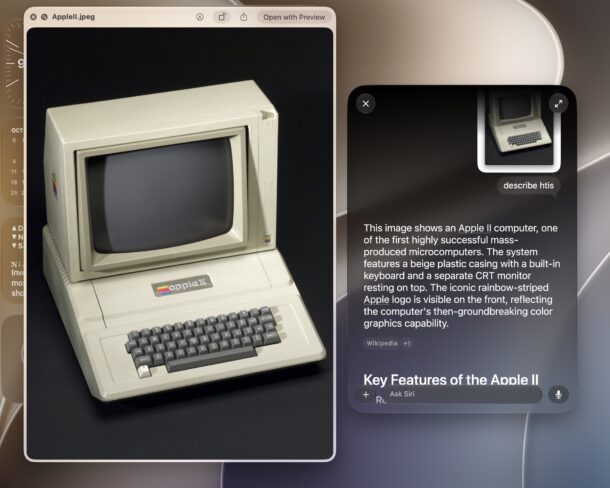
Visual Intelligence offers a set of AI features that can be used to identify objects and items in photos or things on screen, and a neat new feature available in MacOS 27 Golden Gate allows you to interact with Siri and Visual Intelligence from just about anywhere on your Mac. You can use this to help identify things in pictures, understand a document, or even to learn what a particular file or app is for if you aren’t sure.
This this feature is available in MacOS 27 or later, meaning it obviously requires MacOS 27 Golden Gate or newer to have access to this particular Siri + Visual Intelligence feature.
How to Use Visual Intelligence & Ask Siri for Any Item on Mac Screen
This trick is two parts and remarkably simple; have the item or image you are curious about as your active window on the Mac, then hit the appropriate keyboard shortcut to access Visual Intelligence to query about the active window:
- Shift + Command + Spacebar to open Ask Siri AI with Visual Intelligence for the active window, then type your query and hit return
This brings up a little “Ask Siri” query that you can then type your question or request into:
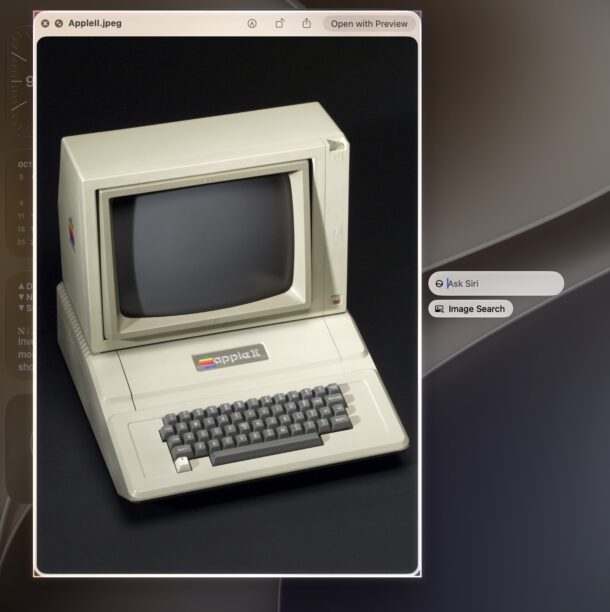
For example, if you have a photo of a plant open on your Mac, hit Shift+Command+Spacebar, then type something like “what type of plant is this”, and Siri and Visual Intelligence will report back to describe and label the plant.
Or, as the screenshot examples here show, you can also have something visible on screen, and then hit Command+Shift+Spacebar and simply ask “describe this” and Siri AI Visual Intelligence will then identify and describe what the image is of.
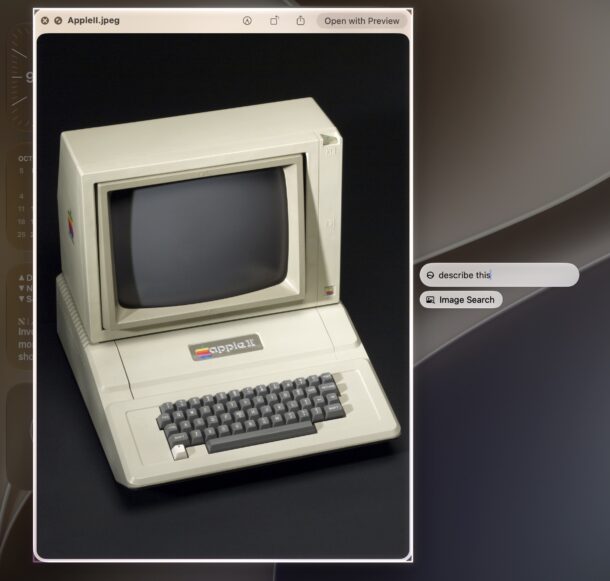
In the photo examples here, you’ll see it’s a picture of an Apple II that Siri AI and Visual Intelligence accurately recognizes and then provides information about.
Another example that is quite handy; have Finder open to a random file, app, or system component that you are unsure? Hit Command+Shift+Spacebar and ask “what is this”. In the screenshot example here, we are using this tool to accurately identify a system daemon found within a system folder of MacOS.
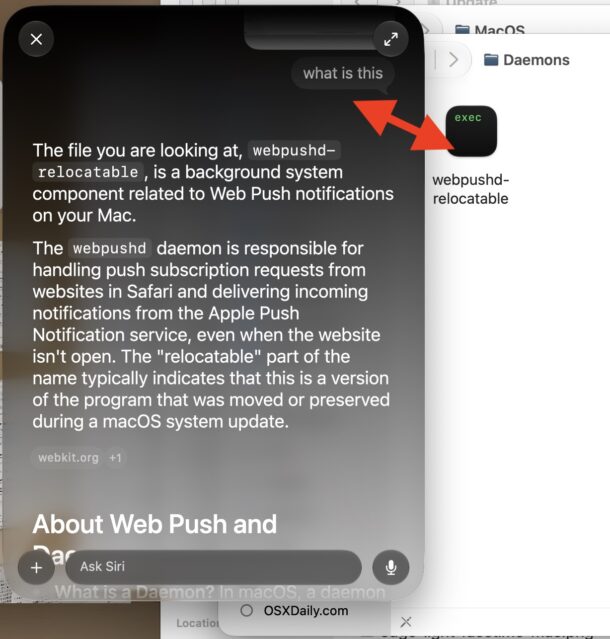
This has many uses, and is really quite useful. In every test example I gave Siri AI and Apple Intelligence, it was able to accurately describe what it was provided, and to give useful and accurate information about various files, photos, webpages, and other items.
This “Ask Siri” keyboard shortcut can be accessed anywhere on the Mac, and generally behaves similar to the Write with Siri floating button that appears in text-entry boxes in the latest MacOS versions.
For what it’s worth, you can also use the “Ask ChatGPT” feature of Spotlight to perform similar functionality, if you provide it with an image.
Give this feature a try, you might be surprised at how capable it is, and how useful it can be!





