
How to Set WhatsApp as Default Messaging App on iPhone & iPad
The latest versions of system software for iPhone and iPad allow you to set WhatsApp as the default messaging app, which can be very handy for many users who rely on WhatsApp as their primary communications method. Whether you’re using WhatsApp as your primary messaging app, or just while traveling abroad, here’s how you can change the default messenger client from Messages to WhatsApp on iPhone and iPad.
Requirements are pretty basic for this. You will obviously need WhatsApp already installed and setup on your iPhone or iPad to be able to select it as your messaging app. You will also need a modern version of iOS/iPadOS system software, from 26.0 and later.
How to Make WhatsApp the Default Messaging App on iPhone & iPad
Assuming you’re on a compatible iOS/iPadOS verson and you have WhatsApp already installed on your device, here’s how to use it as the default messager:
- Go to “Settings” on iPhone or ipad
- Scroll down and choose “Apps”
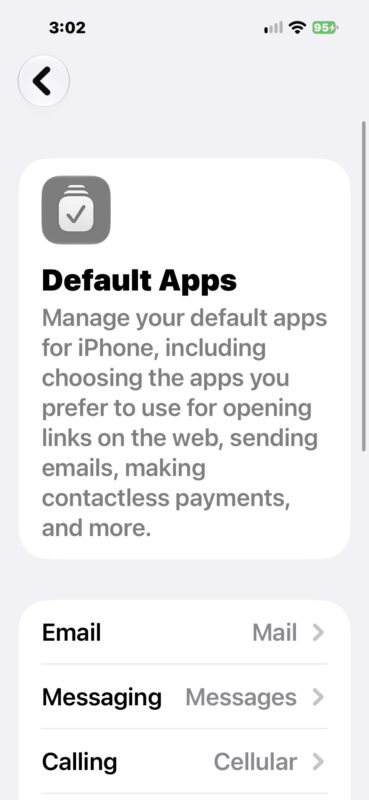
- At the top of the Apps screen tap on “Default Apps”
- Tap on “Messaging”
- Select “WhatsApp” as the default messaging app
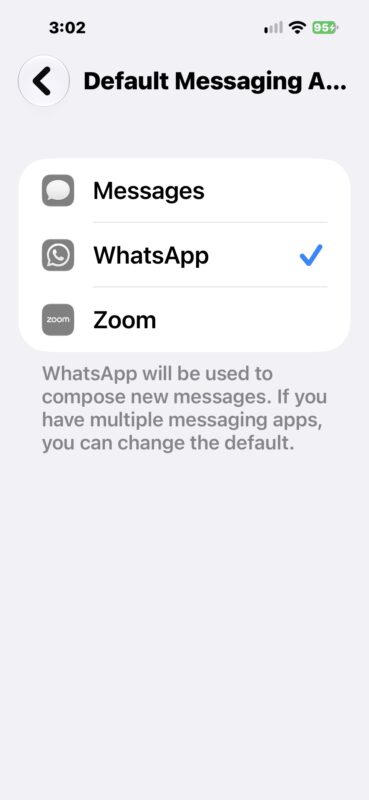
Now anytime you go to send a message from another app, share something, or any other task that involves opening the default messaging app, WhatsApp will now open instead of Messages.

Messages and iMessages is wildly popular and super convenient, and there’s no denying that. But with that said, WhatsApp is incredibly popular as well, especially abroad, and so whether you are traveling, visiting relatives, living abroad, or just find yourself using WhatsApp most often, setting WhatsApp as the default messager can be a powerful choice.
If you don’t use WhatsApp all the time, you probably do not want to make this change, and it is best to avoid messing with default settings like this.
Check out more WhatsApp tips here if you’d like.